Using your XMp3 Radio
Highlight and select 3 Favorite Channels.
You should see a list of your favorite channels. Turn the wheel to highlight 4
the desired channel then press the XM button to select it.
To remove a channel from your “Favorites” list:
Tune to that channel.1
Select 2 options → Remove Favorite.
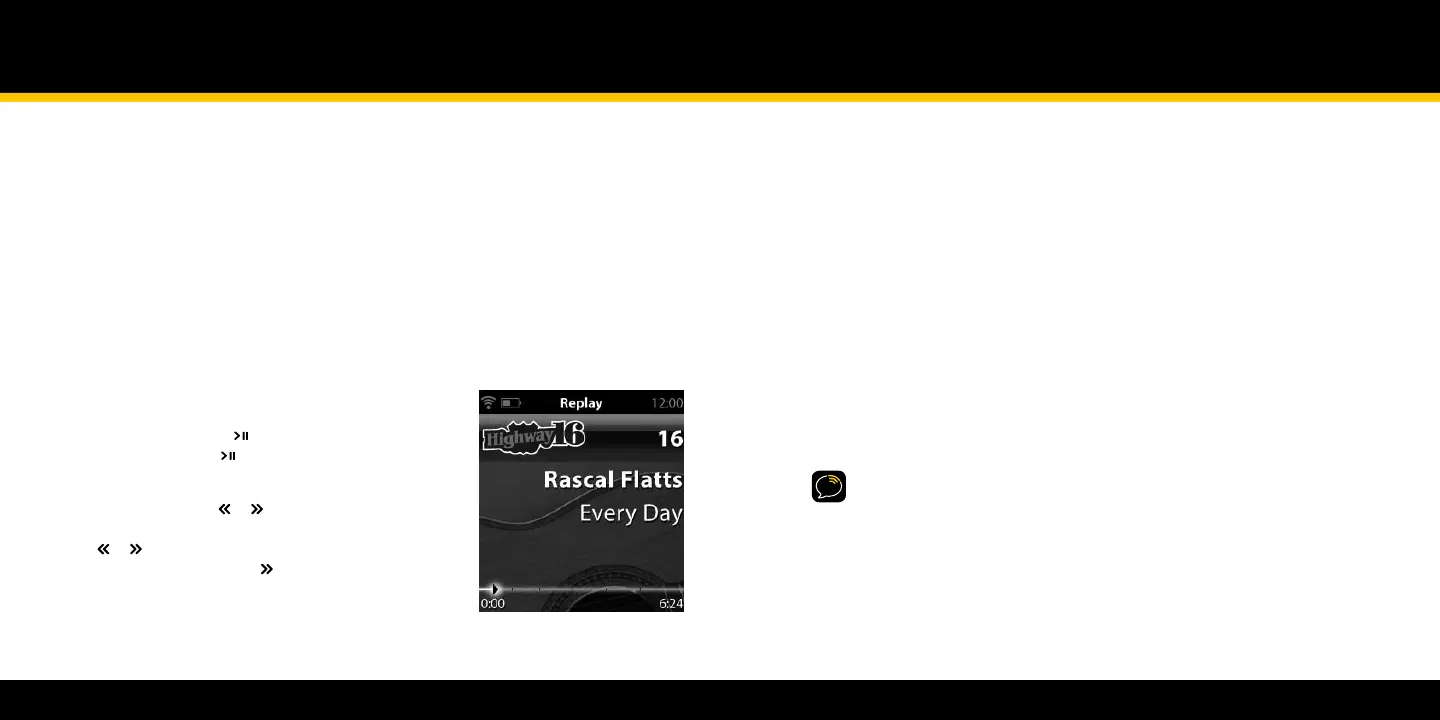
Pause and Replay
Need to take a phone call or step away for a few minutes? Now
you can, and you won’t have to miss a second of live XM –
simply pause by pressing the button and you can walk away
up to 30 minutes. Press the button to resume playing.
Turn the wheel to see a list of songs that you missed, from
newest to oldest. Press the or buttons to skip to the
previous or next song in the list. You can also press and
hold the or buttons to rewind or fast-forward through
individual songs. Press and hold to return to live XM.
You won’t be able to record a song that is paused or being
replayed. Your scheduled recording and auto-recording
sessions take place as normal.
Recording XM
Your XMp3 radio gives you more ways to record up to 100 hours of of your favorite XM content.
Push a button to immediately record the song or channel that you’re currently listening to.
Or schedule a recording session by setting the date, time, and channel. You can also schedule
recording sessions using the XM2go Music Manager application. Lastly, your XMp3 radio
automatically records content from the channels you listen to the most – so you’ll always have
something to hear.
To record a song or channel immediately:
While listening to a song press the 1 rec button, which is the bottom portion
of the wheel.
Select 2 Record song (which records just that one song) or Record
channel (which records the channel up to 6 hours, or until you tell it to
stop).
TIP! Try pressing and holding the rec button. This records a single
song immediately.
To schedule a recording session for the future:
Select 1 rec → Schedule Recording or Menu → Live XM → Schedule
Recording.
Use the wheel and 2 XM button to enter the date, start time, end time,
and channel.


 To Next Page
 Loading...