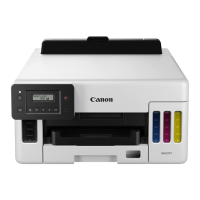
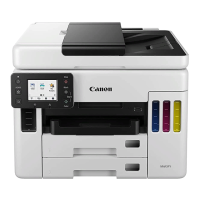
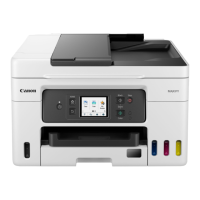
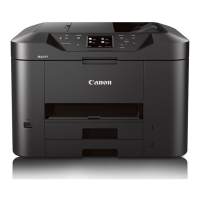
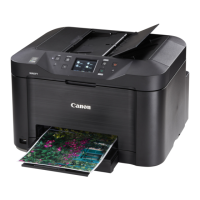
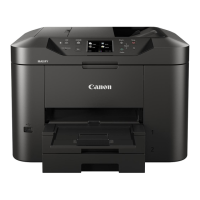
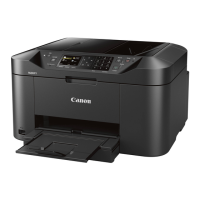
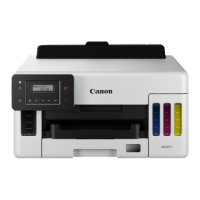
LCD and Operation Panel
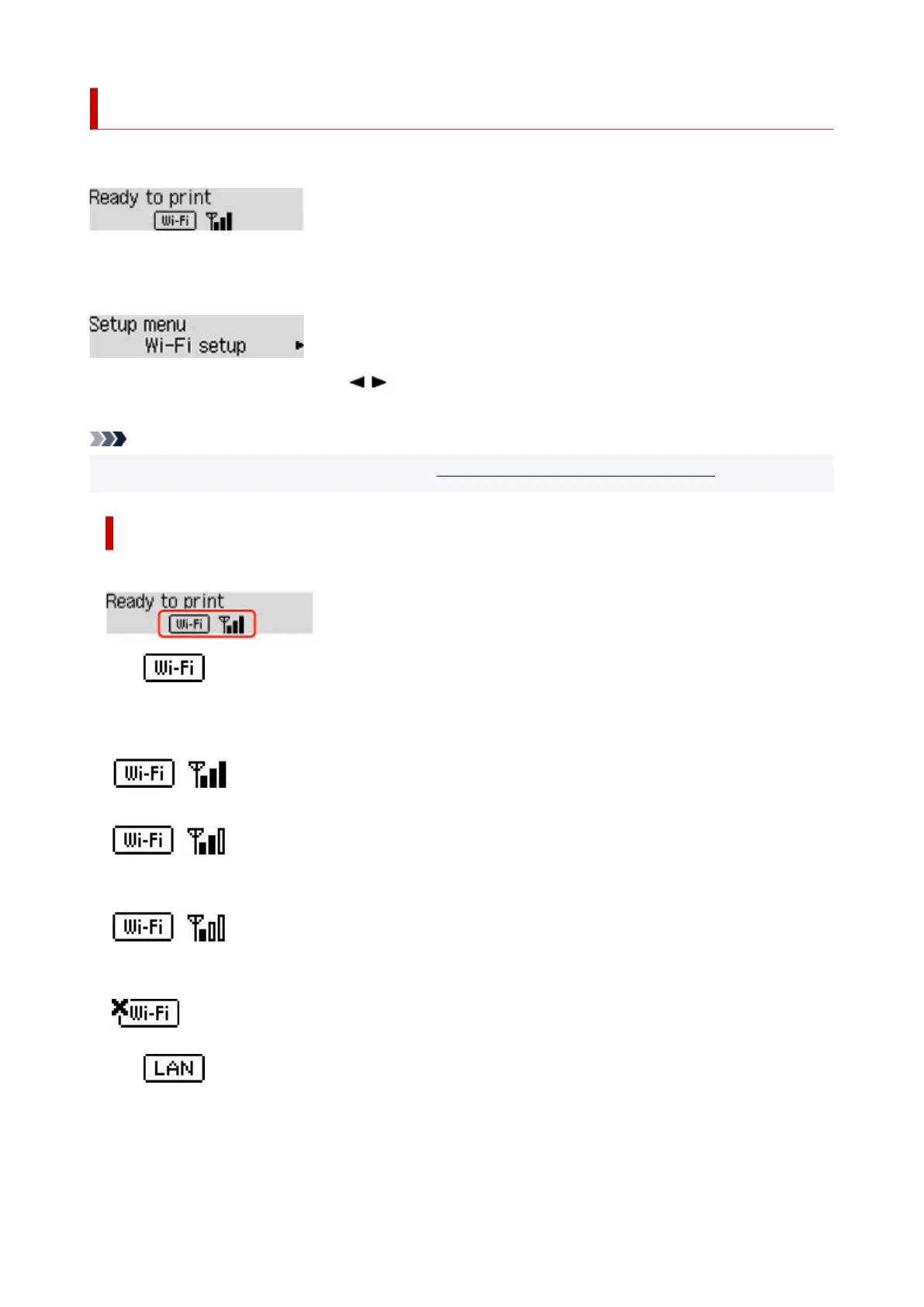
The standby screen appears when the printer is turned on.
When the Setup button is pressed, the display switches to setup menu screen.
Setup
In a menu or settings screen, use the button to select an item or option, and then press the OK button
to proceed with the procedure.
Note
• For details on how to change settings, refer to Changing Settings from Operation Panel.•
Network Status Indication
Wi-Fi setting and the network status indicate by the icon in the standby screen.
If the icon appears on the standby screen, it indicates that Wi-Fi is enabled and the printer is
connected to the wireless router.
Depending on the signal state, the icon will change.
Signal strength: 81 % or more
You can use the printer over Wi-Fi without any problems.
Signal strength: 51 % or more
The problem such as the printer cannot print may occur according to the network status. We
recommend placing the printer near the wireless router.
Signal strength: 50 % or less
The problem such as the printer cannot print may occur. Place the printer near the wireless
router.
Wi-Fi is enabled but the printer is not connected to the wireless router.
If the icon appears on the LCD, it indicates that the wired LAN is enabled.
167


 To Next Page
 Loading...