16
Windows
[Image Viewer] Window
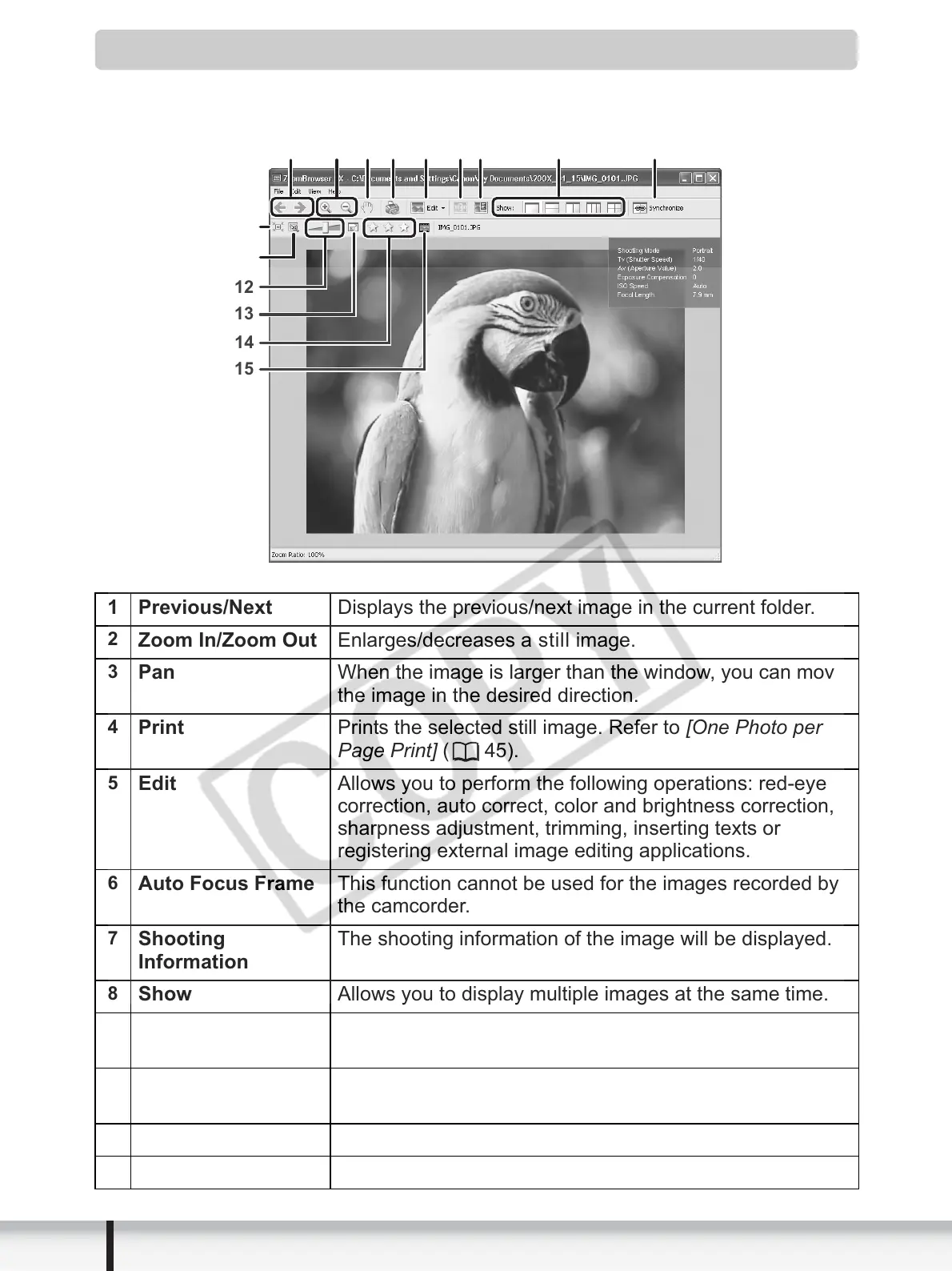
The [Image Viewer] window appears when you select an image and click [View
Image] or double-click an image.
1 Previous/Next Displays the previous/next image in the current folder.
2
Zoom In/Zoom Out Enlarges/decreases a still image.
3
Pan When the image is larger than the window, you can move
the image in the desired direction.
4
Print Prints the selected still image. Refer to [One Photo per
Page Print] (45).
5
Edit Allows you to perform the following operations: red-eye
correction, auto correct, color and brightness correction,
sharpness adjustment, trimming, inserting texts or
registering external image editing applications.
6
Auto Focus Frame This function cannot be used for the images recorded by
the camcorder.
7
Shooting
Information
The shooting information of the image will be displayed.
8
Show Allows you to display multiple images at the same time.
9
Synchronize Synchronizes the View functions across all displayed
images.
10
Fit to Window Matches the image size to the size of the Image Viewer
Window.
11
Restore Restores the standard display size.
12
Zoom Slider Allows you to enlarge/decrease the displayed image.
13
15
12
11
10
14
1
3
8
5 6 7 94
2



 To Next Page
 Loading...