Steps
1. Connect the USB cable to the connector on the system board and close the latch.
2. Align and adhere the USB cable on the palmrest assembly.
3. Connect the USB cable to the connector on the I/O board and close the latch.
Next steps
1. Install the WWAN card for 4G LTE enabled systems.
2. Install the hard-disk drive.
3. Install the battery.
4. Install the base cover.
5. Install the SIM card tray for 4G LTE enabled systems.
6. Install the microSD-card.
7. Follow the procedure in after working inside your computer.
Ethernet port
Removing the ethernet port
Prerequisites
1. Follow the procedure in before working inside your computer.
2. Remove the microSD-card.
3. Remove the SIM card tray for 4G LTE enabled systems.
4. Enter the service mode.
5. Remove the base cover.
About this task
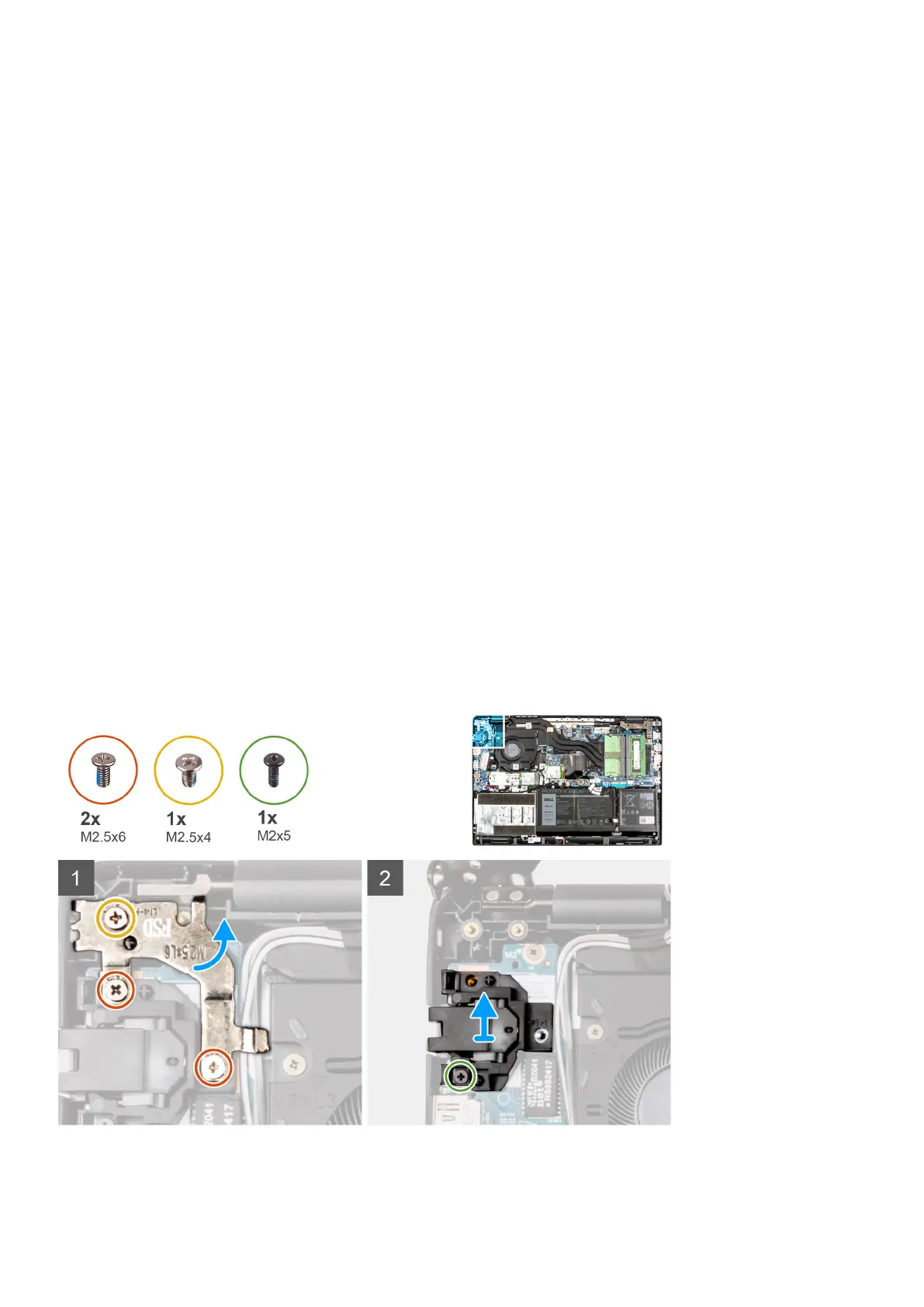
The following image indicates the location of the ethernet port and provides a visual representation of the removal procedure.
68
Removing and installing components


 To Next Page
 Loading...