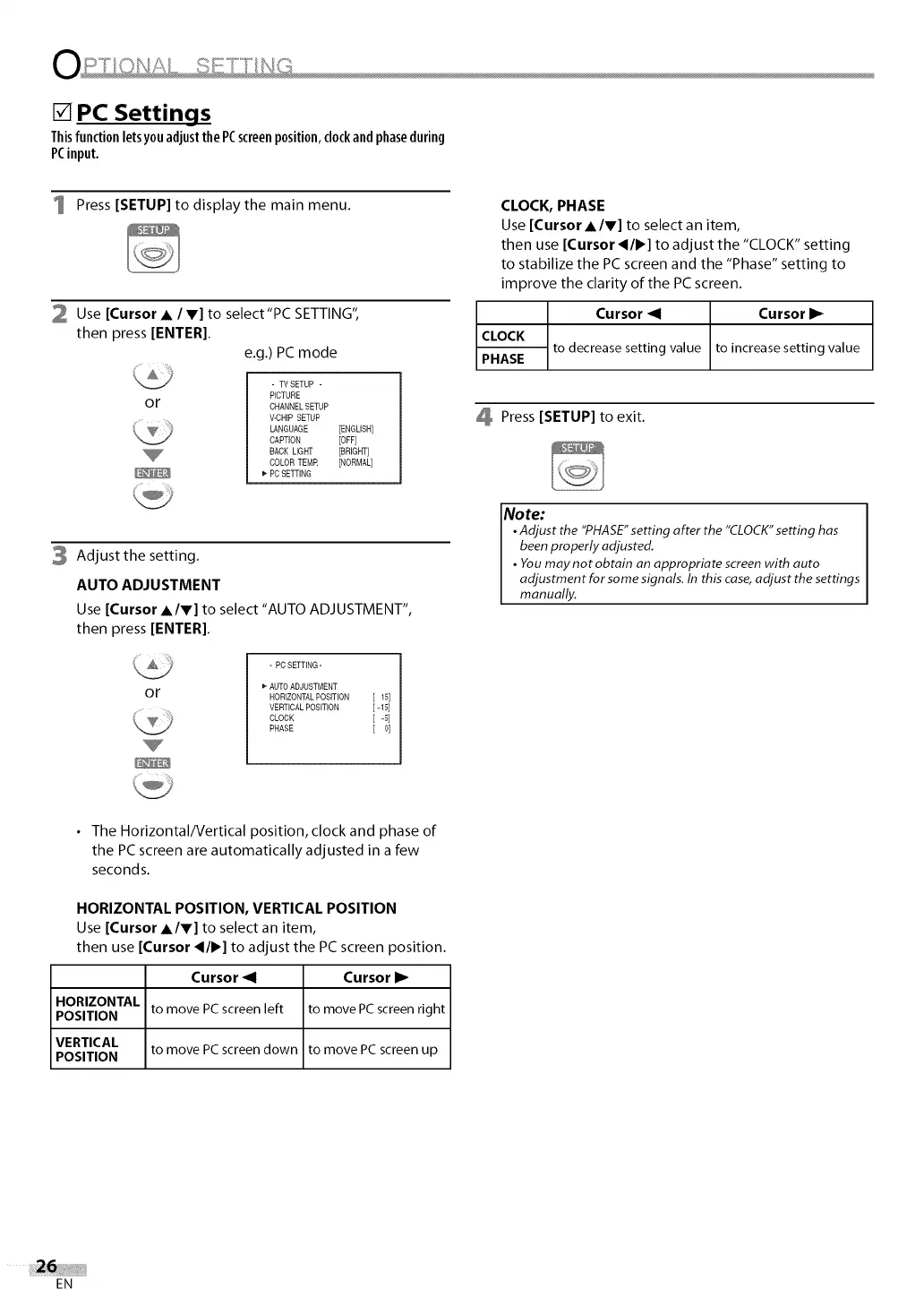
[] PC Settings
Thisfunctionletsyouadjustthe PCscreenposition,clockandphaseduring
PCinput.
1 Press [SETUP] to display the main menu.
2 Use [Cursor • / V] to select"PC SETTING",
then press [ENTER].
e.g.) PC mode
or
- TVSETUP -
PICTURE
CHANNEL SETUP
V-CHIP SETUP
LANGUAGE [ENGLISH]
CAPTION [OFF]
BACK LIGHT [BRIGHT]
COLOR TEMR [NORMAL]
PCSETTING
3 Adjust the setting.
AUTO ADJUSTMENT
Use [Cursor •IV] to select "AUTOADJUSTMENT",
then press [ENTER].
or
- PCSETTING-
AUTO ADJUSTMENT
HORIZONTALPOSITION [ 15]
VERTICALPOSITION [-15]
CLOCK [ -5]
PHASE [ 0]
CLOCK, PHASE
Use [Cursor •IV] to select an item,
then use [Cursor _/1_] to adjust the "CLOCK" setting
to stabilize the PC screen and the "Phase" setting to
improve the clarity of the PC screen.
Cursor _1 Cursor I_
CLOCK
to decrease setting value to increase setting value
PHASE
Press [SETUP] to exit.
Note:
•Adjust the "PHASE"setting after the "CLOCK"setting has
been properly adjusted,
• You may not obtain an appropriate screenwith auto
adjustment for some signals, In this case,adjust the settings
manually,
• The Horizontal/Vertical position, clock and phase of
the PCscreen are automatically adjusted in a few
seconds.
HORIZONTAL POSITION, VERTICAL POSITION
Use [Cursor •IV] to select an item,
then use Cursor _/1_] to adjust the PC screen position.
HORIZONTAL
POSITION
VERTICAL
POSITION
Cursor _1 Cursor I_
to move PC screen left to move PCscreen right
to move PC screen down to move PC screen up
EN


 To Next Page
 Loading...