5
Reviewing an Image Right After Shooting
After a shot is taken, the image appears in the LCD monitor for
approximately 2 seconds.
To override this time limit and continue displaying the image, use one of
the following methods:
z
Keep the shutter button fully depressed after taking the shot.
z
Press the FUNC./SET or DISP. button while the image is displayed in the
LCD monitor.*
Press the shutter button halfway again to stop displaying it.
* This operation is not available in the Stitch Assist mode (p. 6).
Basic Shooting Functions
Selecting a Shooting Mode
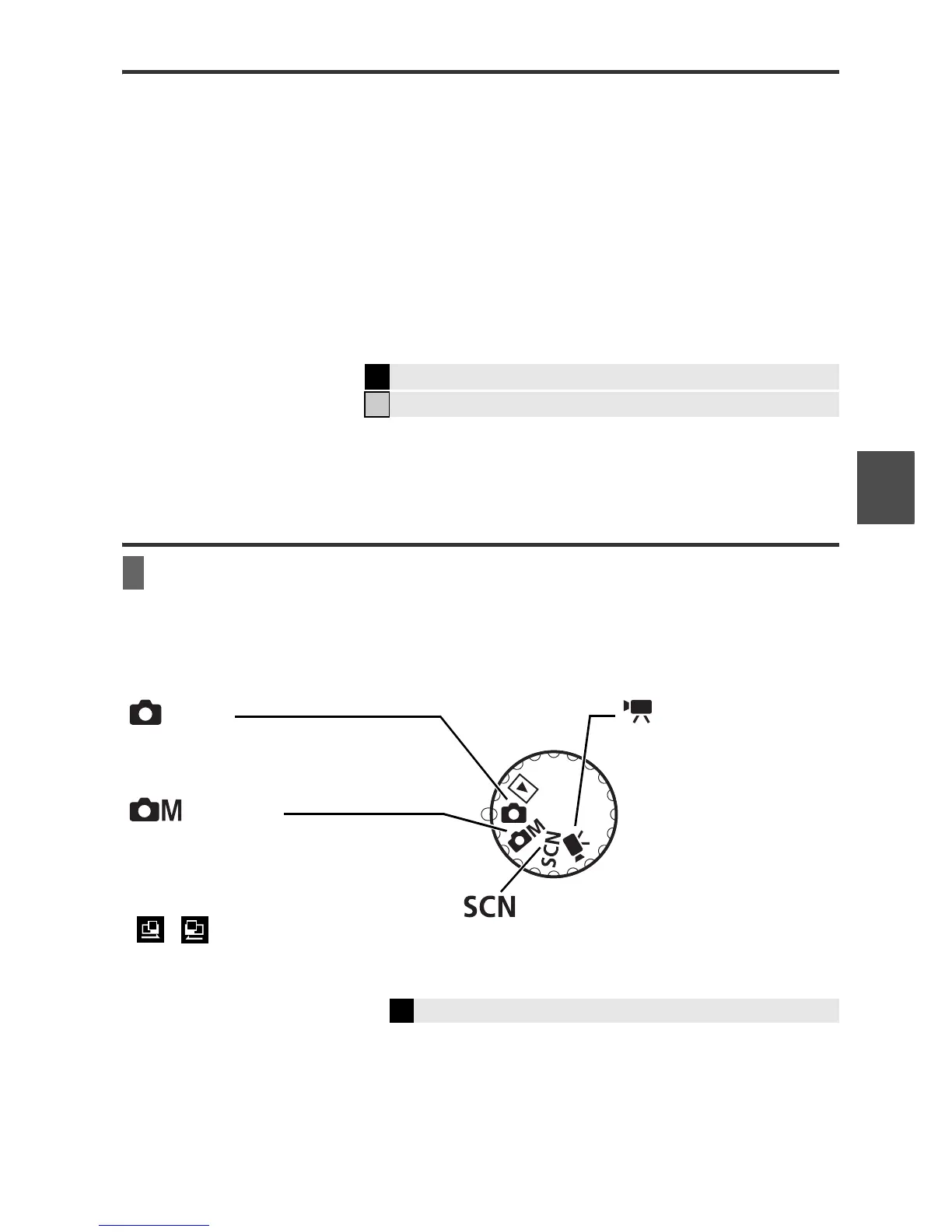
Use the mode dial and menu to select the Shooting modes.
Mode Dial
Î
See the Advanced Guide: Changing the Review Duration (p. 24)
Î
See Erasing (p. 10)
Î
See the Advanced Guide: Movie Shooting (p. 37)
AUTO
The camera automatically selects
settings.
MANUAL
6 modes are available with this camera.
You can manually adjust the exposure,
white balance, My Colors, shooting
panorama composition images
( , ) and other settings before
shooting.
SPECIAL SCENE
8 scene modes to shoot with the most
appropriate settings for the scene are available
with this camera.
MOVIE
Modes for shooting movies
are available with this
camera.
Shooting


 To Next Page
 Loading...