42
Selecting the Paper Settings
1
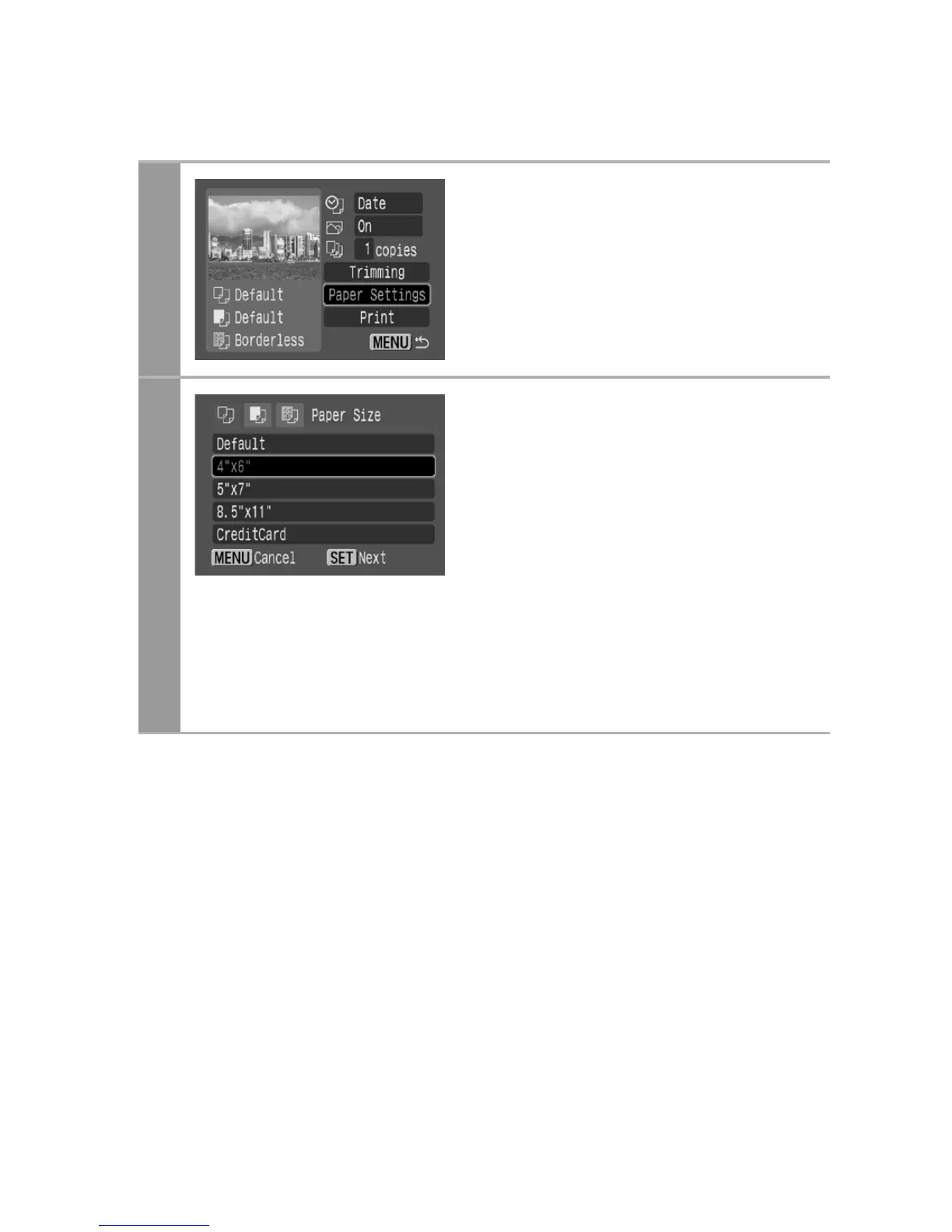
Select [Paper Settings] and
press the SET button.
The paper size setting screen
appears.
2
Select a paper size and press
the SET button.
The following paper sizes* are
available: 4" × 6", 5" × 7",
13 × 18 cm, 8.5" × 11", A4,
CreditCard, 8" × 10", A3, A3+/
13" × 19" and Default.
• Some sizes are not available
with certain cameras and
printer models.
The paper type setting screen
appears.
* Paper sizes vary according to region.


 To Next Page
 Loading...