1. OPERATIONAL OVERVIEW
1-11
The next menu layer appears. Menu items with arrows, as shown in the above ex-
ample figure, have their own menu layer. You can select these items to show the
respective menu.
3. Roll the scrollwheel to select a menu item, then left-click. You can also select a
menu item by pressing the corresponding numeric key.
When required, repeat this step to access the next menu.
In the example, [1 ECHO] is selected, which opens the [ECHO (1/2)] menu. Next,
[2 CUSTOMIZED ECHO] is selected, which opens the [CUSTOMIZED ECHO (1/
2)] menu. Finally, [3 ECHO STRETCH] is selected, in order to change settings.
Menus such as the [ECHO] menu and [CUSTOMIZED ECHO] menu have more
than one page. In this case, the currently displayed page is indicated in brackets
to the right of the menu title.
To view the next page of a menu, select [0 NEXT].
To go back one layer (or page) in the menu, left-click [1 BACK], or right-click.
4. Roll the scrollwheel to select the desired setting, then left-click. The selected set-
tings is highlighted and displayed in reverse video.
In the above example, the selected setting at [3 ECHO STRETCH] is [1].
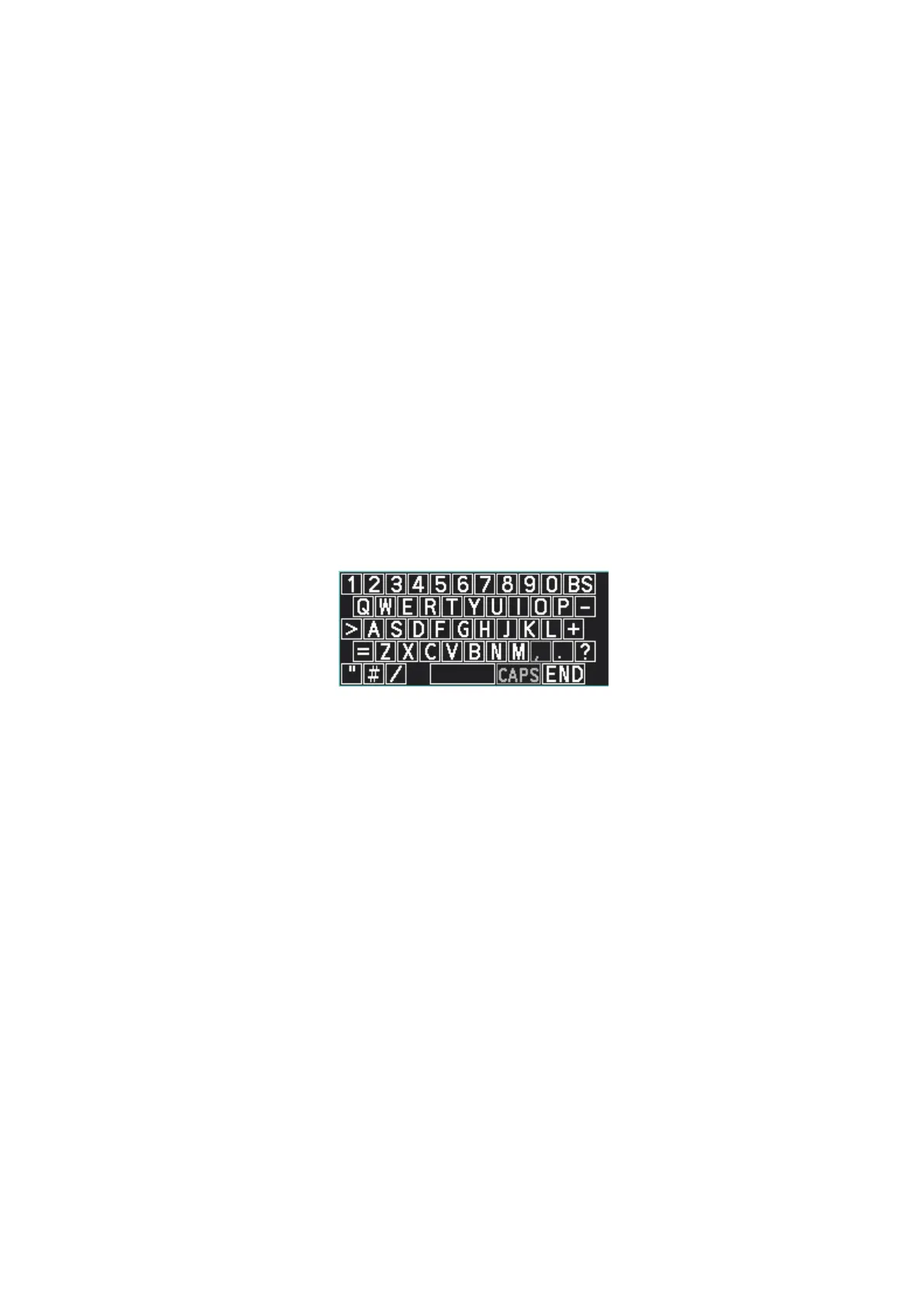
Note 1: For some menu items, the software keyboard, shown in the figure below,
is displayed at the bottom of the menu. Select the number/character desired with
the cursor, then left-click. When you finish entering the desired numbers/charac-
ters, left-click the [END] button on the software keyboard.
Note 2: Unless otherwise stated, operations in this manual use the scrollwheel for
procedures which require menu selection, or settings changed.
5. Close the menu.


 To Next Page
 Loading...