English
55
English
LAN Control
How to use web browser to control
your projector
Connecting to the projector
1. Check IP address of the projector
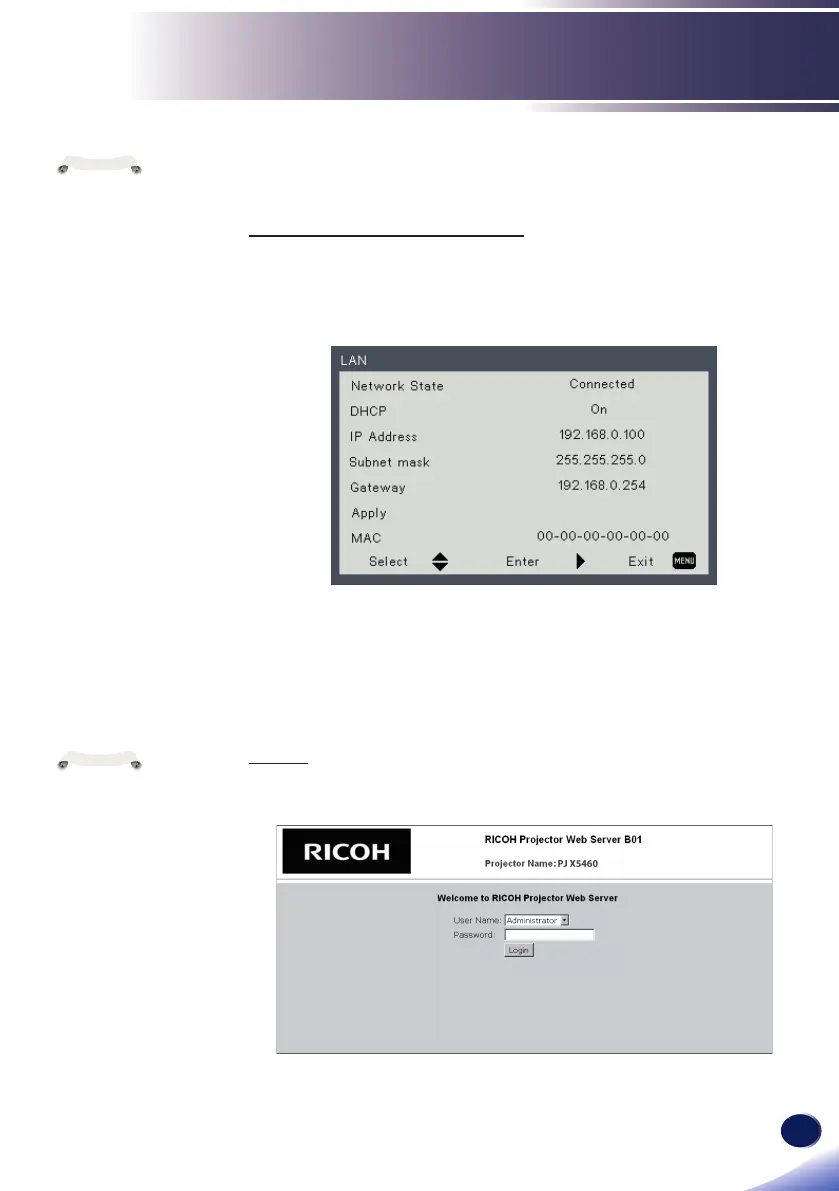
Check IP address in “Settings” > “Network” in the projector
menu system. (See page 44 on the projector user’s manual).
2. Connect
Open your web browser and type in the IP address you checked.
For example, type “http://192.168.0.100” when IP address is
displayed as the screen above.
Login
1. The web browser shows a login page
If you want to
connect an existing
network system,
consult the network
administrator for
network settings.
Network settings
such as password
will be reset when
you set “Default
settings 2” > “Reset
All” in the projector
menu system.
In rare cases, the
network function
won’t work properly
due to electrostatic
discharge or
something. Set
“Default settings 2”
> “Reset All” in such
a case.
N
o
t
e
This web pages use
Java Script. Please
turn on Java Script in
your browser.
N
o
t
e


 To Next Page
 Loading...