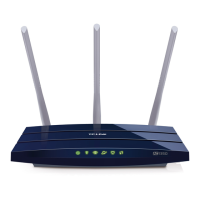
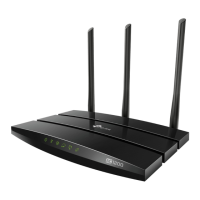
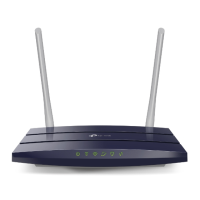
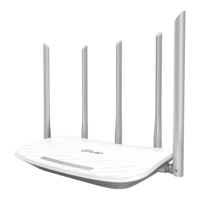
Archer C50 AC1200 Wireless Dual Band Router
- 69 -
To add a new user account, please follow the steps below:
1. Choose the Index from the drop-down list.
2. Self-define a User Name.
3. Enter the password in the Password field.
4. Re-enter the password in the Confirm Password field.
5. Click Set to make your settings take effect.
New Username - Type the user name that you want to give access to the USB drive. The
user name must be composed of alphanumeric symbols not exceeding 15 characters in
length.
New Password - Enter the password in the Password field. The password must be
composed of alphanumeric symbols not exceeding 15 characters in length. For security
purposes, the password for each user account is not displayed.
Confirm Password - Re-enter the password here.
Note:
1. Please restart the service for the new settings to take effect.
2. If you cannot use the new user name and password to access the shares, press Windows
logo + R to open the Run dialog box and type net use \\192.168.1.1 /delete /yes and press
Enter. (192.168.1.1 is your router's LAN IP address. If the LAN IP of the modem connected
with your router is 192.168.1.x, the default LAN IP of the router will automatically switch from
192.168.1.1 to 192.168.0.1 to avoid IP conflict; in this case, please try net use \\192.168.0.1
/delete / yes.)
4.10.3 Storage Sharing
Choose menu “USB Settings→Storage Sharing”, you can configure a USB disk drive attached
to the router and view volume and share such properties as share name, directory, user access,
and status on this page as shown below.


 To Next Page
 Loading...