19
DESIGINING A STAMP (Stampcreator P-touch Editor)
Formatting a Stamp
Selecting the stamp size
1 Display the Page Properties.
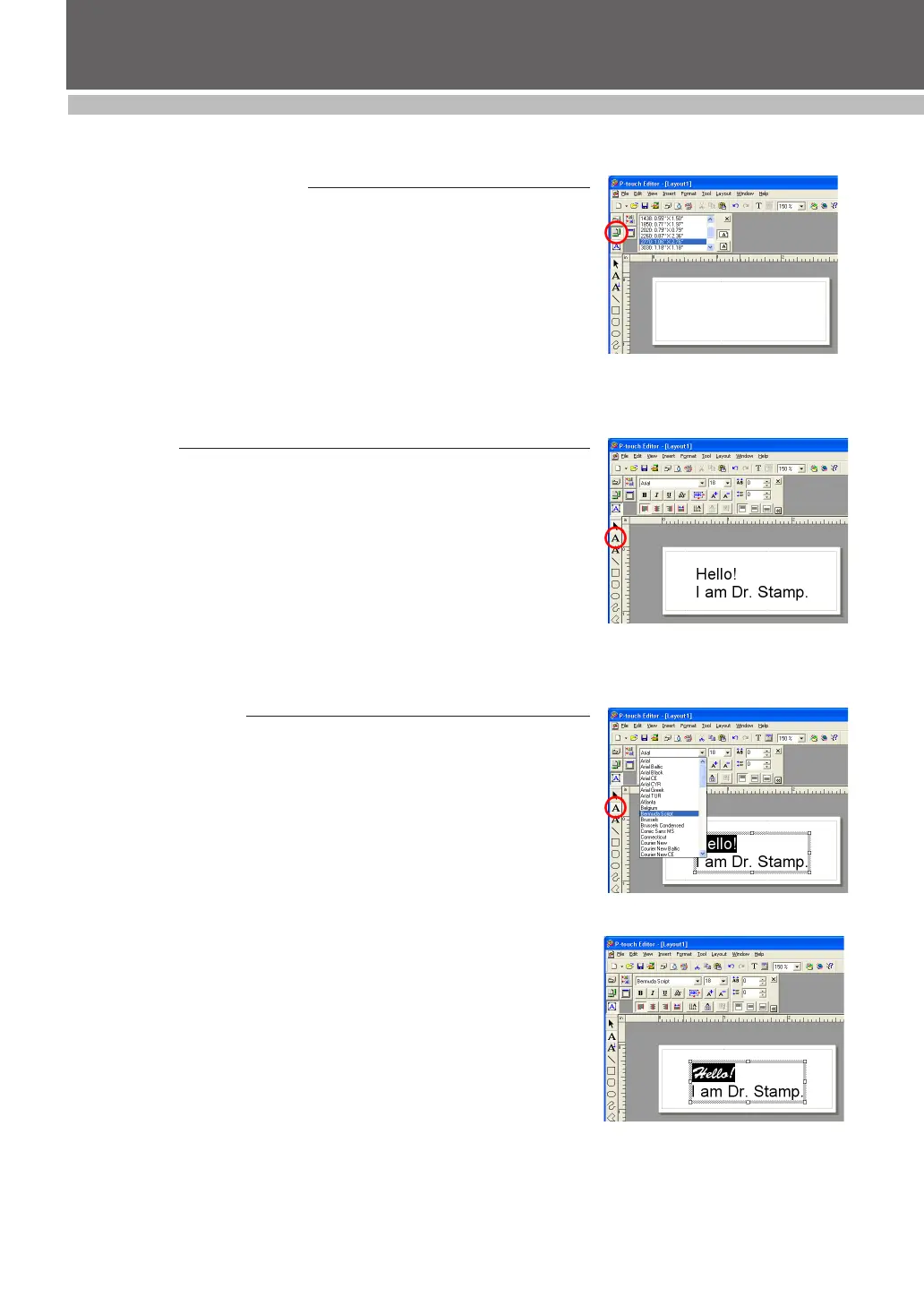
2 From the “Stamp Size” list, select the size of stamp to be made (see
figure 1).
Typing text
1 Select the Text Input tool.
2 Click in the layout area.
3 Type the first line of stamp text, and then press the Return key. Continue
typing, pressing the Return key after each line of text (see figure 2).
• The layout area is within the dotted lines. Anything outside of this area is
not included in the stamp image.
Changing the font
1 Display the Text Properties.
2 Use the Text Input tool to highlight the text to be changed.
• The current font is shown in the Text Properties.
3 From the “Font” drop-down list, select the desired font (see figure 3).
• The highlighted text is changed (see figure 4).
☞ NOTE: Stampcreator P-touch Editor supports all
TrueType
®
fonts but does not support
PostScript
®
fonts.
figure 1
figure 2
figure 3
figure 4


 To Next Page
 Loading...