Understanding Your Printer Software 573
FILE LOCATION: C:\Users\fxstdpc-
admin\Desktop\0630_UG??\Mioga_AIO_UG_FM\Mioga_AIO_UG_FM\section23.fm
DELL CONFIDENTIAL – PRELIMINARY 9/13/10 - FOR PROOF ONLY
Starting the Status Monitor Console
1
Click
Dell Printers
Status Monitor Console
The
Printer Selection
window appears.
For more information on Printer Selection window, see "Printer Selection
Window."
2
Select your printer.
The
Printer Status
window appears.
For more information on Printer Status window, see "Printer Status
Window."
• You can order supplies from the
Dell Supplies Management System
window. See "Dell Supplies Management System Window."
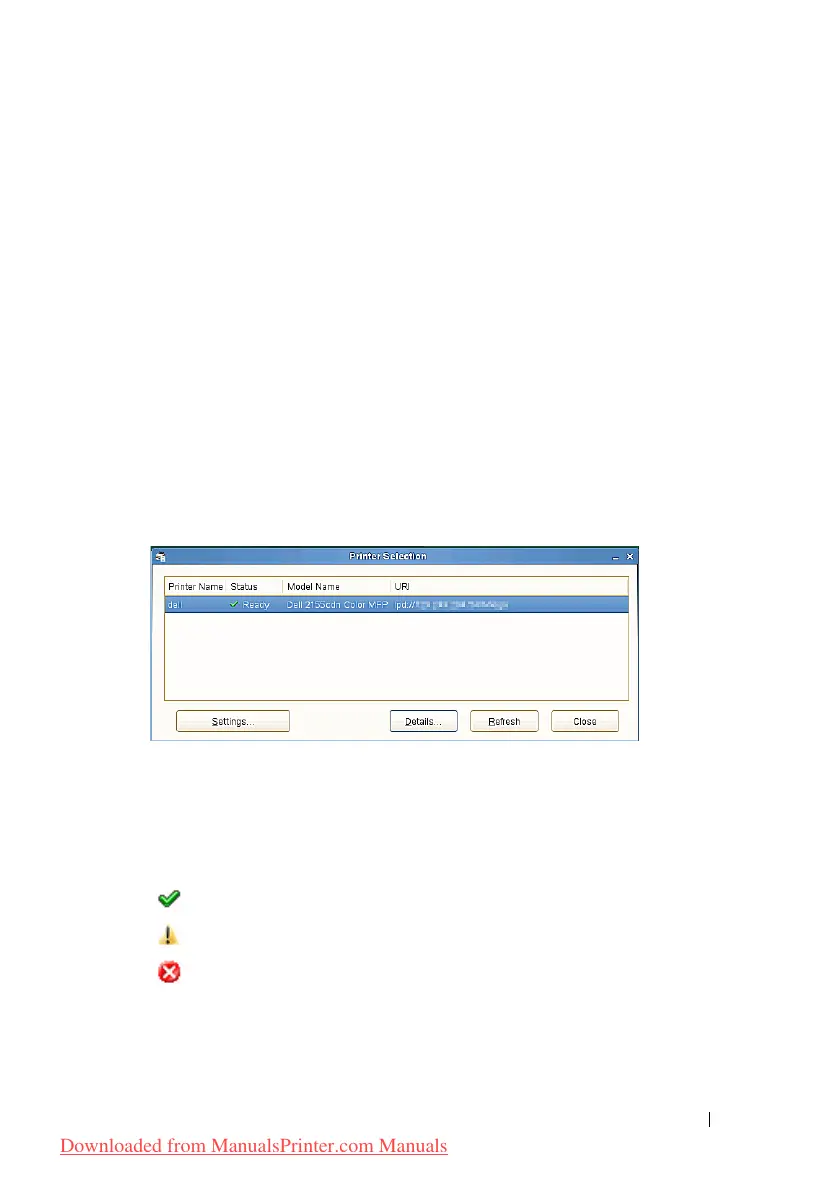
Printer Selection Window
Printers list
All the printers registered in the CUPS (Common UNIX Printing System) are
displayed in a list.
• Status icons:
Ready
Unknown/Offline/Toner Low/Paper Low
Door Open/Paper Jam/No Toner/Out Of Paper
Settings button
Click this button to open the Settings window.
Downloaded from ManualsPrinter.com Manuals


 To Next Page
 Loading...








