iStorage datAshur® PRO
+
C
User Manual v1.0
21
1. Unlock the datAshur PRO
+
C with your Admin PIN
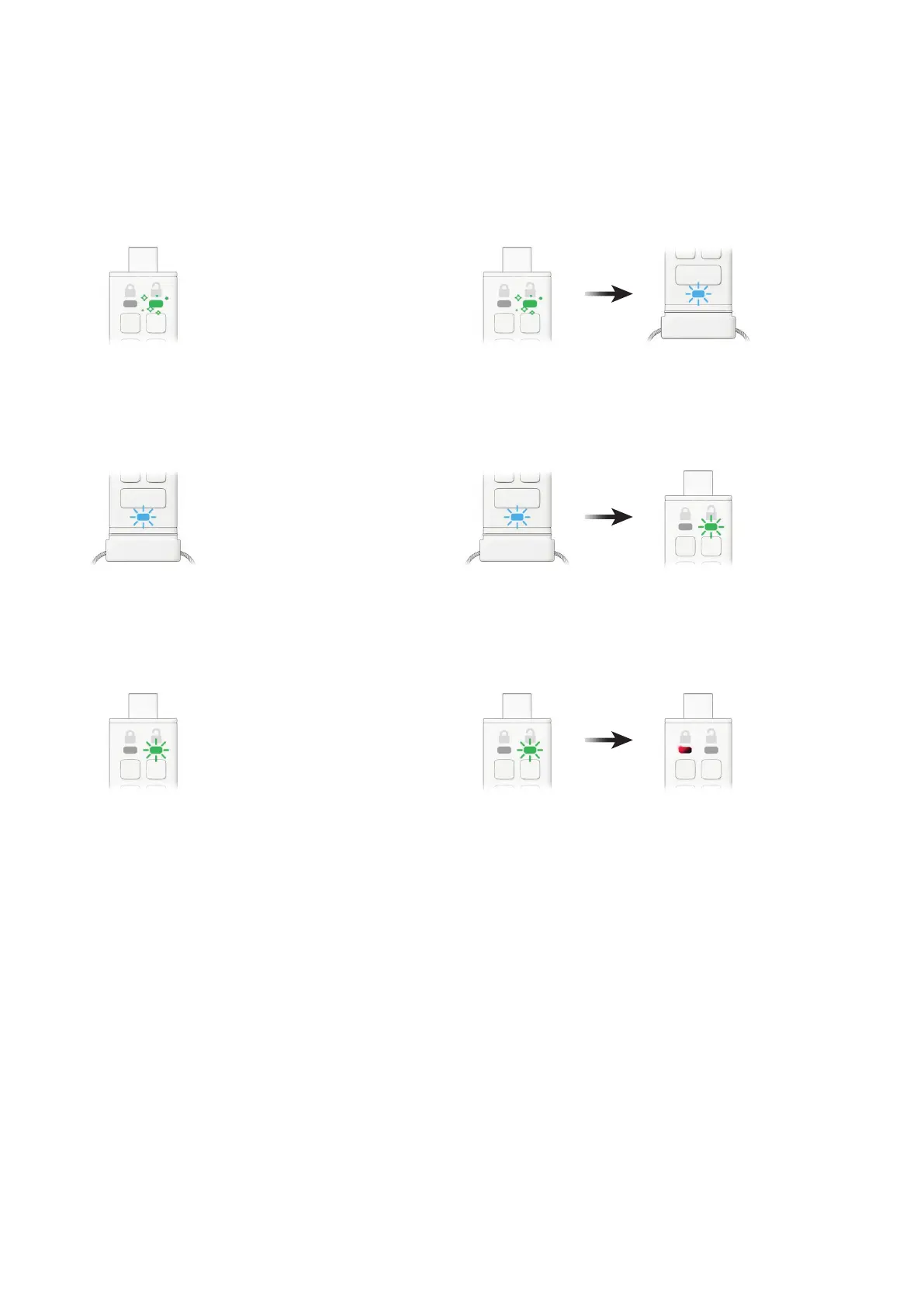
GREEN LED will icker indicating successful Admin PIN entry.
2. Press the KEY button TWICE (double click)
Flickering GREEN LED switches to a blinking BLUE LED ready to receive
a new User PIN.
3. Enter your new 8-15 digit User PIN
BLUE LED continues to blink.
4. Press KEY button TWICE (double click)
Blinking BLUE LED switches to a blinking GREEN LED.
5. Re-enter your new 8-15 digit User PIN
GREEN LED continues to blink.
6. Press KEY button TWICE (double click)
Blinking GREEN LED switches to a RED LED and then quickly fades out
(off) to indicate successful creation of a new User PIN.
To change the User PIN in Admin mode please follow
the instructions below.
14. How to change the User PIN in Admin mode


 To Next Page
 Loading...