69
E
Using the Full
Range of Features
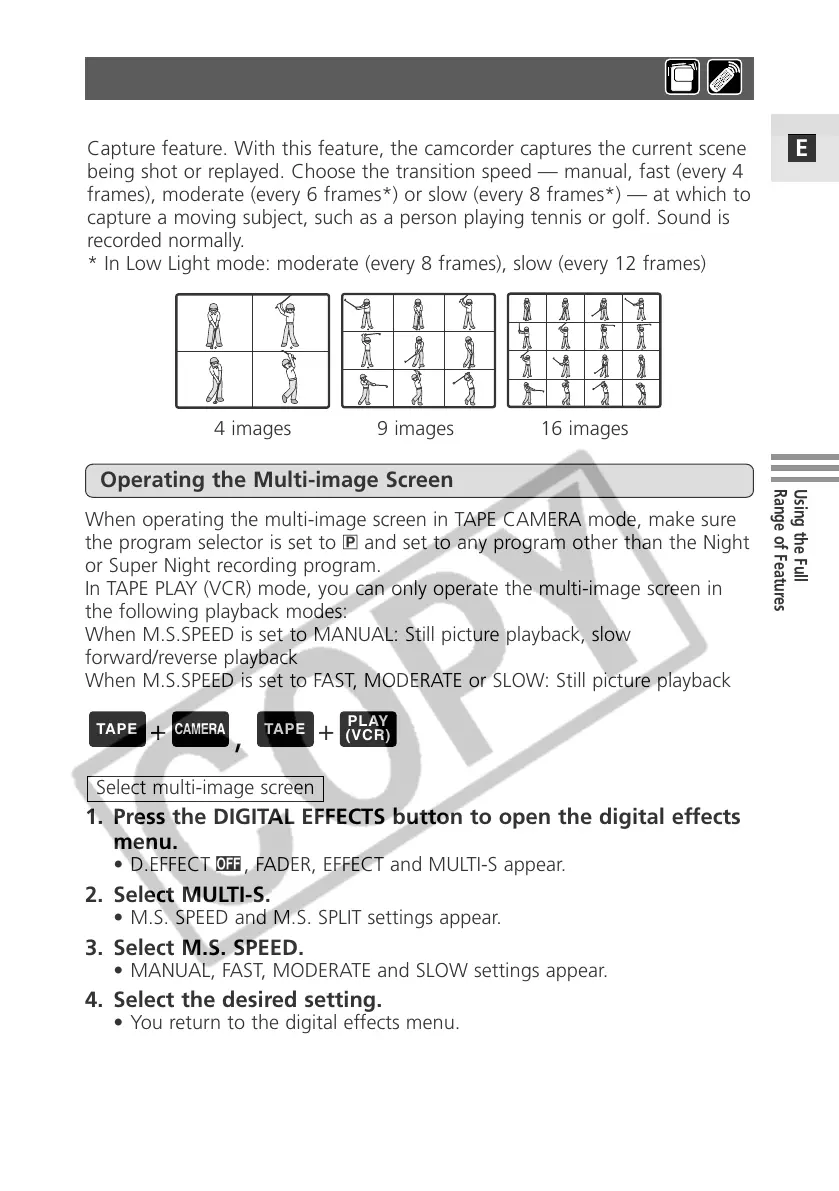
4 images 9 images 16 images
Divides your display image into 4, 9 or 16 smaller images with the Image
Capture feature. With this feature, the camcorder captures the current scene
being shot or replayed. Choose the transition speed — manual, fast (every 4
frames), moderate (every 6 frames*) or slow (every 8 frames*) — at which to
capture a moving subject, such as a person playing tennis or golf. Sound is
recorded normally.
* In Low Light mode: moderate (every 8 frames), slow (every 12 frames)
Using the Multi-Image Screen
When operating the multi-image screen in TAPE CAMERA mode, make sure
the program selector is set to Q and set to any program other than the Night
or Super Night recording program.
In TAPE PLAY (VCR) mode, you can only operate the multi-image screen in
the following playback modes:
When M.S.SPEED is set to MANUAL: Still picture playback, slow
forward/reverse playback
When M.S.SPEED is set to FAST, MODERATE or SLOW: Still picture playback
1. Press the DIGITAL EFFECTS button to open the digital effects
menu.
• D.EFFECT |, FADER, EFFECT and MULTI-S appear.
2. Select MULTI-S.
• M.S. SPEED and M.S. SPLIT settings appear.
3. Select M.S. SPEED.
• MANUAL, FAST, MODERATE and SLOW settings appear.
4. Select the desired setting.
• You return to the digital effects menu.
5. Select MULTI-S again.
• M.S. SPEED and M.S. SPLIT settings appear.
6. Select M.S.SPLIT.
• 4, 9, 16 settings appear.
Select multi-image screen
Operating the Multi-image Screen
+
,
+


 To Next Page
 Loading...