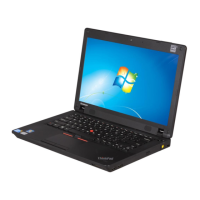
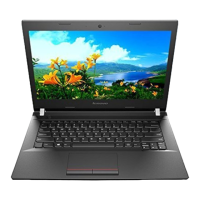
2Cameraindicator
Indicateswhetherthecameraisenabled.
3Microphonehole
Capturessound.
4Powerbutton
Pressthisbuttontoturnonthecomputer.Toturnoffthecomputer,referto“Powersaving”onpage14.
5Left-clickbutton
6Right-clickbutton
7T ouchpad
Moveyourfingertipacrossthetouchpadtomovethepointer.Theright-clickbuttonandleft-clickbutton
providefunctionssimilartotherightbuttonandleftbuttononamouse.
Thetouchpadofyourcomputersupportsmulti-touchwithwhichyoucanzoomin,zoomout,orscrollon
thescreenwhilebrowsingtheInternetorreadingoreditingadocument.
8Memorycardslot
Formoreinformation,referto“Usingthemediacardreader”onpage12(notsupplied).
9Powerindicator
•On:Indicatesthecomputerispoweredon.
•Off:Indicatesthecomputerispoweredofforinhibernationmode.
•Blink:Indicatesthecomputerisinsleepmode.
10Batterystatusindicator
•Solidgreen:Thebatterychargelevelisbetween80%and100%,orthebatterydischargelevelis
between20%and100%.
•Slow-blinkinggreen:Thebatterychargelevelisbetween20%and80%,andchargingiscontinuing.
•Slow-blinkingamber:Thebatterychargelevelisbetween5%and20%,andchargingiscontinuing.
•Solidamber:Thebatteryhasbetween5%and20%charge.
•Fast-blinkingamber:Thebatterychargeordischargelevelis5%orless.
•Off:Thebatteryisdetachedorthecomputeristurnedoff.
11Deviceaccessstatusindicator
Whenthisindicatorison,theharddiskdriveortheopticaldriveisreadingorwritingdata.
Attention:
•Whentheindicatorison,donotputthecomputerintosleepmodeorturnoffthecomputer.
•Whentheindicatorison,donotmovethecomputer.Suddenphysicalshockmightcausedriveerrors.
12Fingerprintreader
RegisteryourfingerandusethefingerprintreaderforWindowslogon.
Left-sideview
Note:Yourcomputermighthaveslightvariationsfromthefollowingillustration.
2UserGuide


 To Next Page
 Loading...