ASUS P5BV-M 5-33
5.3.2 Creating a RAID 1 set (mirror)
To create a RAID 1 set:
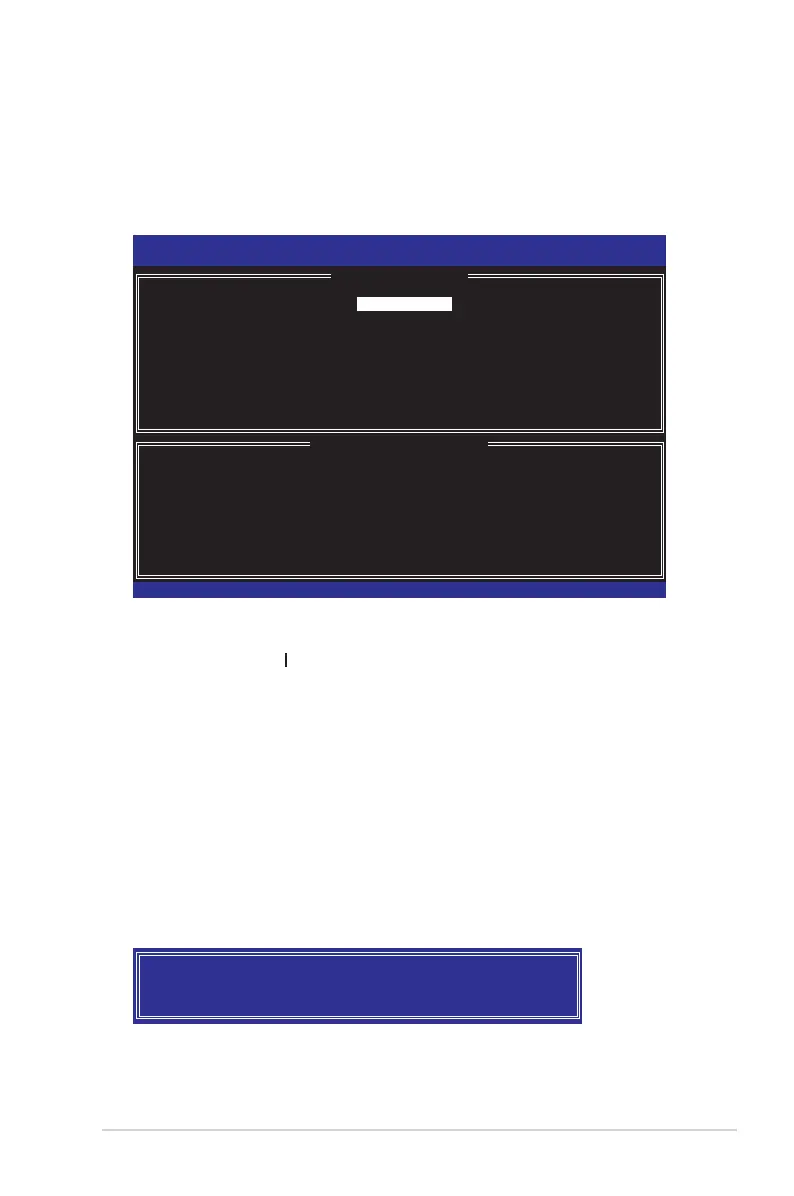
1. From the utility main menu, select 1. Create RAID Volume, then press <Enter>.
This screen appears.
2. Enter a name for the RAID 1 set, then press <Enter>.
3. When the RAID Level item is highlighted, press the up/down arrow key to select
RAID 1(Mirror), then press <Enter>.
4 When the Disks item is highlighted, press <Enter> to select the hard disk drives
to congure as RAID. The SELECT DISKS screen appears.
5 Use the up/down arrow key to highlight a drive, then press <Space> to select.
A small triangle marks the selected drive. Press <Enter> after completing your
selection.
6. When the Capacity item is highlighted, key in the RAID volume capacity that
you want, then press <Enter>. The default value indicates the maximum allowed
capacity.
7. Press <Enter> when the Create Volume item is highlighted. This warning
message appears.
Intel(R)MatrixStorageManagerOptionROMv5.0.0.1032ICH7RwRAID5
Copyright(C) 2003-05 Intel Corporation. All Rights Reserved.
[ CREATE ARRAY MENU ]
[ DISK/VOLUME INFORMATION ]
Enter a string between 1 and 16 characters in length that can be used
to uniquely identify the RAID volume. This name is case sensitive and
cannot contain special characters.
[↑↓]-Change[TAB]-Next[ESC]-PreviousMenu[Enter]-Select
Name:
RAID Level:
Disks:
StripSize:
Capacity:
Volume1
RAID1(Mirror)
Select Disks
N/A
XX.X GB
Create Volume
WARNING: ALL DATA ON SELECTED DISKS WILL BE LOST.
Are you sure you want to create this volume? (Y/N):
8. Press <Y> to create the RAID volume and return to main menu or <N> to go
back to Create Volume menu.


 To Next Page
 Loading...