SELECTING/EDITING/SAVING PATTERNS ————————————————————————————————————————————
126
2
Touch the keys to select the desired thread
density.
Each touch of a key slightly increases or
decreases the thread density.
• To return to the original thread density
(standard), select “100%”.
3
After making the desired changes, touch
.
X The pattern editing screen appears again.
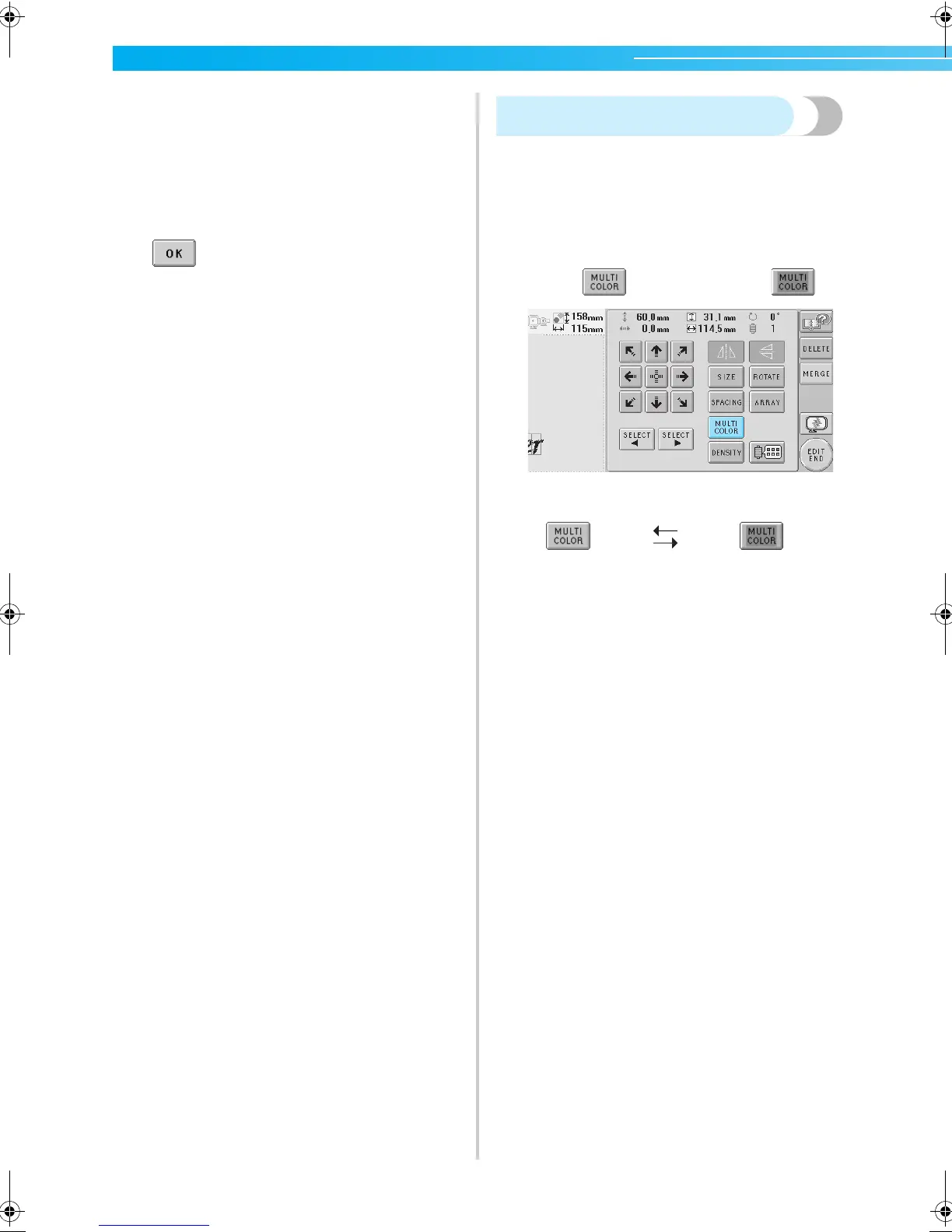
Specifying multi-color text
The alphabet pattern characters selected on
page 109 are set to black. The color of the characters
can be changed using the change thread color key;
however, to change the color of individual
characters, touch the Multi Color key to turn it on,
and then specify the color for each character.
1
Touch so that it changes to .
• Each touch of the key turns the setting either
on or off.
• For details on changing the thread color,
refer to “Changing the colors of the pattern”
on page 127.
Multi-color text
turned off
Multi-color text
turned on
Sapphire_brother.book Page 126 Thursday, November 17, 2005 3:00 PM


 To Next Page
 Loading...