63
FUNC.
( 24)
[ EVALUATIVE]
Desired option
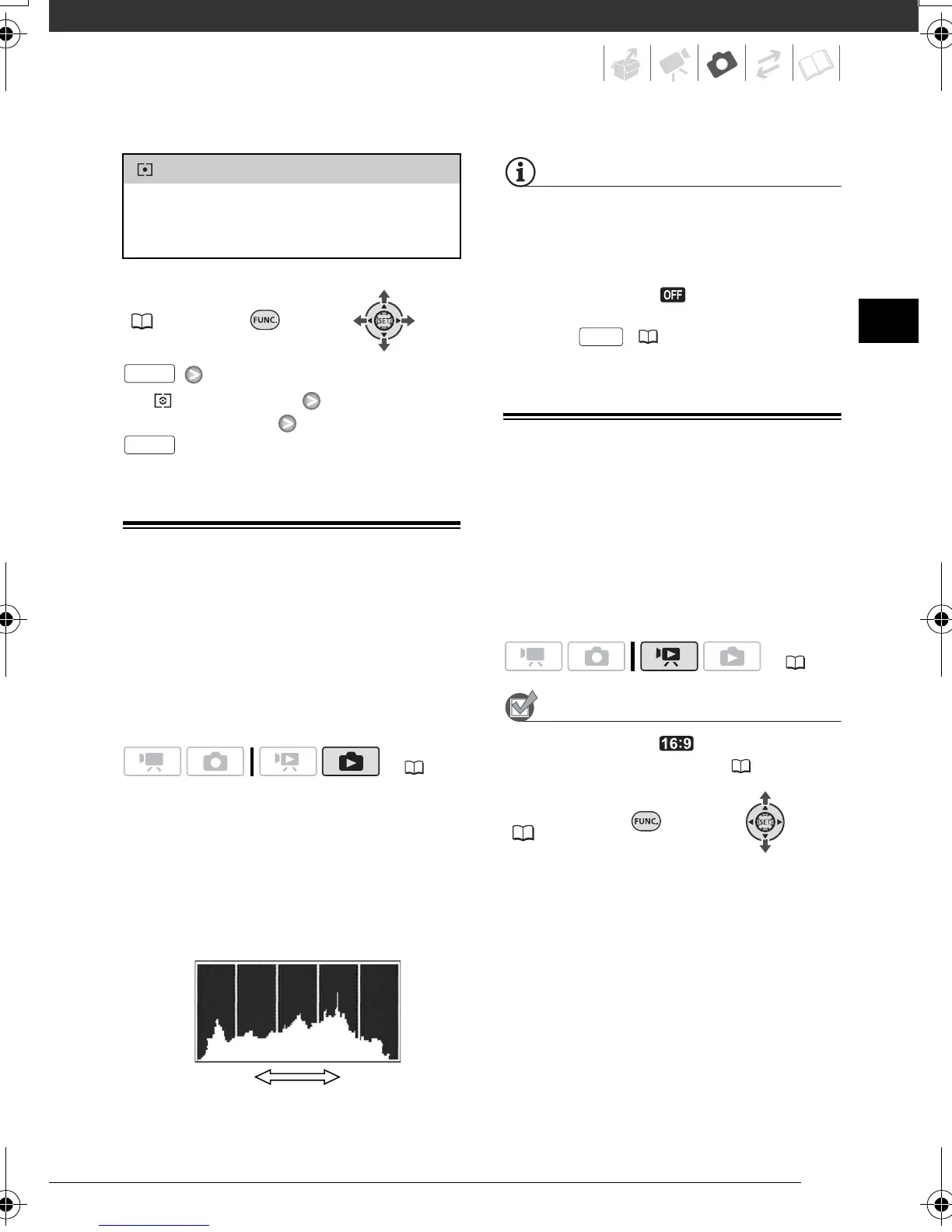
Histogram Display
When viewing still images you can
display the histogram and the icons of
all the functions used at the time of
recording. Use the histogram as a
reference to verify the correct exposure
of the still image.
The area to the right of the histogram
represents highlights and the left side
represents shadows. A still image
whose histogram skews to the right is
relatively bright; while one whose
histogram peaks to the left, is relatively
dark.
NOTES
The histogram will appear also after
recording a still image, while reviewing it
within the time set for the [REVIEW] option
(or immediately after recording it, if
[REVIEW] is set to [ OFF]). You can
choose to turn off the histogram by
pressing
( 48).
Capturing a Still Image from the
Playback Scene
You can capture as still images frames
from a scene. The size of the captured
still image will be LW 1920x1080 and it
cannot be changed, but you can select
the image quality.
POINTS TO CHECK
Set [TV TYPE] to [ WIDE TV]
before using this function ( 92).
FUNC.
( 24)
[SPOT]
Meters only the area within the spot AE point
frame. Use this setting to adjust the exposure to
match the subject in the center of the screen.
( 22)
FUNC.
FUNC.
Shadows
Pixel Count
Highlights
( 22)
DISP.
D128_PAL_E.book Page 63 Thursday, March 6, 2008 7:53 PM


 To Next Page
 Loading...