28 Getting to Know Your Dell™ Lightning
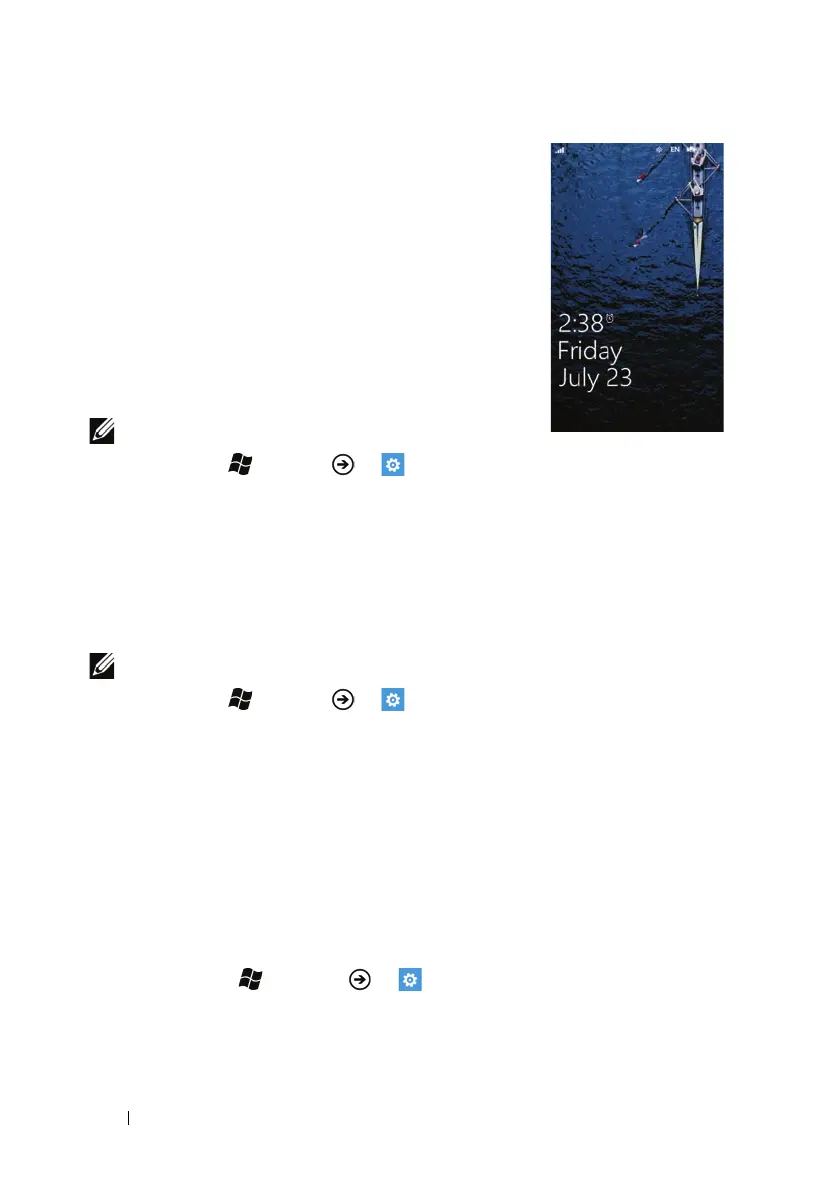
Wallpaper
The display turns off automatically after a time-
out period of inactivity. The wallpaper then
appears after you wake up the display by pressing
the power and sleep/wake button, or when you
slide open the QWERTY keyboard.
The wallpaper helps prevent unintentional touch
on the screen, displays the date and time, missed
calls, new messages, upcoming events, and the
alarm set indicator.
NOTE: To set the screen time-out period:
1 Touch Start → Menu → Settings.
2 Under system, touch lock & wallpaper.
3 Touch the Screen time-out box and select the desired time period.
To hide the wallpaper
Flick the wallpaper up to view the last displayed screen. If the
wallpaper is locked by a password, type the password to unlock it.
NOTE: To lock the wallpaper with a password:
1 Touch Start → Menu → Settings.
2 Under system, touch lock & wallpaper.
3 Touch or drag the Password toggle switch to turn on the password
function.
4 Type your password into both the New password and Confirm password
boxes.
5 Touch the done push button.
To change the wallpaper
using the Settings option
1 Touch Start
→ Menu → Settings.
2 Under system, touch lock & wallpaper.
3 Touch change wallpaper.


 To Next Page
 Loading...

