Slow & Fast Motion Mode
88
Menus
Table of Contents Index
Slow & Fast Motion Mode
This mode allows you to change the shooting frame rate to achieve a slow motion or fast motion effect during
playback. Sound is not recorded in this special recording mode.
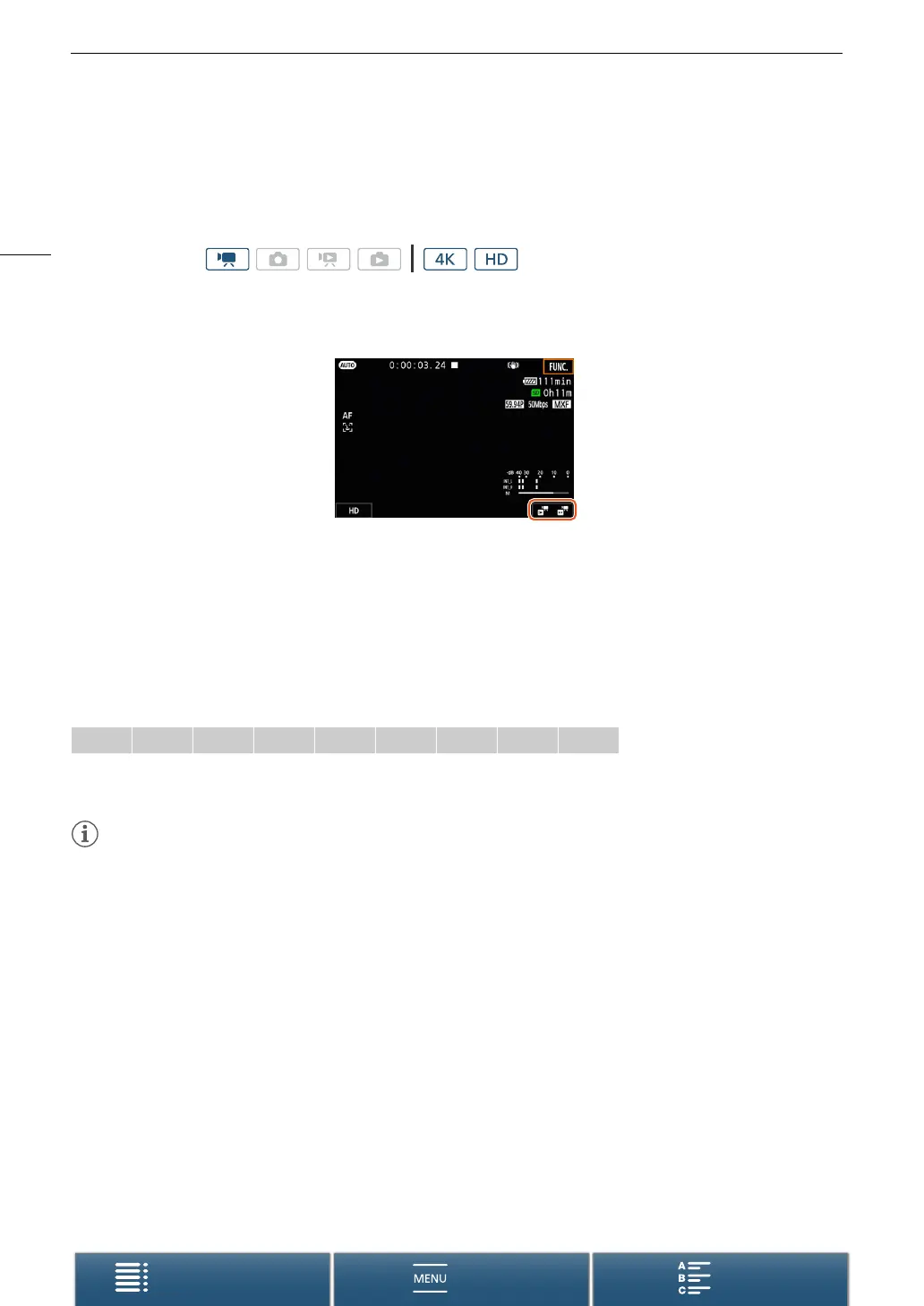
1 Touch the slow & fast motion button at the bottom right of the screen.
• Alternatively, you can use the [3 Recording Setup] > [1] > [Slow & Fast Motion] setting.
2 Select the desired slow/fast motion rate and then touch [K] or [X].
• Select [OFF Normal Recording] to turn off slow & fast motion recording.
• The slow/fast motion rate appears in the slow & fast motion button.
3 Press the START/STOP button to begin recording.
• The tally lamp illuminates.
4 Press the START/STOP button again to stop recording.
Available slow/fast motion rates
1
Not available when recording 4K clips.
2
Clips recorded with this option will have a resolution of 1280x720 and a bit rate of 18 Mbps. Also, face detection & tracking will
not be available.
NOTES
• Slow & fast motion recording cannot be used together with pre-recording mode.
• The slow/fast motion rate cannot be changed while recording.
• Clips will have a frame rate of 29.97P.
• Slow & fast motion recording will be deactivated if you change the video configuration.
• During slow & fast motion recording mode, the time code’s running mode (A 75) can be set to [Rec Run] or
[Regen.] and the time code advances by the number of frames recorded. If the time code’s running mode is
set to [Free Run], the running mode will switch to [Rec Run] during slow & fast motion recording mode. When
slow & fast motion recording mode is deactivated, the running mode will return to its previous setting.
Operating modes:
x1/4
1, 2
x1/2
1
x2 x4 x10 x20 x60 x120 x1200


 To Next Page
 Loading...