Using Multimedia 59
Adjusting the Volume
NOTE: When the speakers are muted, you do not hear the media playing.
1
Open the
Volume Control
window.
2
Click and drag the bar in the
Volume Control
column and slide it up or down to increase or decrease
the volume.
For more information on volume control options, click Help in the Volume Control window.
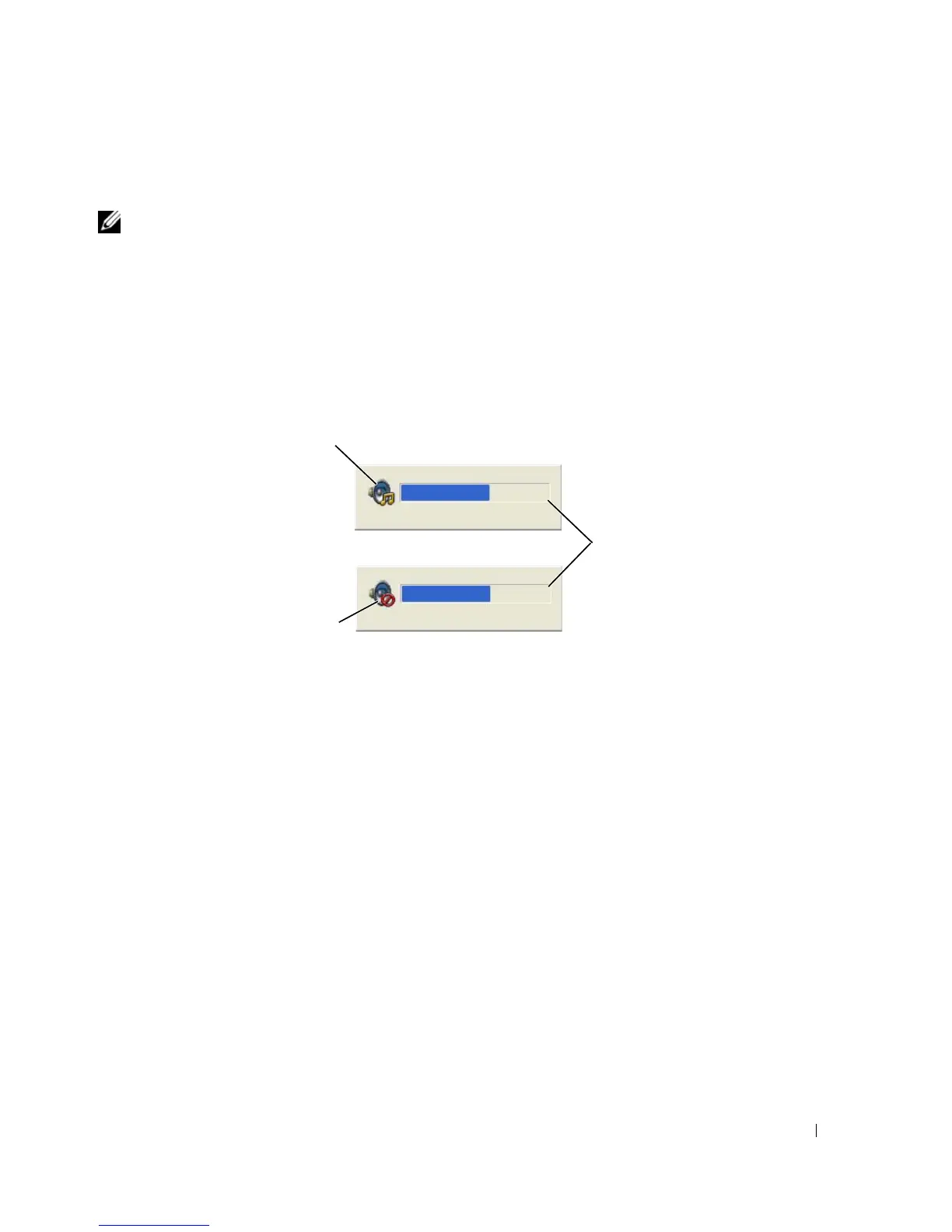
The Volume Meter displays the current volume level, including mute, on your computer. Either click the
QuickSet icon in the taskbar and select or deselect Disable On Screen Volume Meter, or press the
volume control buttons to enable or disable the Volume Meter on the screen.
When the meter is enabled, adjust the volume with the volume control buttons.
For more information about QuickSet, right-click the icon in the taskbar and click Help.
Adjusting the Picture
If an error message notifies you that the current resolution and color depth are using too much memory
and preventing DVD playback, adjust the display properties.
Microsoft® Windows® XP Operating System
1
Click
Start
→
Control Panel
→
Appearance and Themes
.
2
Under
Pick a task...
, click
Change the screen resolution
.
3
Under
Screen resolution
, click and drag the bar to reduce the resolution setting.
4
In the drop-down menu under
Color quality
, click
Medium (16 bit).
5
Click
OK
.
1 volume icon 2 Volume Meter 3 mute icon
1
3
2


 To Next Page
 Loading...