Editing the Embroidery Pattern (Pattern Editing Screen) 123
5
4
If necessary, touch the arrow keys to adjust
the position of the pattern.
For more details, refer to page 119.
5
After making the desired changes, touch
.
X The pattern editing screen appears again.
Memo
● The text arrangement specified when the
character was selected on page 122 can be
changed at this point.
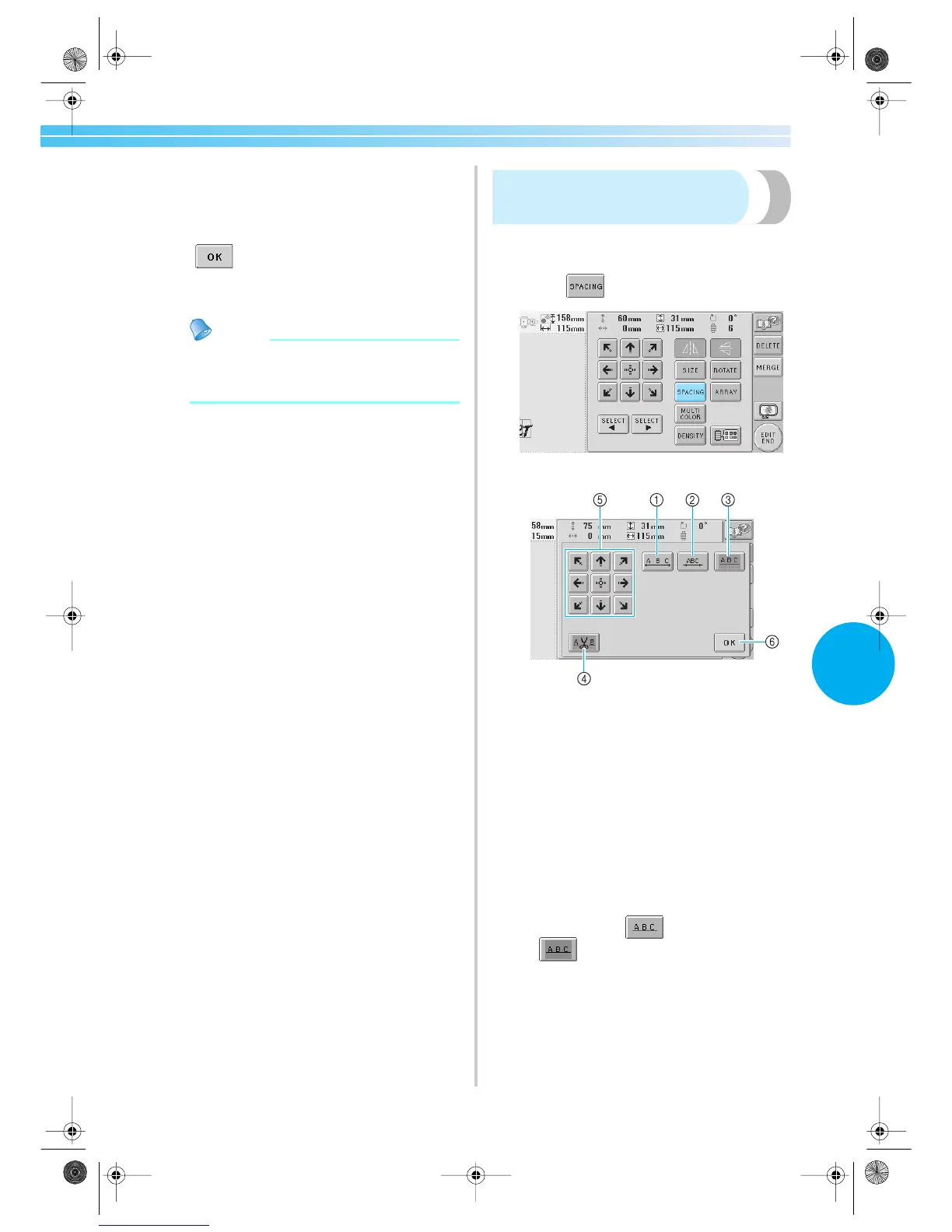
Changing the character
spacing
The spacing between the characters can be made
wider or narrower.
1
Touch .
X The screen shown below appears.
1 Increases the character spacing
2 Decreases the character spacing
3 Selects the standard character spacing (original
character spacing)
4 Specifies that the thread be trimmed between
characters
5 Moves the pattern in the direction of the arrow on
the key
6 Touch this key to close this screen.
2
Touch the keys to adjust the characters to the
desired spacing.
Each touch of a key slightly enlarges or reduces
the character spacing.
• To return the characters to their original
spacing, touch
so that it changes to
.
Sapphire.book Page 123 Friday, August 1, 2003 9:12 AM


 To Next Page
 Loading...