38
Selecting the Aspect Ratio of your
Recordings (16:9 Widescreen or 4:3)
You can select the aspect ratio of your recordings to match your TV.
1. Set the camcorder to record movies ( ).
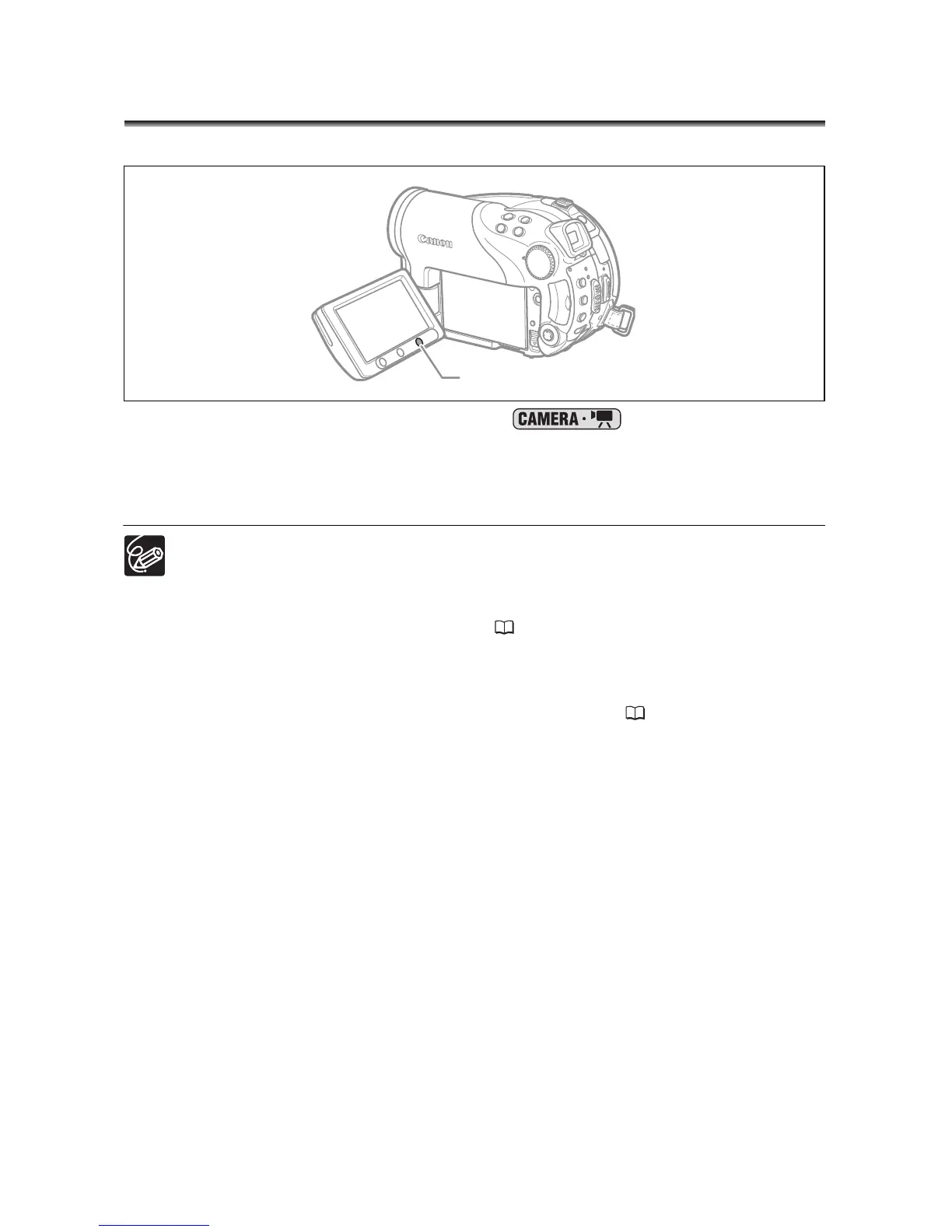
2. Press the WIDE SCR button.
Repeatedly pressing the WIDE SCR button will toggle the screen between the
Widescreen (16:9) and normal (4:3) aspect ratios.
Widescreen is not available when recording in LP mode if the disc specification
is VIDEO mode (DVD-R or DVD-RW). Selecting the LP recording mode will
cancel the 16:9 aspect ratio.
When recording in Widescreen mode, if you set the image stabilizer to [OFF]
you can achieve a wider view angle ( 81).
Playing back a Widescreen recording: TV sets compatible with the Video
ID-1 system will automatically switch to wide (16:9) mode. Otherwise, change
the aspect ratio of the TV manually. To play back on a TV with normal aspect
ratio (4:3) change the [TV TYPE] setting accordingly ( 84).
WIDE SCR button



 To Next Page
 Loading...








