Setting Up Connection Using WPS PIN Code Mode
0W20-030
If your wireless router supports WPS PIN code mode, generate a PIN code with the machine and register the code to
the networking device.
● How to operate the wireless router may vary on each device. See the instruction manuals for your
networking device for help.
From a Computer
1
Access your wireless router from a computer and display the screen for entering a
WPS PIN code.
● For more information, see the instruction manuals for your networking device.
From the Operation Panel
2
Press .
3
Use / to select <Network Settings>, and press .
● If the logon screen appears, enter the correct ID and PIN using the numeric keys, and then press .
Logging on to the Machine(P. 34)
4
Select <Wireless LAN Settings>, and press .
● If the <Do you want to enable the wireless LAN?> message is displayed, select <Yes>, and press .
5
Read the message that is displayed, and press .
6
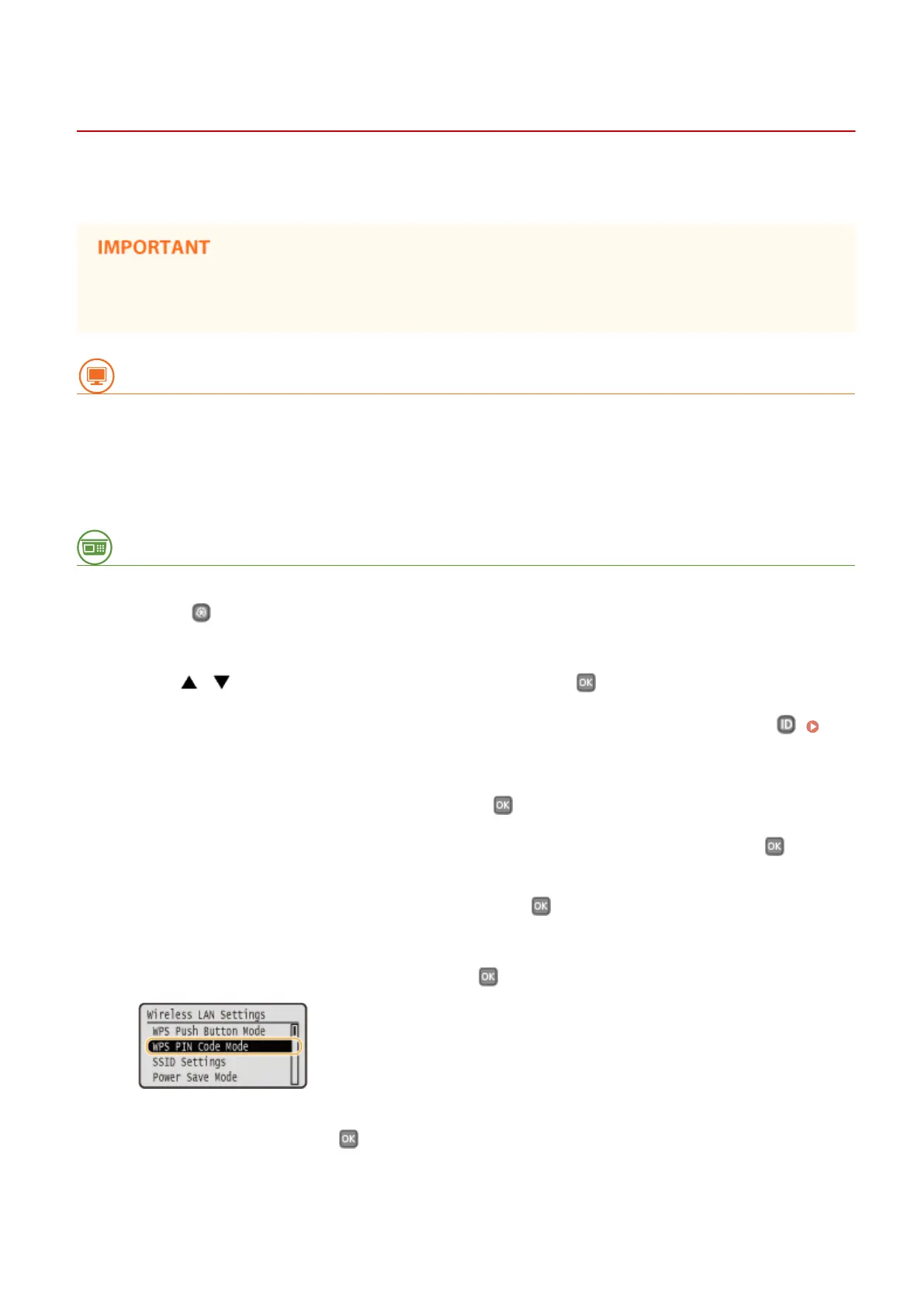
Select <WPS PIN Code Mode>, and press .
7
Select <Yes>, and press .
➠ A PIN code is generated.
Network
140


 To Next Page
 Loading...