EasyManua.ls Logo

Samsung BD-P1600 - Connecting to a Tv with DVI Cable (Best Quality)

Samsung BD-P1600
89 pages
Print Icon
To Next Page IconTo Next Page
To Previous Page IconTo Previous Page
Loading...
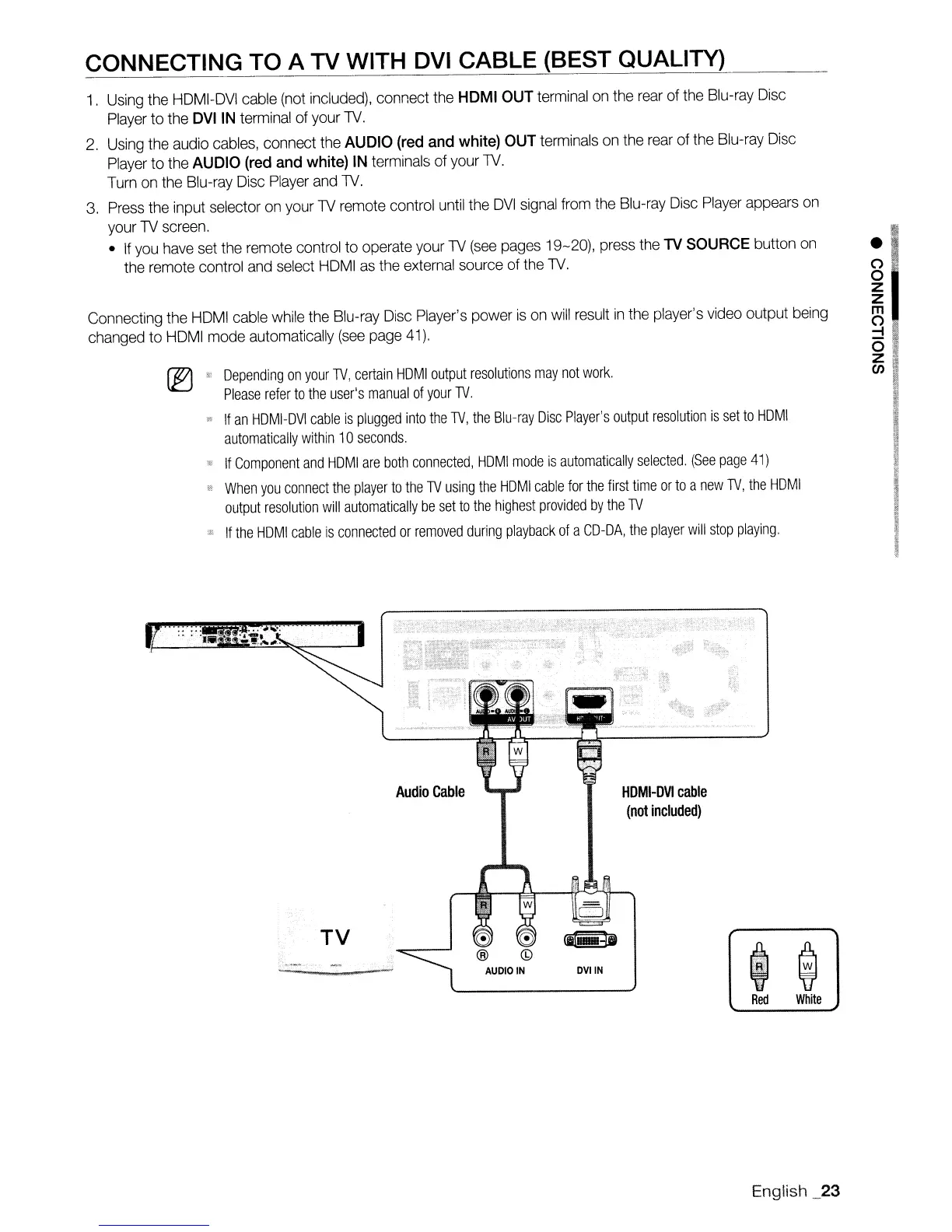
CONNECTING TO A TV WITH DVI CABLE (BEST QUALITY)
1.
Using
the
HDMI-DVI
cable
(not
included),
connect
the
HDMI OUT terminal
on
the
rear
of
the
Blu-ray
Disc
Player
to the DVI IN
terminal
of your
TV.
2.
Using
the audio
cables,
connect
the
AUDIO (red and white)
OUT
terminals
on
the
rear
of
the
Blu-ray
Disc
Player
to
the
AUDIO (red and white) IN terminals of your
TV.
Turn
on
the
Blu-ray
Disc
Player
and
TV.
3.
Press
the
input selector
on
your
TV
remote control
until
the
DVI
signal
from
the
Blu-ray
Disc
Player
appears
on
your
TV
screen.
If
you
have
set
the remote control to operate your
TV
(see
pages
19-20),
press
the
TV
SOURCE button
on
the
remote
control
and
select
HDMI
as
the
external
source of
the
TV.
Connecting the
HDMI
cable
while
the Blu-ray
Disc
Player's power
is
on
will
result
in
the player's video output being
changed to
HDMI
mode automatically
(see
page
41).
'"
Depending
on
your
TV,
certain
HOM
I
output
resolutions
may
not
work.
Please
refer
to
the
user's
manual
of
your
TV.
"
If
an
HOMI-OVI
cable
is
plugged
into
the
TV,
the
Blu-ray
Disc
Player's
output
resolution
is
set
to
HOMI
automatically
within
10
seconds.
11
If
Component
and
HOM
I
are
both
connected,
HOM
I
mode
is
automatically
selected.
(See
page
41)
"
When
you
connect
the
player
to
the
TV
using
the
HOMI
cable
for
the
first
time
or
to
a
new
TV,
the
HOMI
output
resolution
will
automatically
be
set
to
the
highest
provided
by
the
TV
..
If
the
HOMI
cable
is
connected
or
removed
during
playback
of
a
CO-OA,
the
player
will
stop
playing.
TV
Audio
Cable
HDMI-DVI
cable
(not
included)
$
--"",.,@
.~.
w
--;
Red
White
English _23

Table of Contents

Other manuals for Samsung BD-P1600

Related product manuals