6-VIRTUALTERMINAL(VT)ORUNIVERSALTERMINAL(UT)
WorkingwithanapplicationintheVirtualTerminal(VT)
WheneverthedisplayispoweredONandanISOBUSim-
plementortoolisconnected,theimplementortoolau-
tomaticallyuploadsitssoftwarecomponentstothedis-
play.Twoiconsdisplayinthestatusandwarningicon
areawhilethecomponentsload.
Theobjectpoolicondisplays
whileanISOBUSimplementor
tooluploadsitscomponentstothe
display.
Thedisketteicondisplayswhen
theobjectpoolfromanISOBUS
implementissavedtoorloaded
fromNon-VolatileMemory(NVM)
inthedisplay.
Oncethecomponentsareloaded,theapplicationsare
readyforuse.
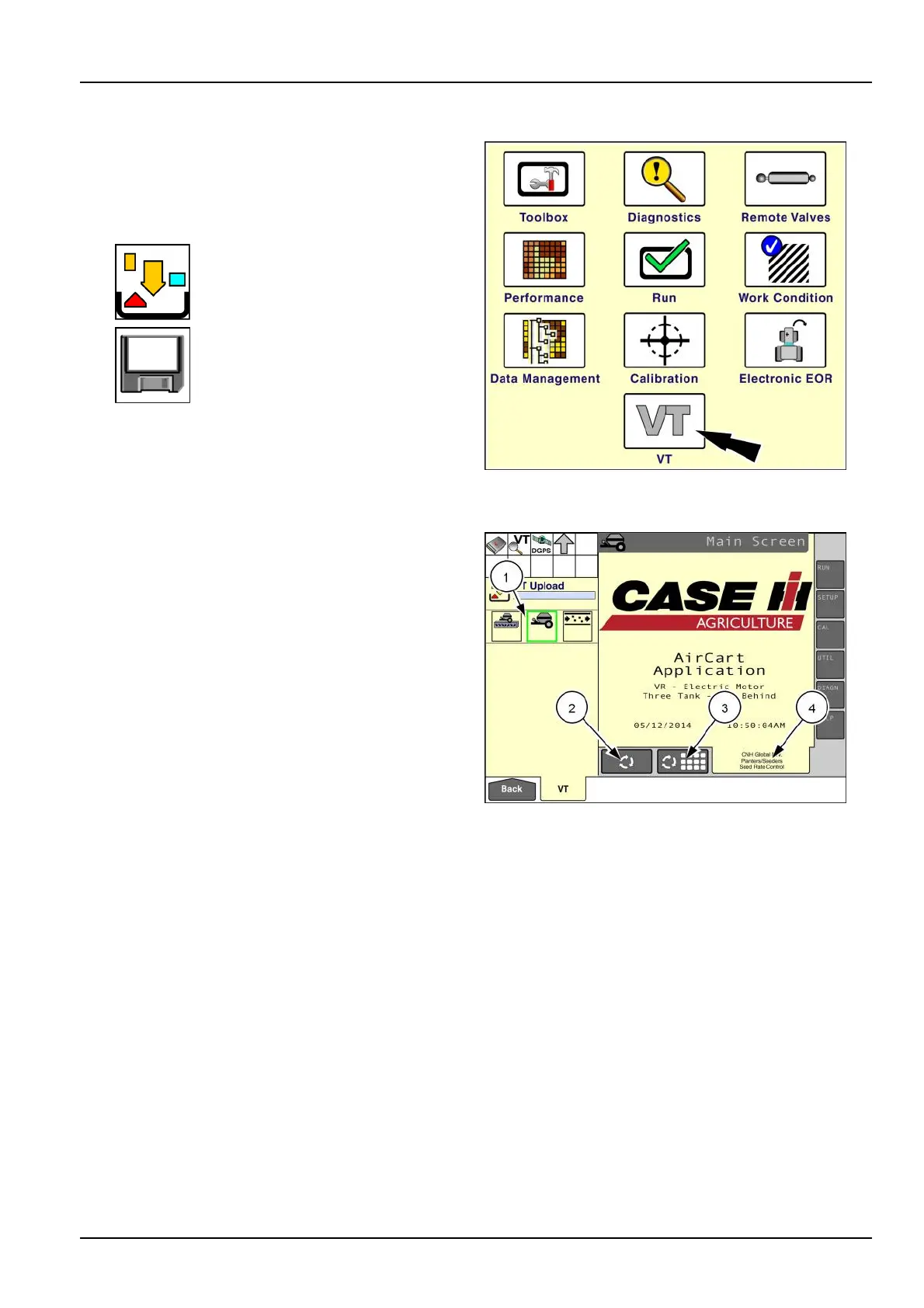
Fromthe“Home”screen,pressthe“VT”icontoaccess
the“VirtualT erminal”screens.
RCPH09DSP395BAG1
Inthisexample,theoperatorhasplacedthe“VTImple-
ments1x1”windowintheleft-handarea.Thewindow
displaysaniconforeachconnectedISOBUSdevice:the
CNHswitchbox,theaircart,andaowmonitoringmod-
ule.
Theiconfortheselecteddeviceishighlightedingreen.
Thesoftkeysontheright-handsideofthescreenal-
lowyoutonavigatewithintheapplicationfortheselected
ISOBUSdevice.
The“VirtualT erminal”applicationprovidesthreewaysfor
anoperatortochangetheactiveISOBUSapplication:
•
PresstheiconforanISOBUSdeviceinthe“VTIm-
plements1x1”window(1)orthe“VTImplements1x2”
window
NOTE:Usethe“VTImplements1x2”windowifyou
havemorethanthreeapplicationsloaded.
•
Pressthe“NextApplication”button(2)tocycletothe
applicationforthenextISOBUSdevice
•
Pressthe“ApplicationGridSelect”icon(3)toviewand
choosefromagridoficonsforallconnectedISOBUS
devices
Thetextatthebottomofthe“VT”screen(4)identiesthe
activeapplication.
RAIL14DSP1424BA2
6-19



 To Next Page
 Loading...