Playback
......
--------------------------
1 Press [FUNC.J.
2 Select
(~T)
[~>
SLIDESHOW] and
press
[SET
].
3 Select
(~T)
[START] and press
[SET).
Press IFUNC·I to stop the slideshow.
Index
Screen
1 Move the zoom
lever
toward
W.
The index screen appears.
2 Select
(~T)
an image.
• Move the cursor
CB
to the image
you want to view.
• Press
[±)
or G to move to the next/
previous index page.
3 Move the
zoom
lever
toward
T.
The index screen closes and the
selected image is displayed.
• Avoid the following actions while the card
access display
~
.DI
appears on screen, and
when the CARD access indicator
is
on
or
flashing. Failing to do so may result
in
permanent data loss.
-
Do
not open the memory card slot cover and
do not remove the memory card.
-
Do
not disconnect the power source or turn off
the camcorder.
-
Do
not change the position
of
the
§J
/
[J;I
switch or the operating mode.
• The following may not be displayed correctly.
- Images not recorded with this camcorder.
- Images edited
on
or uploaded from a
computer.
- Images whose file names have been
changed.
Slideshow
EI
SLiDESHOW
o
IMPORTANT
(OJ 10)
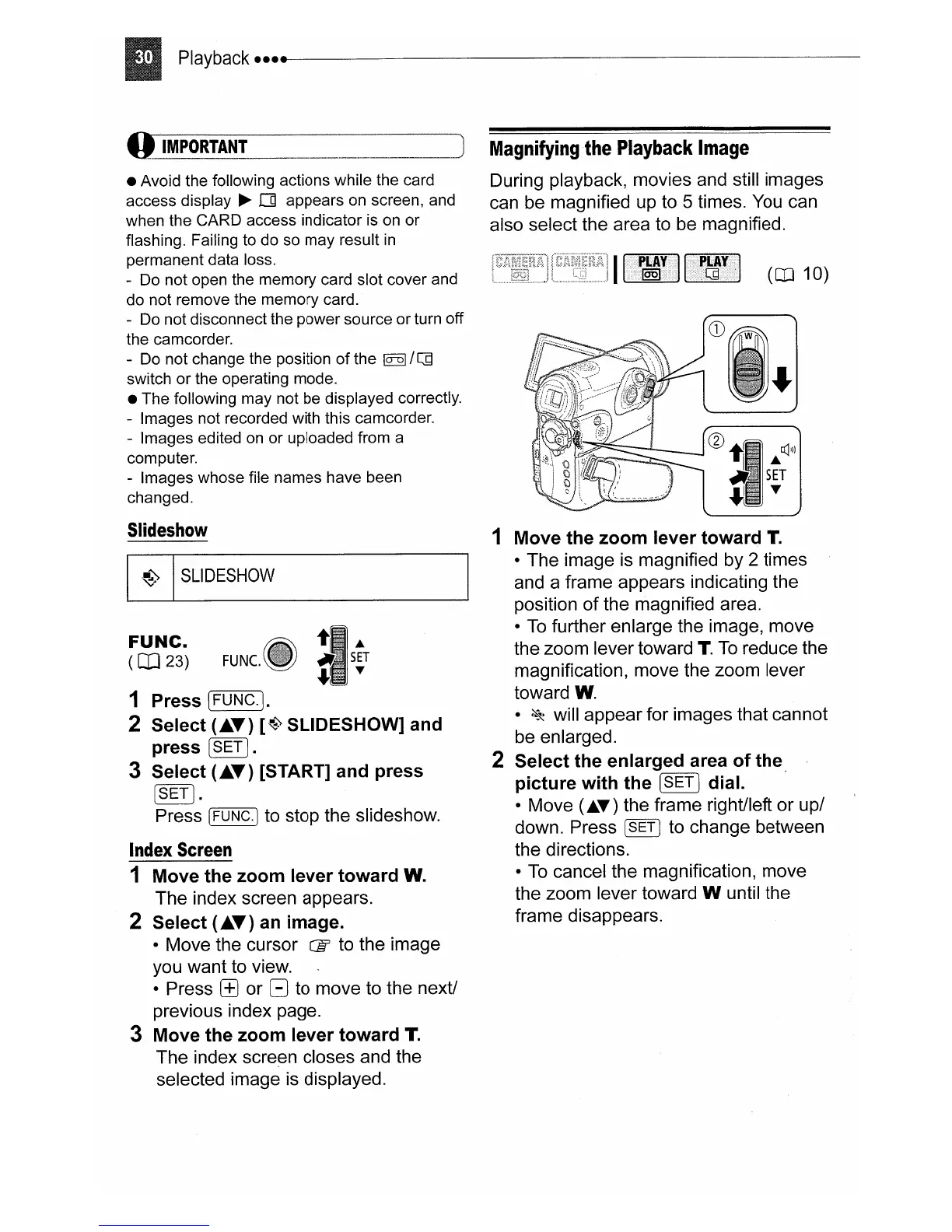
1 Move the
zoom
lever
toward
T.
• The image is magnified by 2 times
and a frame appears indicating the
position
of
the magnified area.
•
To
further enlarge the image, move
the zoom lever toward
T.
To
reduce the
magnification, move the zoom lever
toward W.
•
~
will appear for images that cannot
be enlarged.
2 Select the enlarged area
of
the
picture
with
the
[SET
I dial. .
• Move
(.T)
the frame right/left
or
up/
down. Press
~
to change between
the directions.
•
To
cancel the magnification, move
the zoom lever toward W until the
frame disappears.
Magnifying
the
Playback
Image
During playback, movies and still images
can be magnified up to 5 times. You can
also select the area to be magnified.
----_._
..
__
.]
..,II.·~.:.·.·.·~.'·;.··
....
t1fJ;
SET
~.::
...
FUNC.
FUNC.
(OJ23)


 To Next Page
 Loading...