••••
Connecting
to
a Computer
.....•.............•................
..",..}
IP~YI
(CD
10)
til:
..
·
..
·····
...
····
...
·.····.····.·:····.··
...
·:··.·
.....
::
..
:
...
.-:~:
SET
..J!";'
....
FUNC.
FUNC.
(CO
23)
[FUNC.]
¢I
§F
TRANSFER ORDER
.(J,
IFUNC·I
¢:II
TRANS.ORDER ON*
*
To
cancel a transfer order, select [TRANS.
ORDER
OFF] instead.
(CD
10)
Move the zoom lever toward W to enter
the still image index screen.
Setting
Transfer
Orders
from
the
Index
Screen
Transfer
Orders
You
can mark the still images you want to
transfer to the computer as a transfer
order.
You
can set transfer orders for up
to 998 still images.
Selecting
Still Images
to
Transfer
(Transfer
Order)
Do
not connect the USB cable to the
camcorder while setting the transfer
orders.
~
You can press
~
to transfer the images,
Instead
of
[~INI.
With [lEE-ALL IMAGES],
[rf~:-
NEW
IMAGES]
or
[~-
TRANSFER
ORDERS], a confirmation
message
appears.
Select [OK] and press
~
.
•
When
the
camcorder
is connected to the
computer
and the image selection screen is
displayed, press
[MENU I to return to the
transfer menu.
(!)
~.Q!_~!
.
Allows you to select the still image you
want to transfer and set it as your
computer's desktop background.
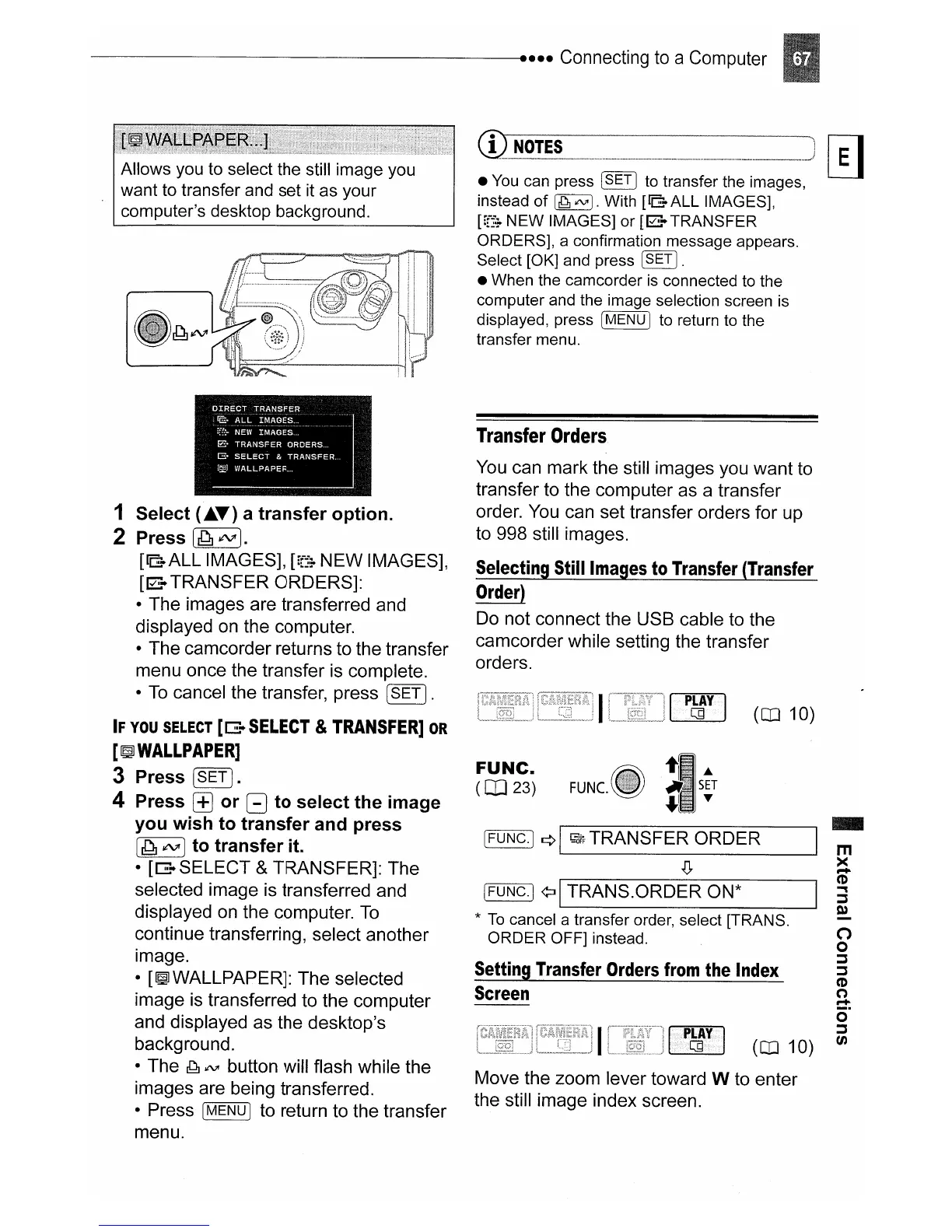
1 Select
(~
..
) a transfer option.
2 Press
[~¢VI].
[lEE-ALL
IMAGES],
[:f~:-
NEW IMAGES],
[~-
TRANSFER ORDERS]:
• The images are transferred and
displayed
on
the computer.
• The camcorder returns to the transfer
menu once the transfer is complete.
•
To
cancel the transfer, press [SET
].
IF
YOU
SELECT
[G:-
SELECT
&
TRANSFER]
OR
[~
WALLPAPER]
3 Press
[SET).
4 Press
[±J
or B to select the image
you wish to transfer and press
[
~
¢VI
Ito transfer it.
• [G:-SELECT &TRANSFER]: The
selected image is transferred and
displayed
on
the computer.
To
continue transferring, select another
image.
•
[~WALLPAPER]:
The selected
image is transferred to the computer
and displayed as the desktop's
background.
• The
~
JNI
button will flash while the
images are being transferred.
• Press
[MENU I to return to the transfer
menu.


 To Next Page
 Loading...