Chapter 3: Graph & Table Application 105
u ClassPad Operation
1. On the Graph window or Graph Editor window, tap a and then [Built-In].
2. On the menu that appears, tap the built-in function you want to select.
• This displays a dialog box for assigning values to the coefficients. The actual coefficients that appear (
a
through d) depend on the built-in function you selected.
3. Assign values to each coefficient.
4. Tap [OK] to graph.
Saving a Screenshot of a Graph
Use the following procedures to save a screenshot of a graph as image data for later recall.
u To open a screenshot of a graph
1. On the Graph window, tap a and then [Open Picture]. This displays a list of names of graph images you
have stored in memory.
2. Select the name of the image you want, and then tap [OK].
• The image you select is displayed as the Graph window background.
u To save a screenshot of a graph
1. Draw the graph you want to save.
2. Tap a and then [Save Picture]. This displays a dialog box for inputting a name for the screenshot.
3. Enter the name and then tap [OK].
u To clear the current screenshot of a graph
On the Graph window, tap a and then [Clear Picture].
Adjusting the Lightness (Fade I/O) of the Graph Window Background Image
You can adjust the lightness of the graph window background image within a range of 0% (as-is) to 100% (all
white). A higher setting value makes the image lighter, and a setting of 100% displays an all white background.
You can use this setting to adjust the background image to a level that makes the graph easier to see.
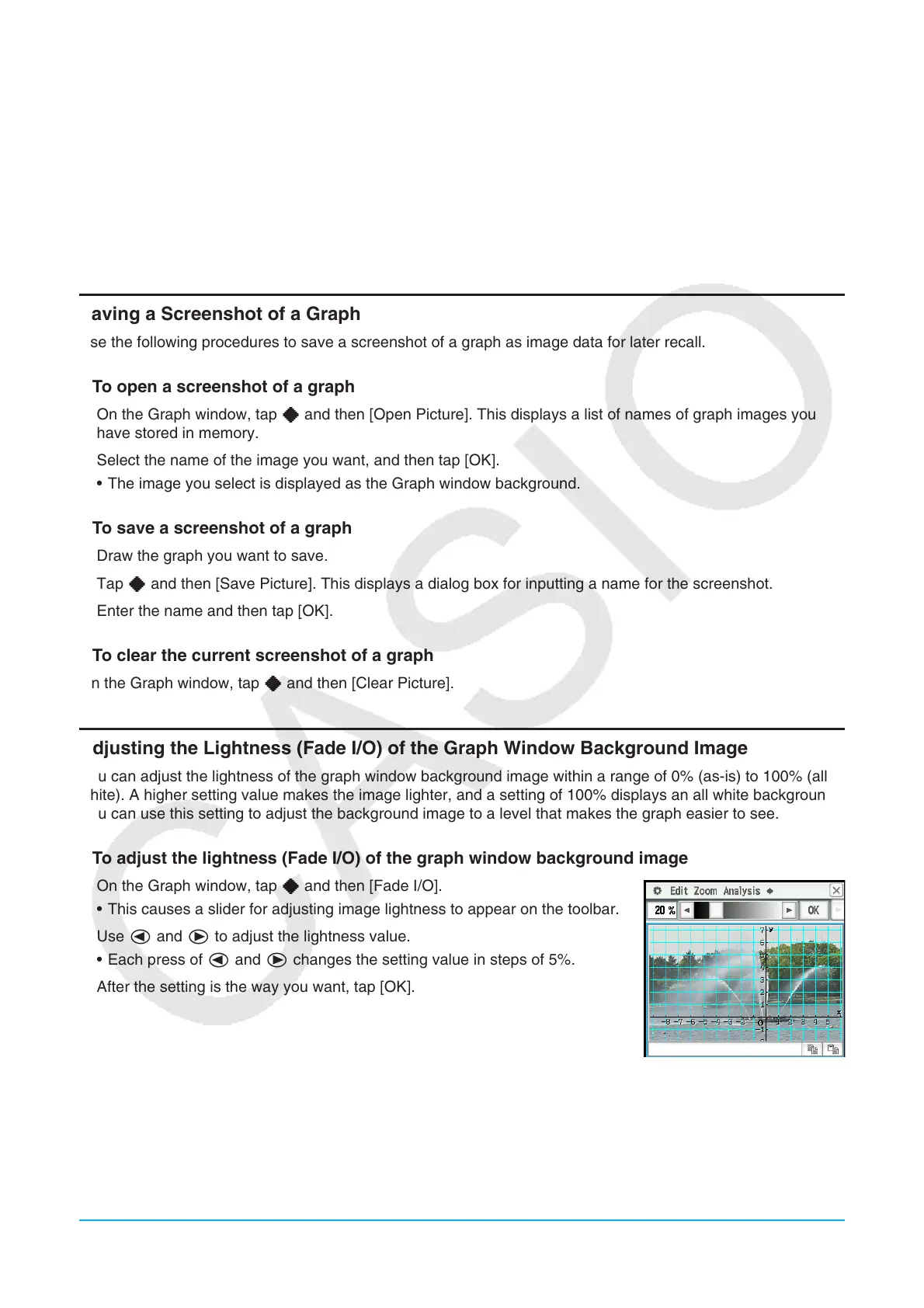
u To adjust the lightness (Fade I/O) of the graph window background image
1. On the Graph window, tap a and then [Fade I/O].
• This causes a slider for adjusting image lightness to appear on the toolbar.
2. Use d and e to adjust the lightness value.
• Each press of d and e changes the setting value in steps of 5%.
3. After the setting is the way you want, tap [OK].



 To Next Page
 Loading...