Chapter 13: Spreadsheet Application 224
Cell Data Types (Text Data and Calculation Data)
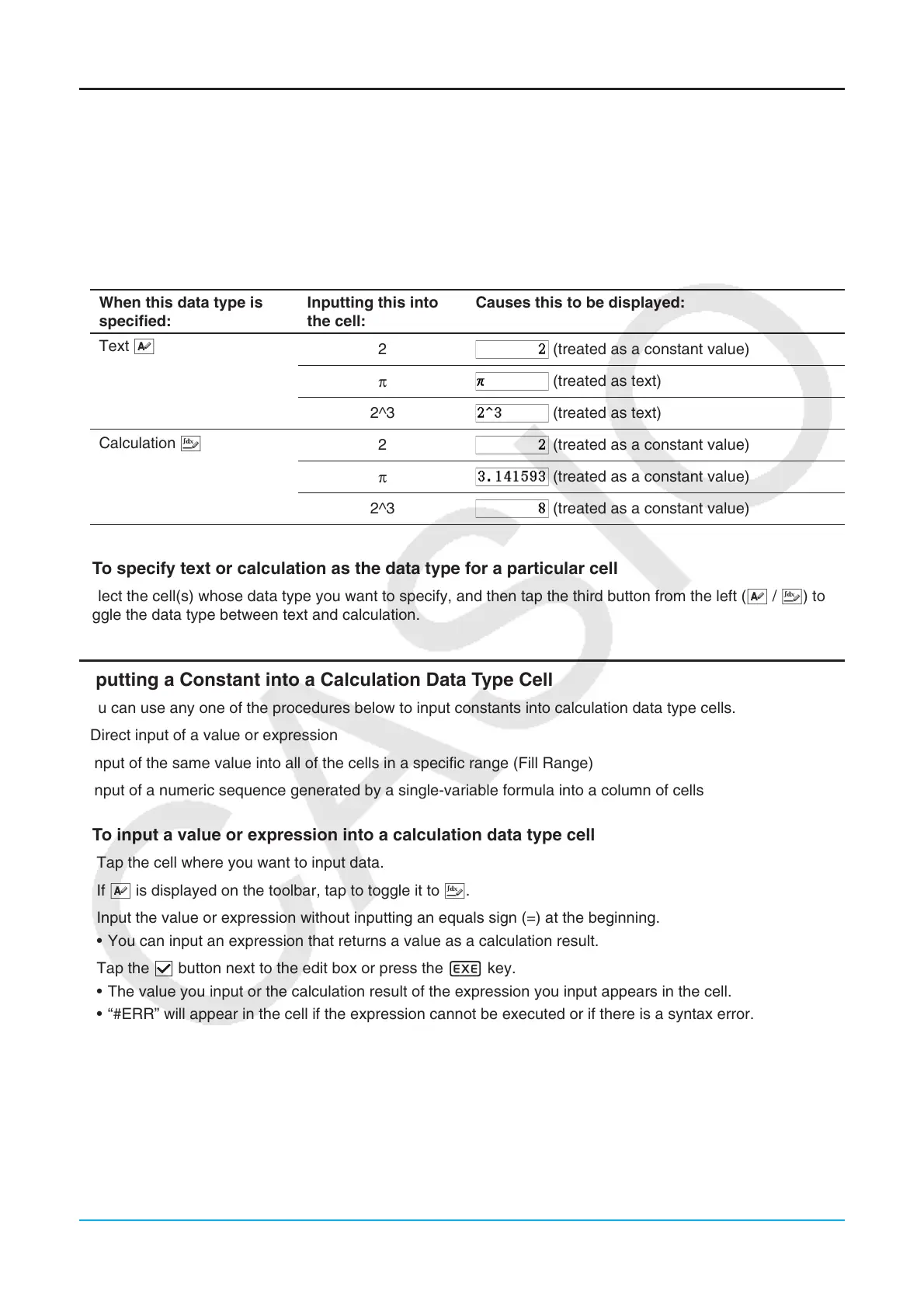
When a single cell is selected, the toolbar will show u when it is a text data type cell, or < if it is a calculation
data type cell. When you create a new spreadsheet, all of the cells are initially text data type.
• With a text data type cell, any text or variable that does not have an equals sign (=) at the beginning is treated
as text. A single value is treated as a constant value.
• With a calculation data type cell, a formula or variable that does not have an equals sign (=) at the beginning
is treated as a constant value. Inputting 2{3w in a calculation data type cell, for example, will cause
the value 8 (the calculation result) to appear in the cell.
When this data type is
specified:
Inputting this into
the cell:
Causes this to be displayed:
Text u
2
(treated as a constant value)
π
(treated as text)
2^3
(treated as text)
Calculation <
2
(treated as a constant value)
π
(treated as a constant value)
2^3
(treated as a constant value)
u To specify text or calculation as the data type for a particular cell
Select the cell(s) whose data type you want to specify, and then tap the third button from the left (u / <) to
toggle the data type between text and calculation.
Inputting a Constant into a Calculation Data Type Cell
You can use any one of the procedures below to input constants into calculation data type cells.
• Direct input of a value or expression
• Input of the same value into all of the cells in a specific range (Fill Range)
• Input of a numeric sequence generated by a single-variable formula into a column of cells
u To input a value or expression into a calculation data type cell
1. Tap the cell where you want to input data.
2. If u is displayed on the toolbar, tap to toggle it to <.
3. Input the value or expression without inputting an equals sign (=) at the beginning.
• You can input an expression that returns a value as a calculation result.
4. Tap the s button next to the edit box or press the E key.
• The value you input or the calculation result of the expression you input appears in the cell.
• “#ERR” will appear in the cell if the expression cannot be executed or if there is a syntax error.



 To Next Page
 Loading...