Chapter 2: Main Application 79
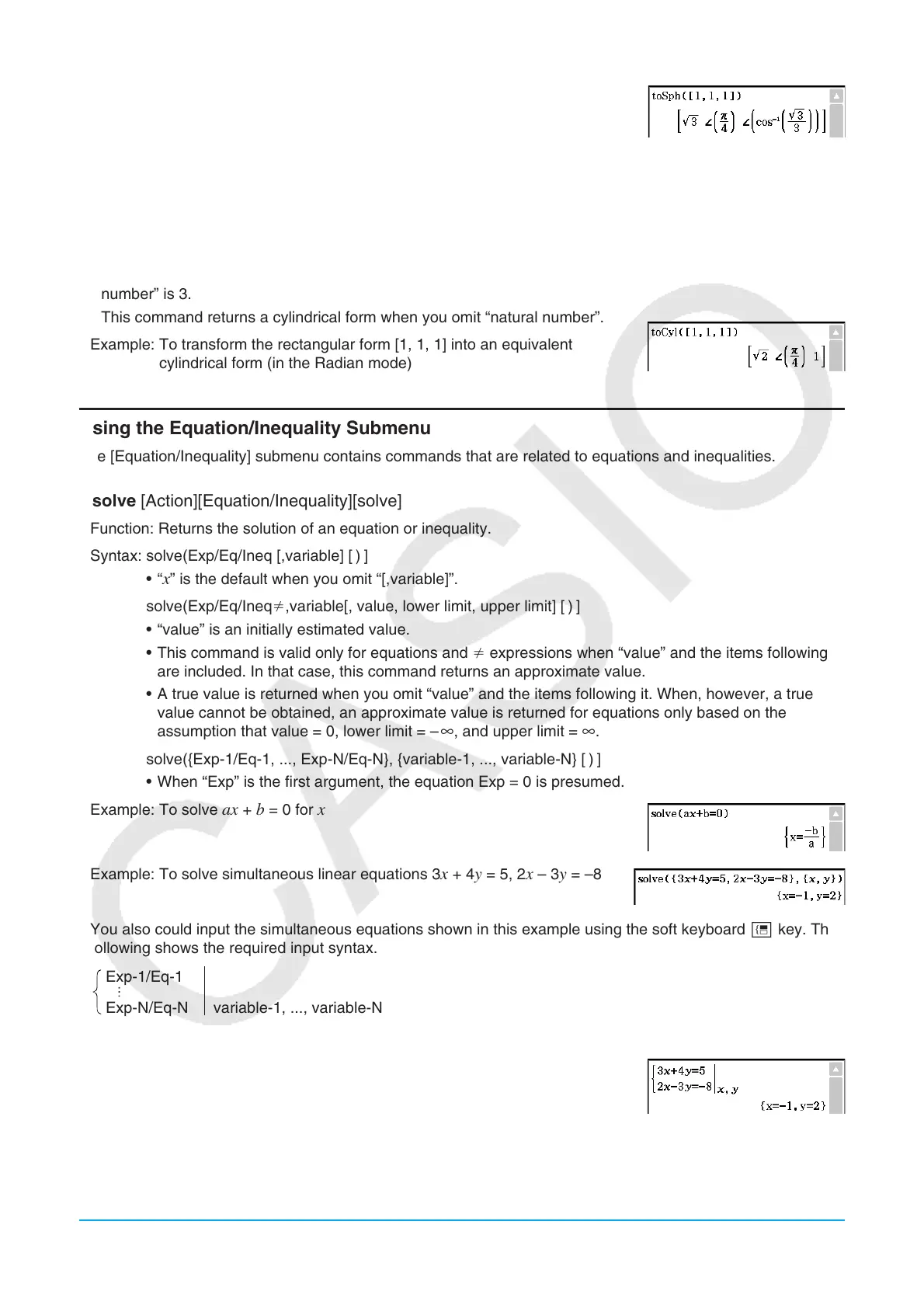
Example: To transform the rectangular form [1, 1, 1] into its equivalent
spherical form (in the Radian mode)
u toCyl [Action][Vector][toCyl]
Function: Returns an equivalent cylindrical form [ r ∠ z ].
Syntax: toCyl (Mat [,natural number] [ ) ]
• This command can be used with a 1 × 3 or 3 × 1 matrix only.
• This command returns “
r” when “natural number” is 1, “ ” when “natural number” is 2, and “z” when “natural
number” is 3.
• This command returns a cylindrical form when you omit “natural number”.
Example: To transform the rectangular form [1, 1, 1] into an equivalent
cylindrical form (in the Radian mode)
Using the Equation/Inequality Submenu
The [Equation/Inequality] submenu contains commands that are related to equations and inequalities.
u solve [Action][Equation/Inequality][solve]
Function: Returns the solution of an equation or inequality.
Syntax: solve(Exp/Eq/Ineq [,variable] [
)
]
• “
x ” is the default when you omit “[,variable]”.
solve(Exp/Eq/Ineq,variable[, value, lower limit, upper limit] [
)
]
• “value” is an initially estimated value.
• This command is valid only for equations and expressions when “value” and the items following it
are included. In that case, this command returns an approximate value.
• A true value is returned when you omit “value” and the items following it. When, however, a true
value cannot be obtained, an approximate value is returned for equations only based on the
assumption that value = 0, lower limit = –
∞, and upper limit = ∞.
solve({Exp-1/Eq-1, ..., Exp-N/Eq-N}, {variable-1, ..., variable-N} [
)
]
• When “Exp” is the first argument, the equation Exp = 0 is presumed.
Example: To solve
ax + b = 0 for x
Example: To solve simultaneous linear equations 3
x + 4 y = 5, 2 x – 3 y = –8
You also could input the simultaneous equations shown in this example using the soft keyboard # key. The
following shows the required input syntax.
Exp-1/Eq-1
Exp-N/Eq-N variable-1, ..., variable-N
• The following shows the required key operation to input this example using the # key.
#dX+eY=fccX-dY=-ieX,Yw
• To input simultaneous equations with three or more unknowns, tap the # key when the cursor is in the
Exp-N/Eq-N input field. Each tap of # will add one more line for input of an equation.


 To Next Page
 Loading...