-
Local Upgrade: Plug the USB ash drive to the USB interface. Press OK. The system will read
the digicap.dav le and upgrading automacally. Aer the upgrading is completed, the device
will reboot automacally.
Note
●
The upgrading le should be in the root directory.
●
The upgrading le name in the USB ash drive should be digicap.dav.
●
Do not power o during the device upgrading.
●
Aer the upgrading is completed, remove the USB ash drive.
-
Online upgrade: The system will gain the upgrade package from the plaorm to upgrade.
5.8.5 Restore
Sengs
Restore system parameters to factory sengs or default sengs.
Steps
1.
Move the cursor and select System → Reset .
2.
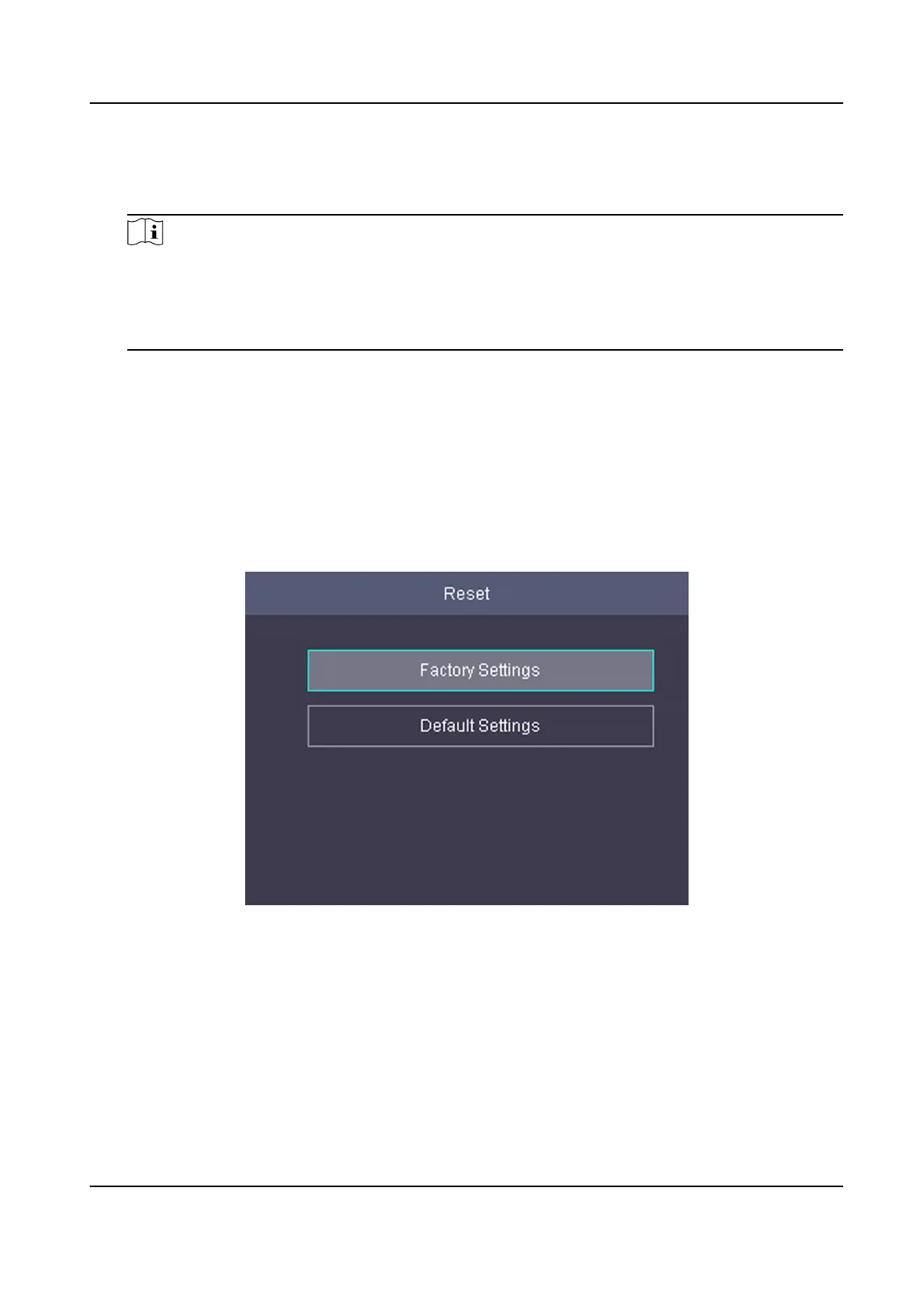
Press OK to enter the Reset page.
Figure 5-22 Reset Page
3.
Select Factory Sengs or Default Sengs.
Factory Sengs
All parameters of the device will restore to the factory parameters.
Default Sengs
All parameters, excluding the communicaon parameters, the remote user management, and
events, will restore to the factory parameters.
4.
Conrm sengs in the prompt page and the device starts restoring.
DS-K1A802A Series Fingerprint Time Aendance Terminal User Manual
42


 To Next Page
 Loading...