22
HITRON CGNV2 USER’S GUIDE
INTRODUCTION
1.5 LOGIN TO THE CGNV2
Take the following steps to login to the CGNV2’s GUI.
NOTE: You can login to the CGNV2’s GUI via the wireless interface. However, it is
strongly recommended that you configure the CGNV2 via a wired connection
on the LAN.
1 Open a browser window.
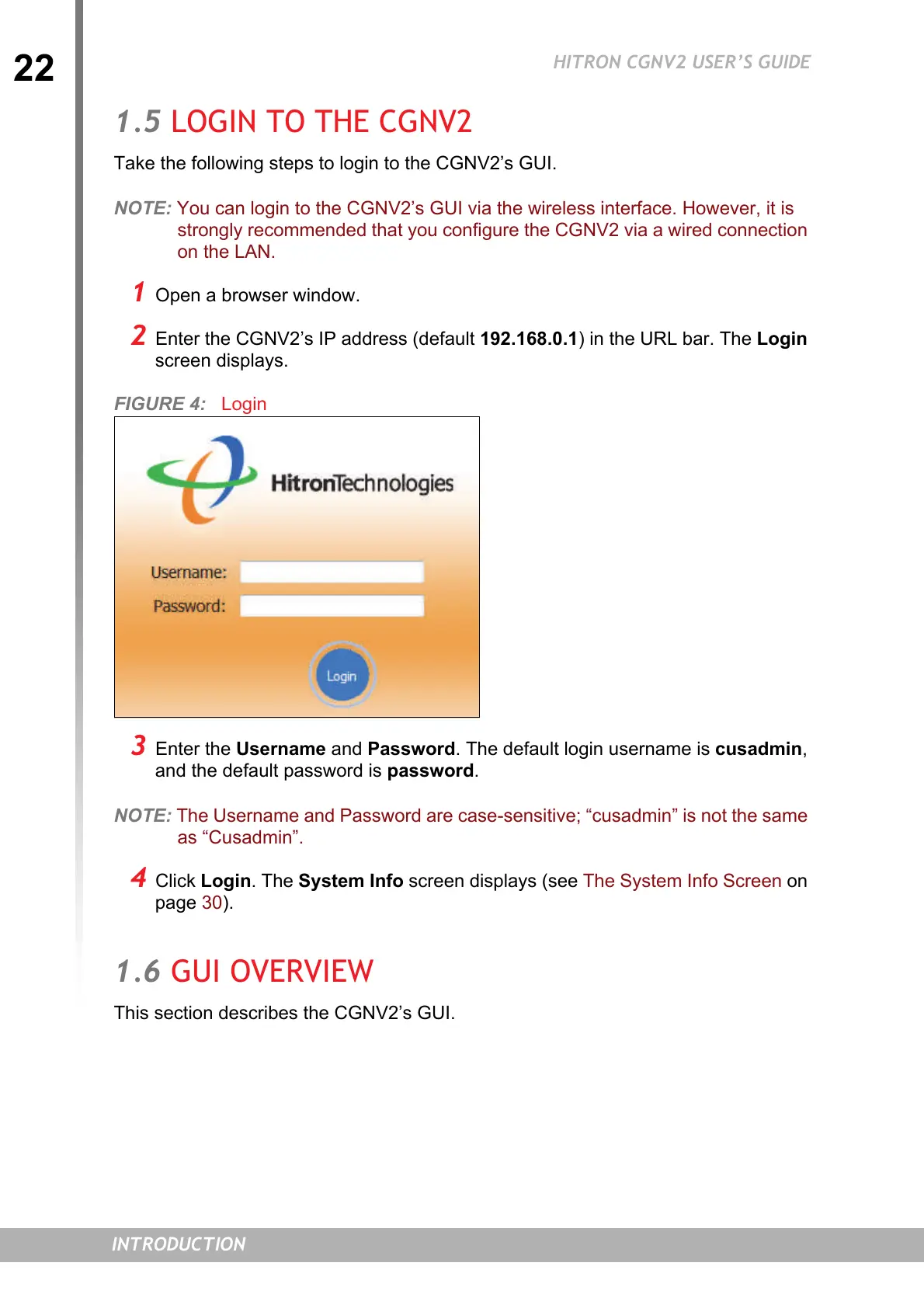
2 Enter the CGNV2’s IP address (default 192.168.0.1) in the URL bar. The Login
screen displays.
FIGURE 4: Login
3 Enter the Username and Password. The default login username is cusadmin,
and the default password is password.
NOTE: The Username and Password are case-sensitive; “cusadmin” is not the same
as “Cusadmin”.
4 Click Login. The System Info screen displays (see The System Info Screen on
page
30).
1.6 GUI OVERVIEW
This section describes the CGNV2’s GUI.


 To Next Page
 Loading...