 To Next PageTo Next PageTo Previous PageTo Previous Page
 Loading...
 Need help?
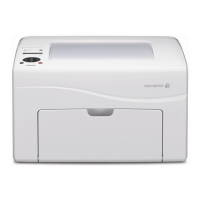
Do you have a question about the Fuji Xerox DocuPrint CP215 Series and is the answer not in the manual?
 General
| Print Technology | Laser |
|---|---|
| Paper Capacity | 250 sheets (standard) |
| Connectivity | USB 2.0, Ethernet |
| Operating Systems Supported | Windows, Mac OS, Linux |
| Paper Input Capability | 250-sheet tray |
| Paper Output Capability | 150 sheets face-down |
| Media Size | A4, A5, A6, Letter, Legal, Executive |
| Operating System Compatibility | Windows, Mac OS, Linux |
| Dimensions | 400 x 460 x 223 mm |
Describes the printer's main parts, including front and rear views.
Install and use the printer driver for full access to printer features.
Guide to setting the printer's IP address in IPv4 mode.
Steps for installing printer software and drivers on Windows operating systems.
Steps for installing printer software and drivers on Mac OS X operating systems.
Instructions on how to properly load paper and media into the printer's feeders.
Covers sending print jobs to the printer and how to cancel them.
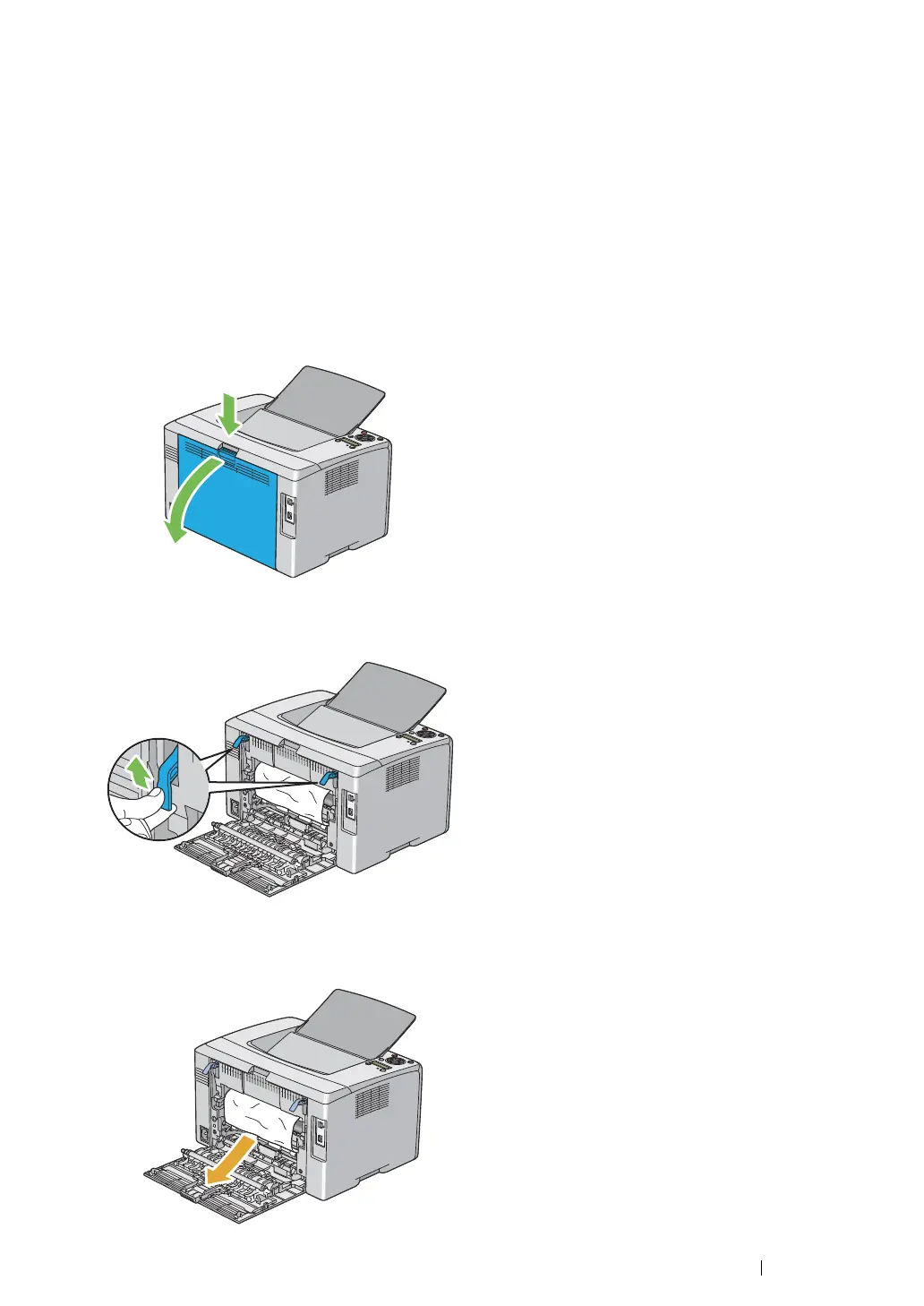
Guidance on identifying and clearing paper jams from different printer locations.
Solutions for jobs not printing, incorrect characters, or misfeeds.
Addresses issues like light output, smears, streaks, and color misalignment.
Procedures for manually and automatically adjusting color registration.
Explains error codes and messages displayed on the LCD panel.
Step-by-step guide for replacing toner cartridges.