iiGTN 650: USING THE PHYSICAL CONTROLS
You can use the Large and Small concentric knobs instead of
the touch screen to enter letters and numbers and to conrm or
complete actions.
For example, when entering a waypoint name:
1. ROTATE the Large knob le and right to move the cursor
(red arrows).
2. ROTATE the Small knob to select letters and numbers (magenta arrows).
3. To complete or conrm, PRESS the Small knob (blue arrow), just like pressing Enter on a keyboard.
e com and nav radios each have
active and standby (STBY) frequency
windows. e active frequency appears
in the top position of each frequency
pair, and the numerals are illuminated
in green. e standby frequencies ap-
pear in the windows below the active
frequencies, and the numerals are illu-
minated in cyan (blue) when the fre-
quency is available for tuning or white
when the frequency is not available for
tuning.
With GTN system soware 5.12
and later, Reverse Frequency Look-Up
Using the GTN 650 Physical Controls (a.k.a. “Real Buttons and Knobs”)
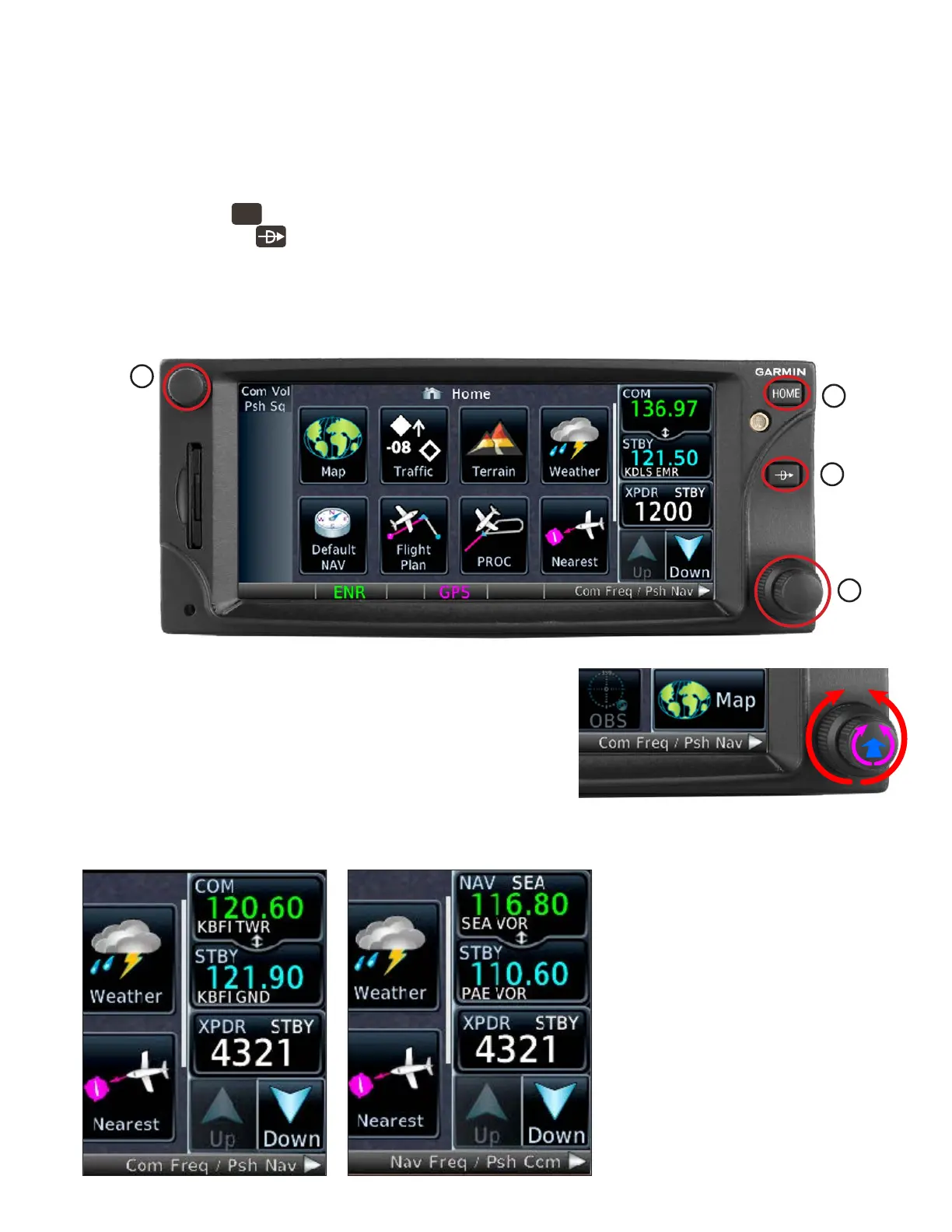
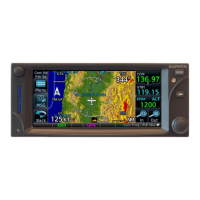
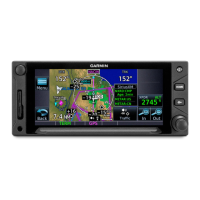
e Garmin GTN 650 features an interactive display and physical controls located on the bezel surrounding
the screen. It’s usually easiest to use the touch screen to control the features of the GTN. However, you can also
tune frequencies, enter waypoint names, and perform other functions with the knobs and buttons on the bezel.
ese physical controls include:
A. e Volume/Squelch knob in the upper-le corner.
B. e Home (
HOME
)button in the upper-right corner.
C. e Direct-To ( ) button on the right side.
D. e Large and Small concentric knobs in the lower-right corner.
ese knobs and buttons are useful, for example, when ying in turbulence, and sometimes they’re the
quickest way to control specic features, such as the radio volume. e Home and Direct-To buttons are espe-
cially useful as shortcuts.
A
D
B
C







 To Next Page