47
English
How to perform pen drawing
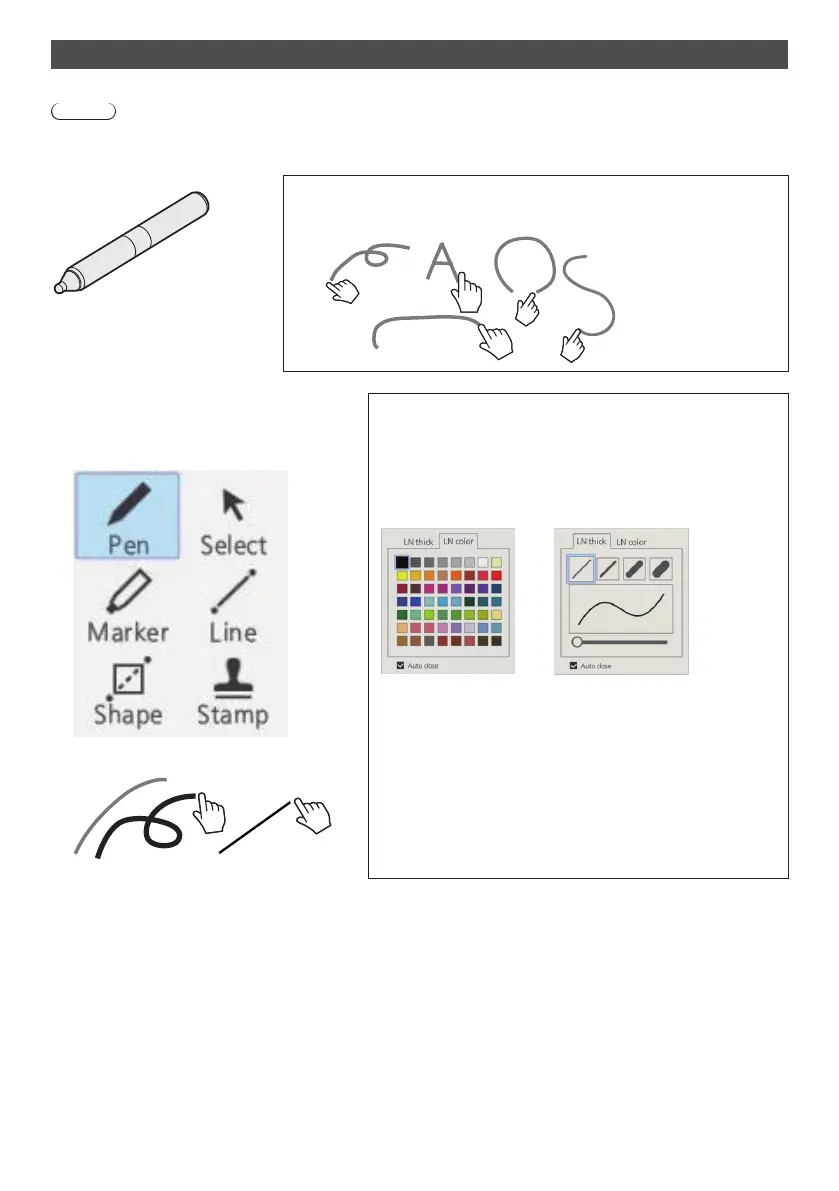
Select a function in the main menu before starting drawing.
Note
●
Always use a finger or the supplied pen to perform pen drawing. Do not perform operations with a hard object or
sharp object such as a nail, ballpoint pen, or pencil.
Pen (supplied)
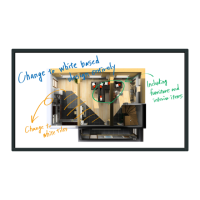
On the whiteboard, up to 10 people can draw at the same time. The pen
colour, pen thickness and other preferences selected in the main menu
will be shared.
1
Tap a drawing button.
Pen / Marker / Line / Shape /
Stamp
Changing drawing settings
The colour and thickness of the Pen and Marker can be
changed separately.
The Shape and Line colours are the same as the pen settings.
The changed items are displayed in the palette menu, and are
displayed in tabs for each category.
Thickness selectColour select
The slider allows you to freely set the thickness of the pen. You
can check how thick it is on the preview screen.
When [Color universal design] is set to [On], the colour palette
becomes colours that are easy to see without being aware of
individual differences in colour vision. (see page 104)
2
Draw on the display.
Marker Line


 To Next Page
 Loading...