j
AUTO
EXPOSURE
BRACKETING
Press
(PHOTO],
first
halfway
to
activate
the
autofocus
and
then
fully
to
record
the
photos.
Three photos
in
different exposures will
be recorded.
Histogram
Display
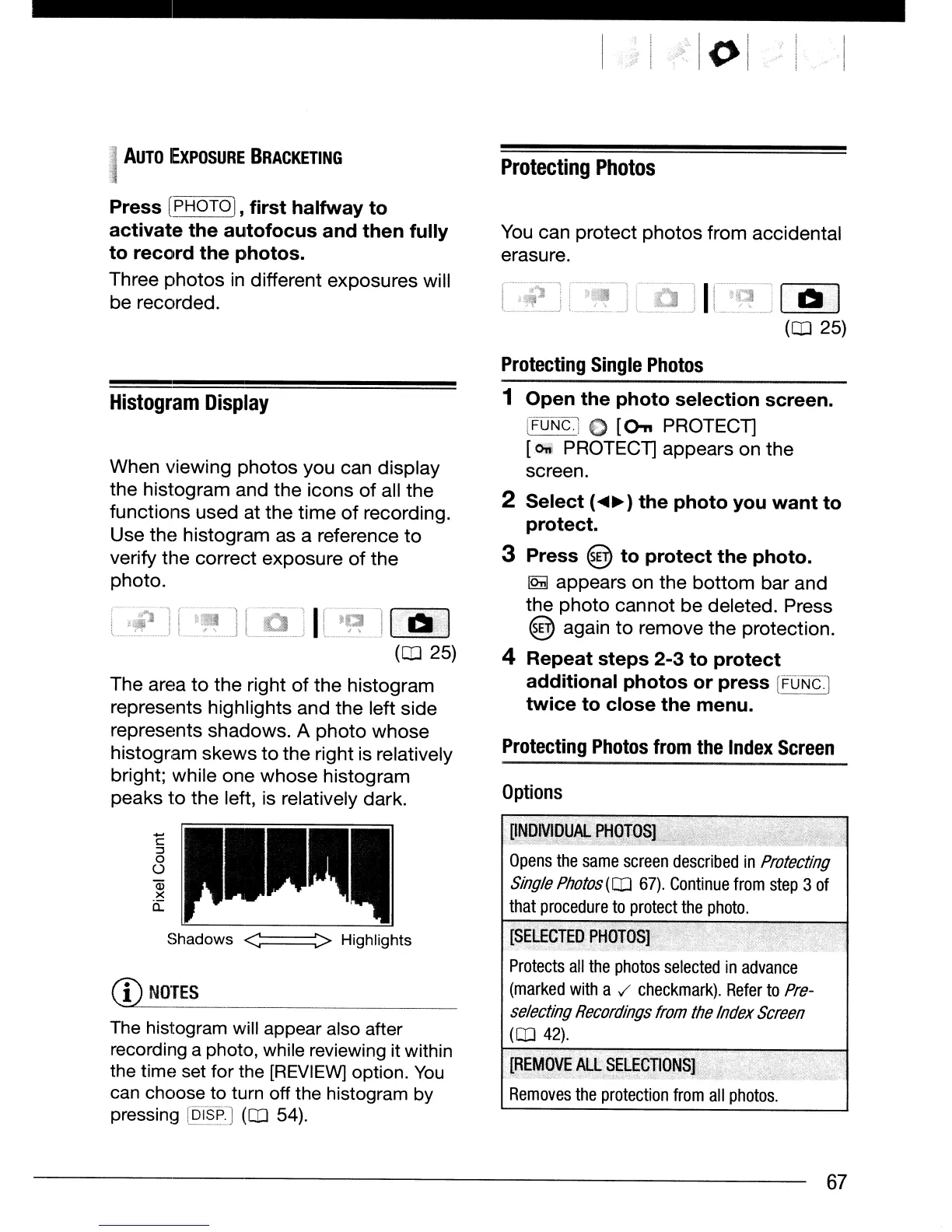
When viewing photos you can display
the histogram and the icons
of
all the
functions used at the time
of
recording.
Use the histogram as a reference to
verify the correct exposure
of
the
photo.
(Q]
25)
The area
to
the right
of
the histogram
represents highlights and the left side
represents shadows. A
photo
whose
histogram skews
to
the right is relatively
bright; while one whose histogram
peaks
to
the left, is relatively
dark
.
...
C
:3
o
o
Q)
><
a::
Shadows
<~~>
Highlights
CD
NOTES
The
histogram will appear also after
recording a photo, while reviewing it within
the time set for the
[REVIEW]
option.
You
can choose to turn off the histogram
by
pressing
(pT~p]
(Q]
54).
, I
Protecting
Photos
You
can protect photos from accidental
erasure.
00
(Q]
25)
Protecting
Single
Photos
1
Open
the
photo
selection
screen.
P:0Ncl
()
[On
PROTECT]
[<>ri1
PROTECT] appears on the
screen.
2
Select
(~~)
the
photo
you
want
to
protect.
3 Press @
to
protect
the
photo.
IQm
appears on the
bottom
bar and
the photo cannot be deleted. Press
@ again
to
remove the protection.
4
Repeat
steps
2-3
to
protect
additional
photos
or
press
[FiJi'fc-:]
twice
to
close
the
menu.
Protecting
Photos
from
the
Index
Screen
Options
Protects
all
the
photos
selected
in
advance
(marked
with
a
../
checkmark).
Refer
to
Pre-
selecting
Recordings
from
the
Index
Screen
(Q]
42).
[REMOVE
A~L
SELECTJONSL"
Removes
the
protection
from
all
photos.
67


 To Next Page
 Loading...