Photos
PRINT
ERRORS
If an error
occurs
while printing, an error
message,
for
example
[NO PAPER], will
appear
on the camcorder. Solve
the
problem referring
to
the error message list
(0
103)
and
to
the printer's instruction
manual.
•
Canon's
PictBridge-compatible printers: If
printing
does
not resume automatically
after you solved the problem, select
[CONTINUE] and press
@
to
resume
printing. If that option is not available,
select [STOP] and press
@ and then
restart printing from the beginning.
•
Other
printers or
if
the error still persists with
a
Canon
printer: If printing
does
not
resume automatically,
disconnect
the
USB
cable
and turn
off
the camcorder.
After a short while, turn
on
the
camcorder
and restore the
USB
connection.
o
IMPORTANT
•
You
may
not
be
able
to
print correctly
with a
PictBridge-compatible
printer
photos
whose
file names have been
changed
or
that
were recorded, created,
edited
or
changed with any device
other
than
this
camcorder.
• If [BUSY]
does
not
disappear,
disconnect
the
USB
cable
and restore
the
connection
after a short while.
Print
Orders
You
can
mark
in
advance
the
photos
you
want
to
print
and
set
the
desired
number
of
copies
as
a
print
order. Later,
you
can
easily
print
out
the
print
orders
by
connecting
the
camcorder
to
a
PictBridge-compatible
printer
(CD
69).
You
can
set
print
orders
for
up
to
998
photos.
. 1
I.
11,1
(CO
25)
4
2
or
4
PIXMA
SELPHY
OS
SELPHY
CP/ES
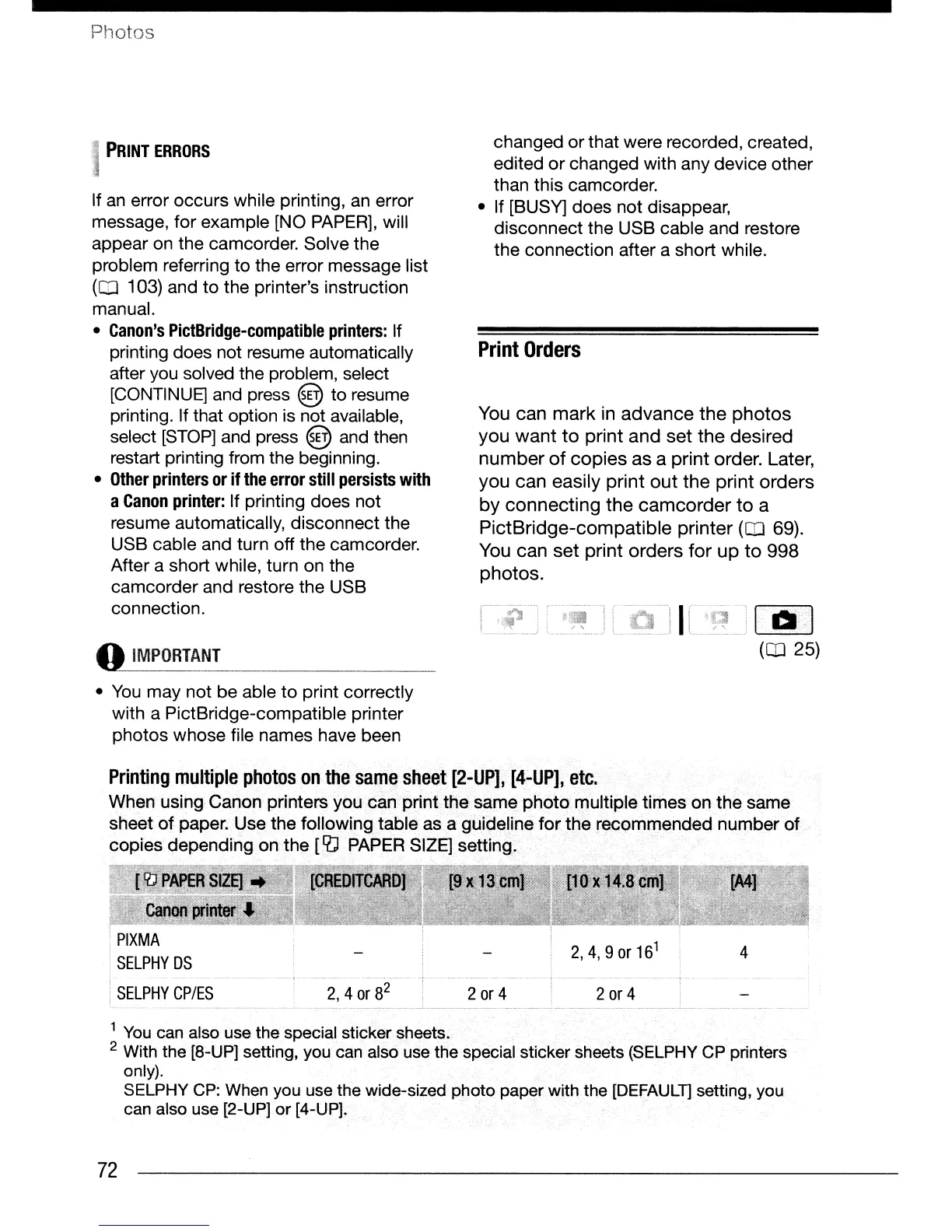
Printing
multiple
photos
on
the
same
sheet
[2-UP],
[4:"UP],
etc.
When
using
Canon
printers
you
can
printthesame
photo
multiple
times
on
the
same
sheet
of
paper. Use the following
table
as a guideline
for
the
recommended
number
of
copies
depending
on
the
[RJ
PAPER SIZE] setting.
1
You
can also use the special sticker sheets.
2 With the [8-UP] setting, you can also use the special sticker sheets (SELPHY CP printers
only).
SELPHY
CP:
When you use the wide-sized photo paper with the [DEFAULn setting, you
can also use [2-UP]
or
[4-UP].
72


 To Next Page
 Loading...