Video
Selecting
What
Recordings
to
Play
Back
From the index screen, you can select
whether
to
play back movies
or
photos.
You
can also use the tabs on the
top
of
the screen
to
select the media from
which to play back recordings
((IH)
/
t:mI
/
(m!J
only).
II.·~?J
[····~>I
(OJ
25)
1
In
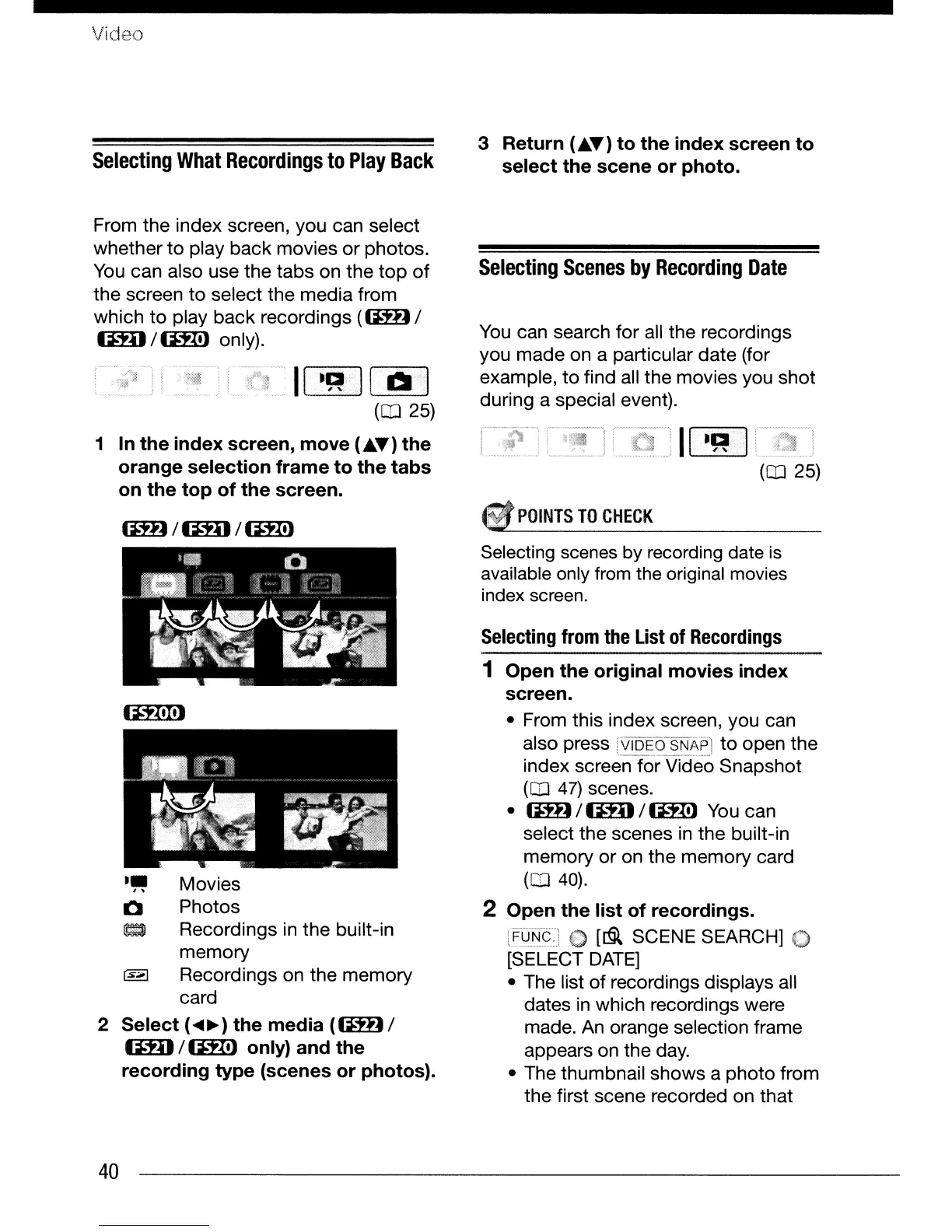
the index screen, move
(AT)
the
orange selection frame to the tabs
on
the top of the screen.
•
~
Movies
o Photos
• Recordings
in
the built-in
memory
rs.;;;] Recordings on the memory
card
2 Select
(~~)
the media
«(IH)
/
(mJ
/
(m!J
only) and the
recording type (scenes or photos).
40
3 Return
(AT)
to the index screen to
select the scene or photo.
Selecting
Scenes
by
Recording
Date
You
can search for all the recordings
you made on a particular date (for
example,
to
find all the movies you shot
during a special event).
•...•••..•••••••••••••••••••..•••• >
II····~.·.J
(OJ
25)
POINTS
TO
CHECK
Selecting scenes by recording date is
available only from the original movies
index screen.
Selecting
from
the
List
of
Recordings
1 Open the original movies index
screen.
• From this index screen, you can
also press
l~Q§Q]_~,I>,?~1
to
open the
index screen for Video Snapshot
(CD
47)
scenes.
•
(IH)
/
t:mI
/
(m!J
You
can
select the scenes
in
the built-in
memory or on the memory card
(CD
40)
.
2 Open the list of recordings.
lFQ~¢.J
[~
SCENE SEARCH]
[SELECT
DATE]
• The list
of
recordings displays all
dates
in
which recordings were
made.
An
orange selection frame
appears on the day.
• The thumbnail shows a photo from
the first scene recorded on that


 To Next Page
 Loading...