Video
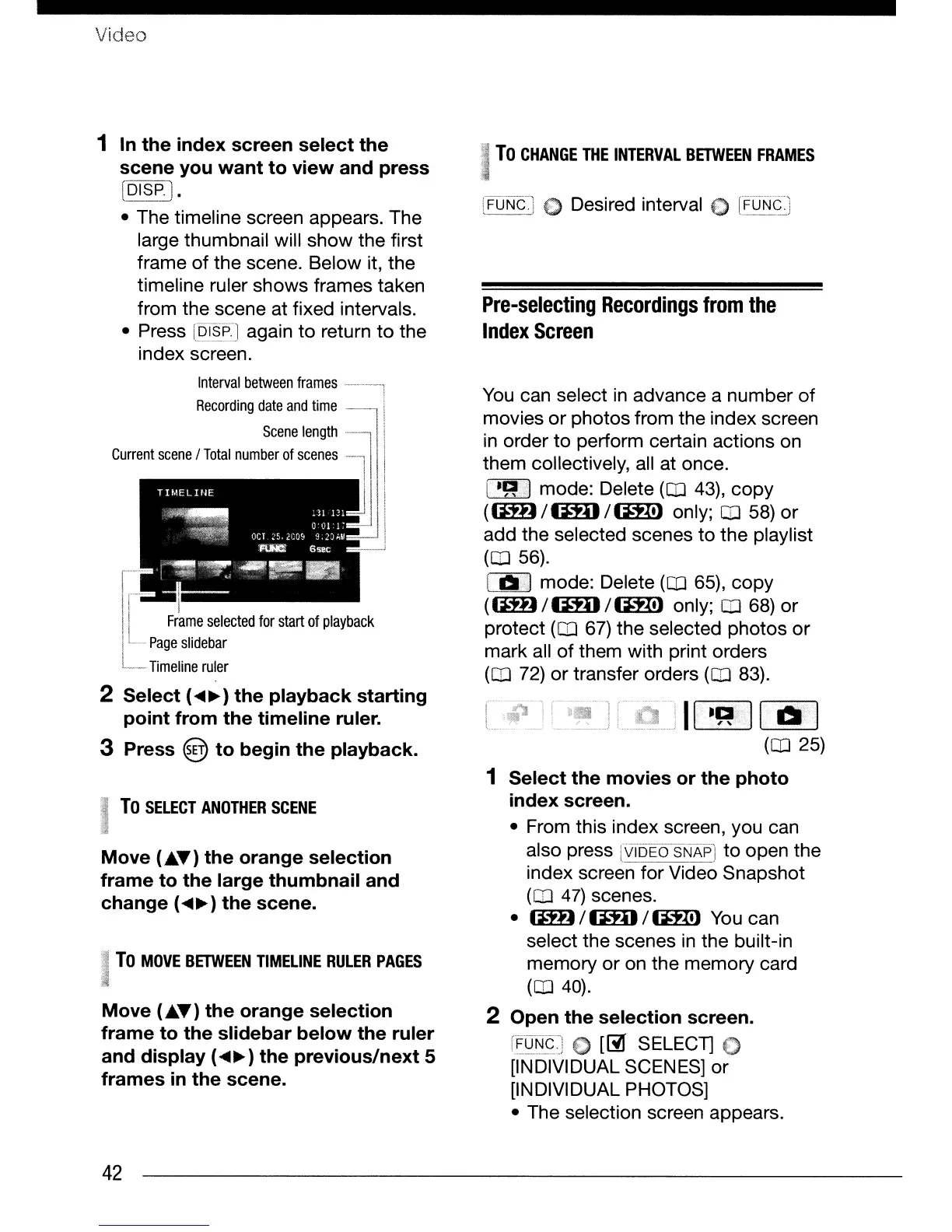
1 In
the
index
screen
select
the
scene
you
want
to
view
and
press
[Q~~~J
.
• The timeline screen appears. The
large thumbnail will show the first
frame
of
the scene. Below it, the
timeline ruler shows frames taken
from the scene at fixed intervals.
• Press
[OI$p.J
again
to
return to the
index screen.
Interval
between
frames
Recording
date
and
time
Scene
length
Current
scene
/
Total
number
of
scenes
I
Frame
selected
for
start
of
playback
Page
slidebar
Timeline
ruler
2
Select
(
....
~)
the
playback
starting
point
from
the
timeline
ruler.
3 Press @
to
begin
the
playback.
To
SELECT
ANOTHER
SCENE
Move
(
....
)
the
orange
selection
frame
to
the
large
thumbnail
and
change
(
....
~)
the
scene.
To
MOVE
BETWEEN
T1MELINE
RULER
PAGES
Move
(.T)
the
orange
selection
frame
to
the
slidebar
below
the
ruler
and
display
(
....
~
)
the
previous/next
5
frames
in
the
scene.
42
I
To
CHANGE
THE
INTERVAL
BETWEEN
FRAMES
(FUNc.1
~
Desired interval
€)
[FUr'{gj
, ,
W4iI
Pre-selecting
Recordings
from
the
Index
Screen
You
can select
in
advance a number of
movies
or
photos from the index screen
in
order
to
perform certain actions on
them collectively,
all
at once.
I
.g:;J
mode: Delete
(CD
43),
copy
(fi»)
IU:fD
11m!)
only;
CD
58)
or
add the selected scenes to the playlist
(CD
56).
II!I»J
mode: Delete
(CD
65), copy
(fi»)
I U:fD
11m!)
only;
CD
68) or
protect
(CD
67) the selected photos
or
mark all
of
them with print orders
(CD
72)
or transfer orders
(CD
83).
II·
·~;';:II·
1.11
1
1
(CD
25)
1
Select
the
movies
or
the
photo
index
screen.
• From this index screen, you can
also press
rVioEosNAPI
to open the
l .
index screen for Video Snapshot
(CD
47)
scenes.
•
fi»)
I U:fD
11m!)
You
can
select the scenes
in
the built-in
memory or on the memory card
(CD
40).
2 Open
the
selection
screen.
WUNc.!,;
[~
SELECT)
€)
..
,
€)
[INDIVIDUAL SCENES] or
[INDIVIDUAL PHOTOS]
• The selection screen appears.


 To Next Page
 Loading...