Troubleshooting
236 Xerox
®
WorkCentre
®
EC7836/EC7856 Color Multifunction Printer
User Guide
Clearing Jams at Trays 1–4
1. Before removing the tray from the printer, look at the jam message on the control panel. If another
jam is shown, clear that jam inside the printer first.
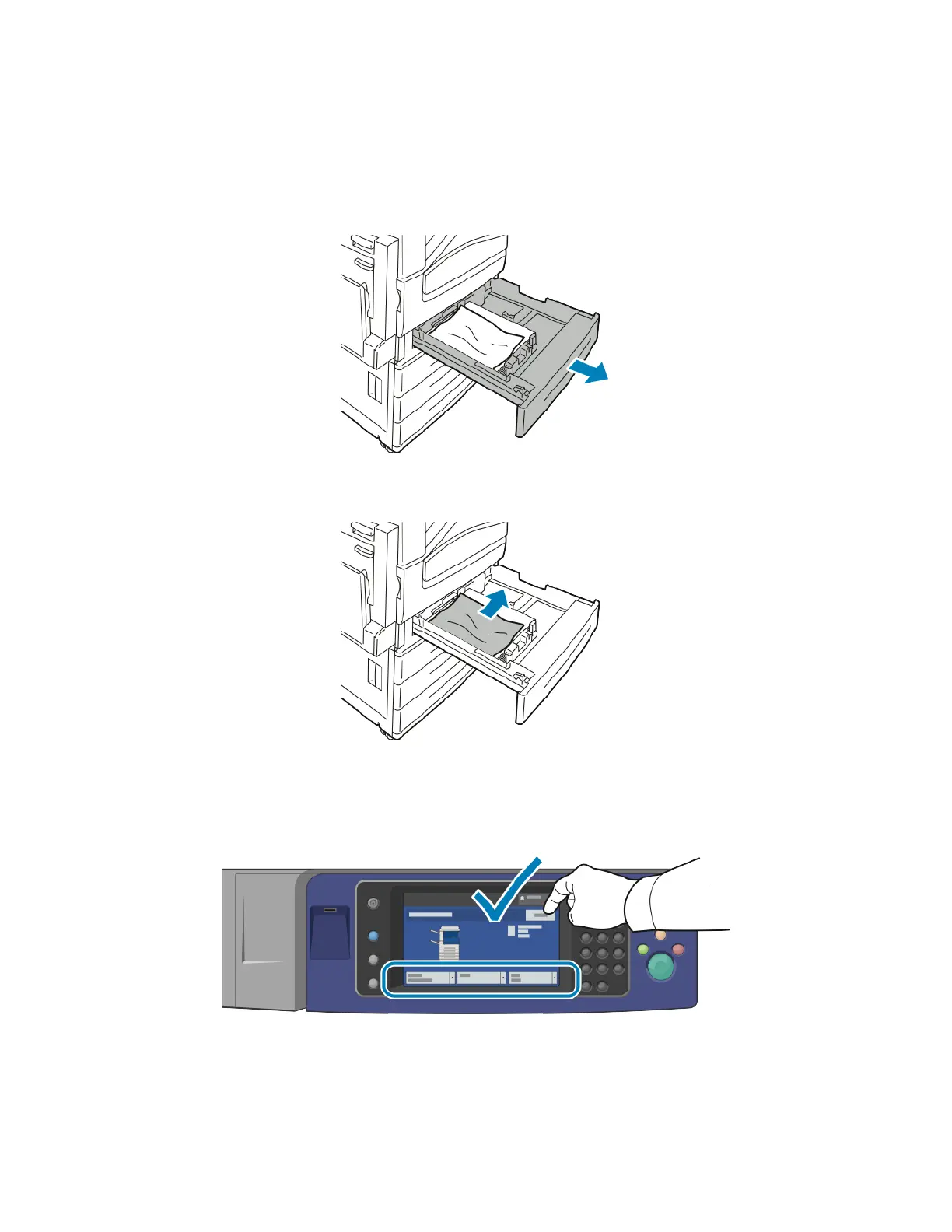
2. Pull the tray out toward you until it stops.
3. Remove the paper from the tray.
4. If the paper is torn, remove the tray completely and check inside the printer for torn pieces of paper.
5. Reload the tray with undamaged paper, then push the tray in until it stops. Paper Settings - Tray X
appears on the control panel.
6. Verify the size, type, and color of the paper. Change the selection for any incorrect setting.
7. On the printer touch screen, touch Confirm.


 To Next Page
 Loading...