WebConsole - Switching Options
73
NX-Series Controllers - WebConsole & Programming Guide
Video Settings
Video settings display when the Switch Mode is A/V or Video, the Video tabbed view is selected, and a specific input or output is
selected.
Inputs Only
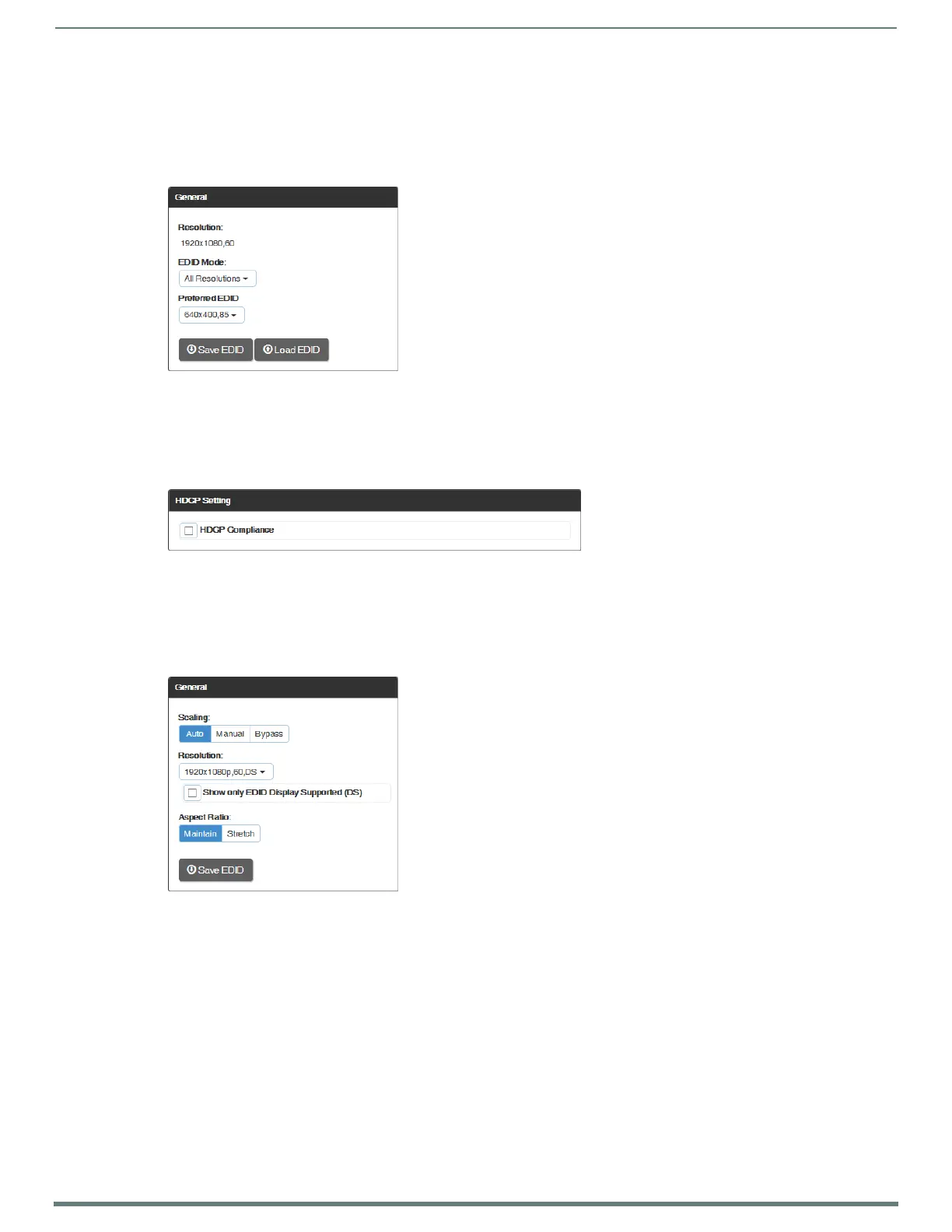
Ge n e r a l :
Resolution – displays Resolution (read-only).
EDID Mode – in the drop-down list, select the resolution type (All Resolutions, Wide-Screen, Full-Screen, or Custom).
Preferred EDID – in the drop-down list, select the specific resolution/refresh rate.
Save EDID button – use to save (persist them in memory) the EDID settings for the currently selected input
Load EDID button – use to load the EDID settings for the currently selected input to other inputs.
HDCP Setting:
HDCP Compliance – if desired, click the check box to enable HDCP compliance.
NOTE: When EDID Mode/All Resolutions is selected, the Preferred EDID drop-down list includes both standard EDIDs and Video
Information Code (VIC) EDIDs (denoted by either a “p” or an “i”). For a complete list of VIC EDIDs for your input boards see the “EDID
Resolutions Supported through Local DDC” section of the applicable board chapter.
Outputs Only
Ge n e r a l :
Scaling (Mode) – click the button for the mode (Auto, Manual, or Bypass)
Resolution – in the drop-down list, select the resolution/refresh rate; select the “Show only EDID Display Supported
(DS)” check box if desired.
Aspect Ratio – click either Maintain or Stretch (Zoom and Anamorphic are also available for DXLink outputs).
Save EDID – click this button to save the EDID setting for the currently selected output.


 To Next Page
 Loading...