7.
Close the paper output cover, then reload the paper.
All print jobs in the queue are canceled. Reprint if necessary.
Note
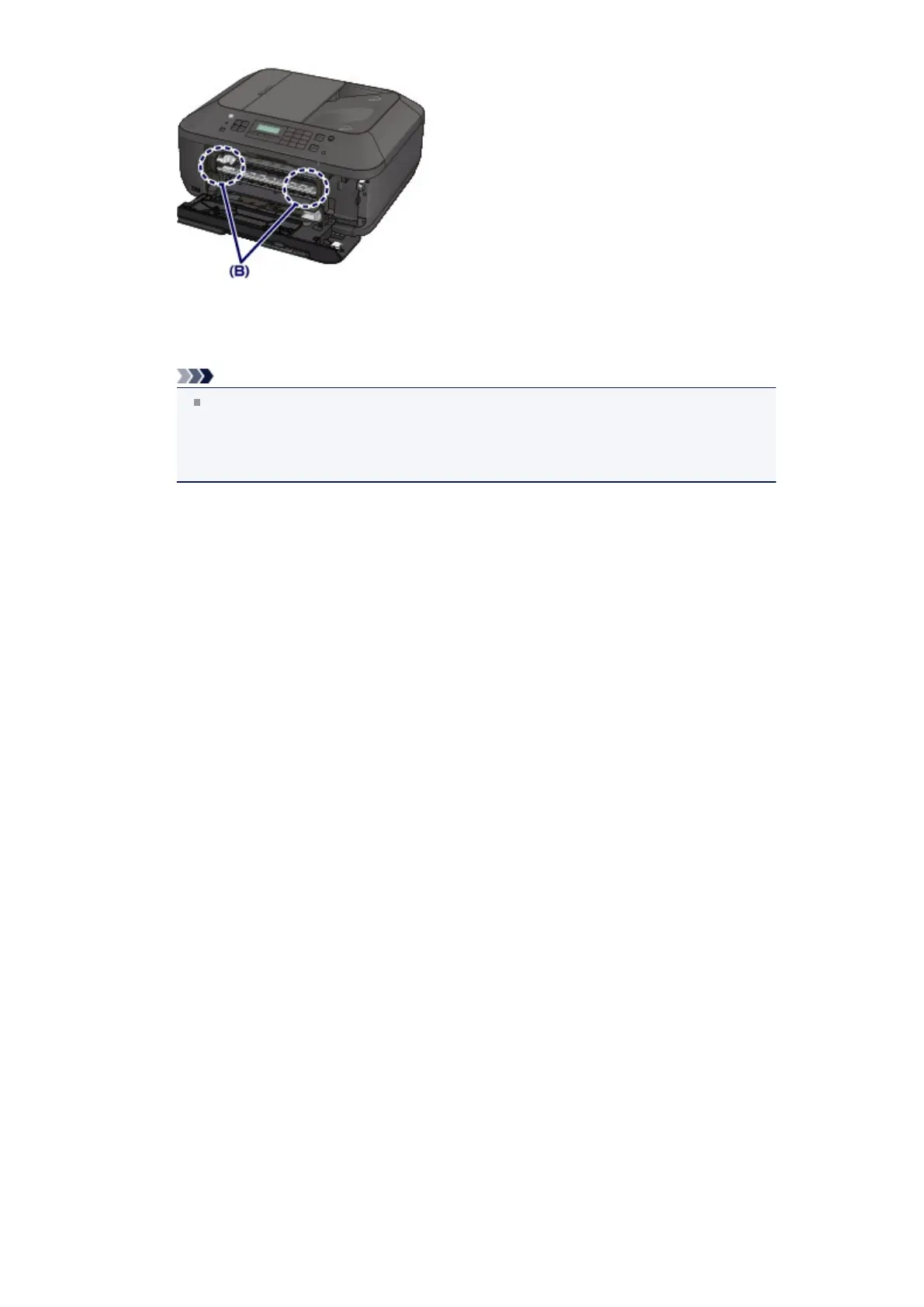
When reloading the paper, confirm that you are using the paper suited for printing and are
loading it correctly. If the message about paper jam is displayed on the LCD of the machine
or on the computer screen when you resume printing after removing all the jammed paper, a
piece of paper may remain inside the machine. In this case, confirm that no piece of paper
remains inside the machine.
If you cannot remove the paper or the paper tears inside the machine, or if the paper jam error
continues after removing the paper, contact the service center.


 To Next Page
 Loading...











