7. Connect the keyboard cable to the system board and close the latch to secure the cable.
8. Connect the touchpad cable to the system board and close the latch to secure the cable.
9. Connect the fingerprint-reader cable to the system board and close the latch to secure the cable.
10. Connect the speaker cable to the system board.
11. Connect the I/O-board cable to the system board and close the latch to secure the cable.
12. Adhere the tape that secures the I/O-board cable to the system board.
1. Install the power-adapter port.
2. Install the display assembly.
3. Install the heat sink.
4. Install the fan.
5. Install the WLAN card.
6. Install the M.2 2280 solid-state drive or M.2 2230 solid-state drive, whichever applicable.
7. Install the battery.
8. Install the base cover.
9. Follow the procedure in After working inside your computer.
Display bezel
Removing the display bezel
1. Follow the procedure in Before working inside your computer.
2. Remove the base cover.
3. Remove the battery.
4. Remove the WLAN card.
5. Remove the display assembly.
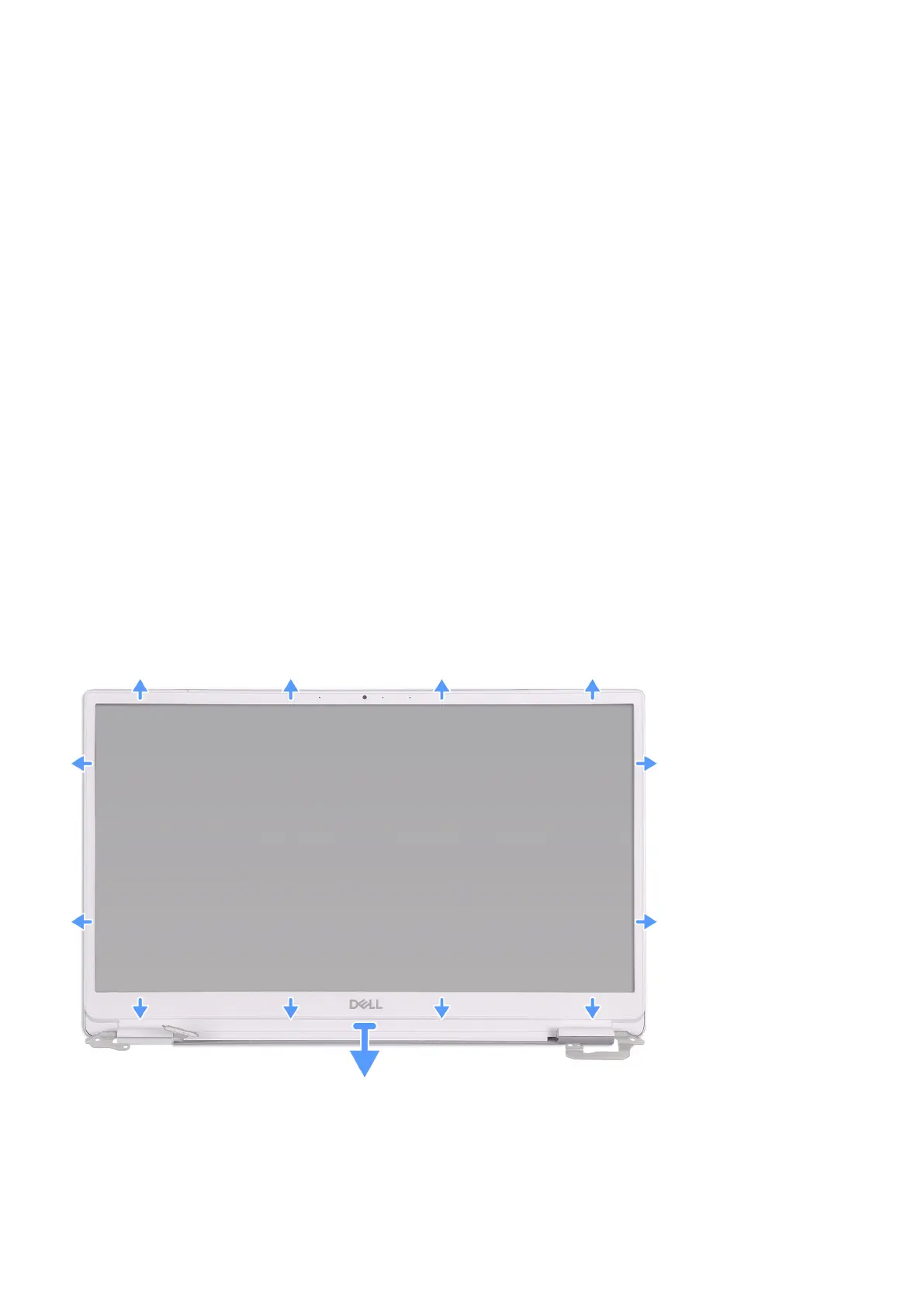
The following image indicates the location of display bezel and provides a visual representation of the removal procedure.
1. Carefully pry the edges of the display bezel off the display back-cover.
2. Remove the display bezel off the display back-cover.
Removing and installing components
49


 To Next Page
 Loading...