48 GPS1200 Manage...\Data
8.2 Point Management
8.2.1 Creating a New Point/Editing a Point
Access step-by-
step
)
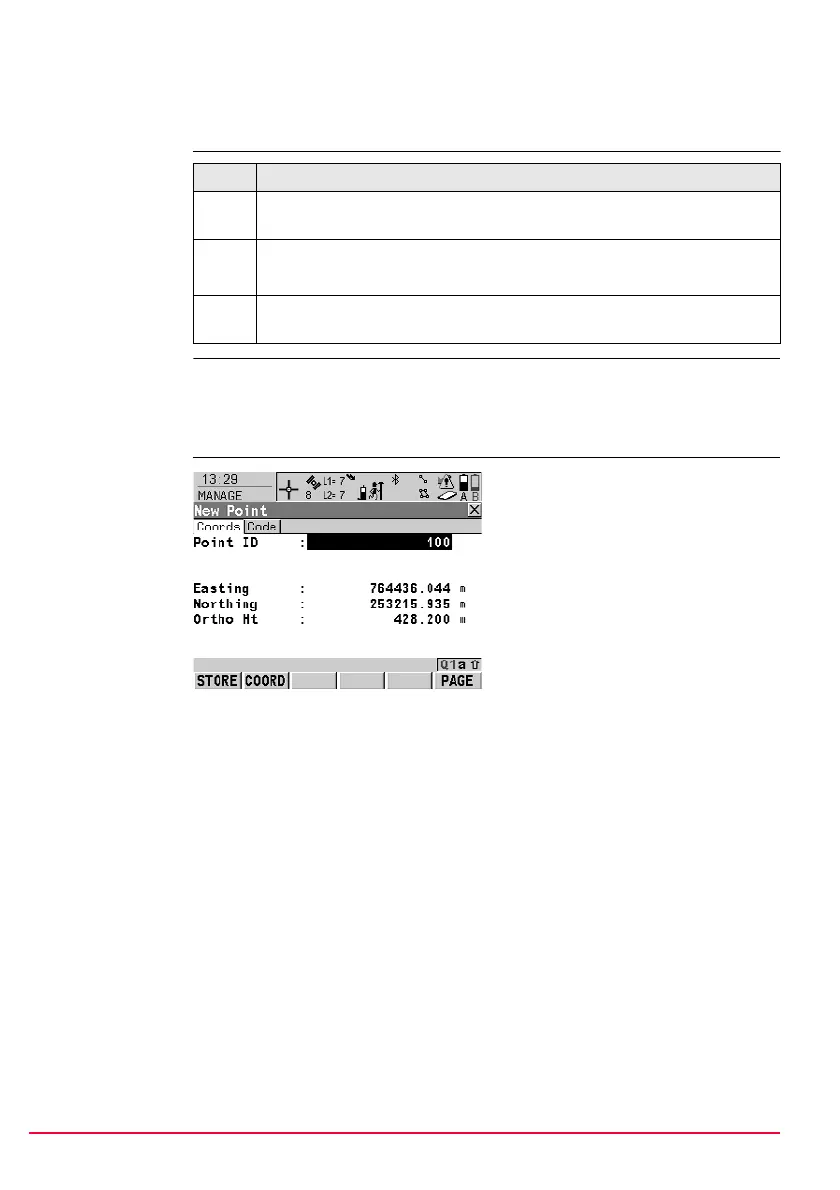
Editing points is similar to creating a new point. For simplicity, the screens are called
MANAGE XX Point and differences are clearly outlined. If editing a point, then the
visible pages and softkeys on this screen depend on the properties of the point being
edited.
MANAGE
XX Point,
Coords page
Step Description
1. Refer to "6 Manage... - Getting Started" to access MANAGE Data: Job
Name, Points page.
2. MANAGE Data: Job Name, Points page
If a point is to be edited, then highlight the point.
3. NEW (F2)/EDIT (F3) to access MANAGE New Point/MANAGE Edit
Point: Point ID.
STORE (F1)
To store the point and all associated
information and to return to
MANAGE Data: Job Name, Points
page.
COORD (F2)
To view other coordinate types.
NORTH (F3) or SOUTH (F3)
Available for local geodetic or
WGS 1984 geodetic coordinates
when <Local Lat:> or <WGS 1984
Lat:> is highlighted. To change
between North and South latitude.
EAST (F3) or WEST (F3)
Available for local geodetic or
WGS 1984 geodetic coordinates
when <Local Long:> or <WGS 1984
Long:> is highlighted. To change
between East and West longitude.
MORE (F5)
Available for editing a point. To
display information about class, sub
class, 3D coordinate quality, time and
date of when point was stored, instru-
ment source and the flag for Linework
if available.
SHIFT ELL H (F2) or SHIFT ORTH (F2)
Available for local coordinates. To
change between the ellipsoidal and
the orthometric height.


 To Next Page
 Loading...