Scanning
7-2
Scanning to a Computer (USB connection only)
Follow this procedure to scan a document to your computer.
Make sure that the scanner driver is installed. To check if the driver is installed, see
“Software Settings with Computer,” in the Starter Guide.
For details on scanner driver settings, see the Scanner Driver Guide (on the User
Software CD).
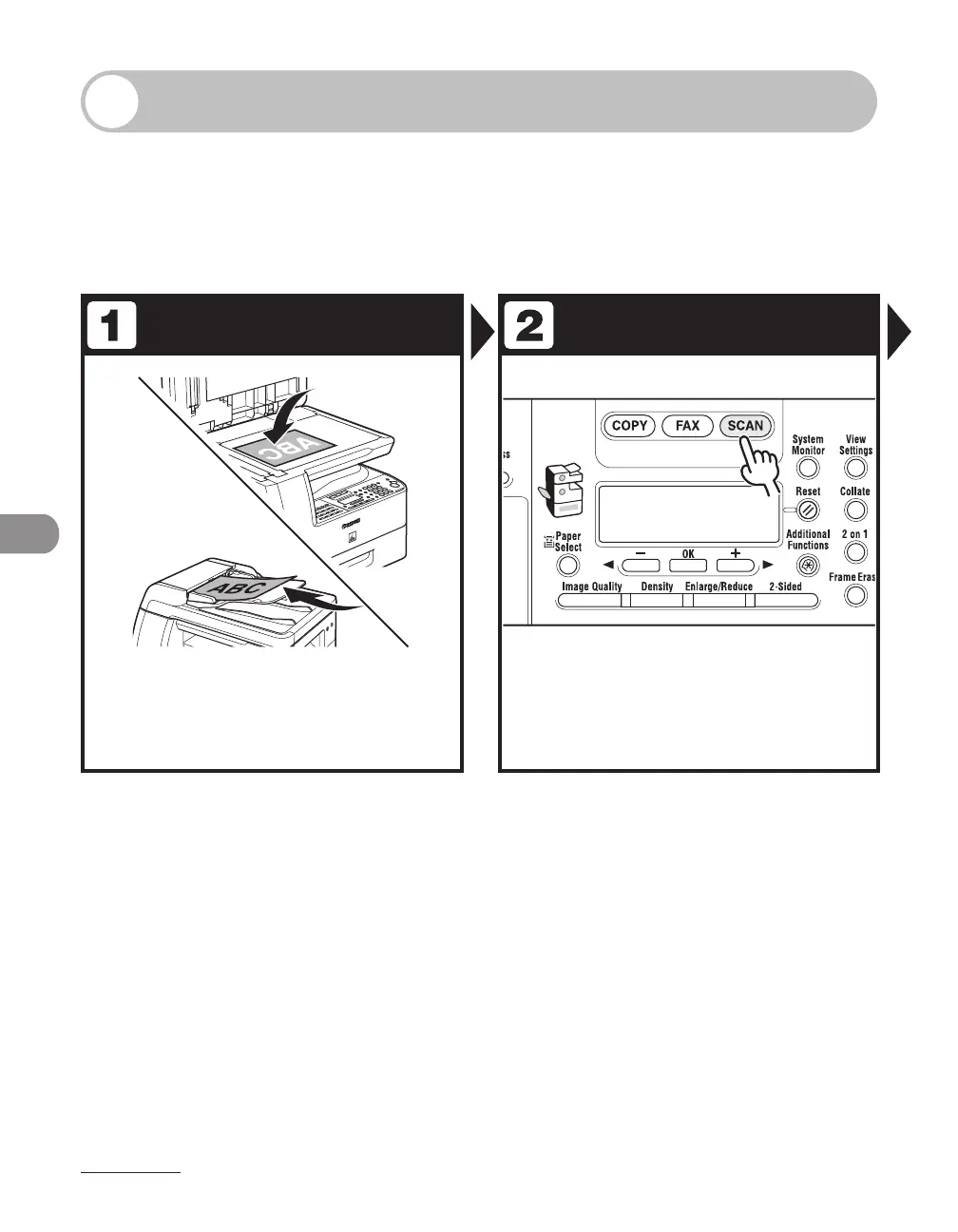
Set Documents Enter the Scan Mode
Place the first page on the platen
glass if you are not using the ADF.
For information on the type and size of document, see
“Document Requirements,” on p. 2-2.
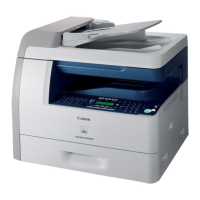
Press [SCAN].
The SCAN indicator lights up and the machine enters the
scan standby mode.


 To Next Page
 Loading...