NVIDIA Video Driver Controls
Attaching Other Displays B - 7
B
Attaching Other Displays
If you prefer to use a monitor or flat panel display, connect it to the DVI-Out
Port at the rear of the computer.
1. Attach your external monitor to the DVI-Out Port (or TV/HDTV to the S-
Video-Out jack), and turn it on.
2. Go to Additional Properties in the GeForce Go/ Quadro FX Go
Properties control panel tab (“NVIDIA Display Properties” on page B -
2).
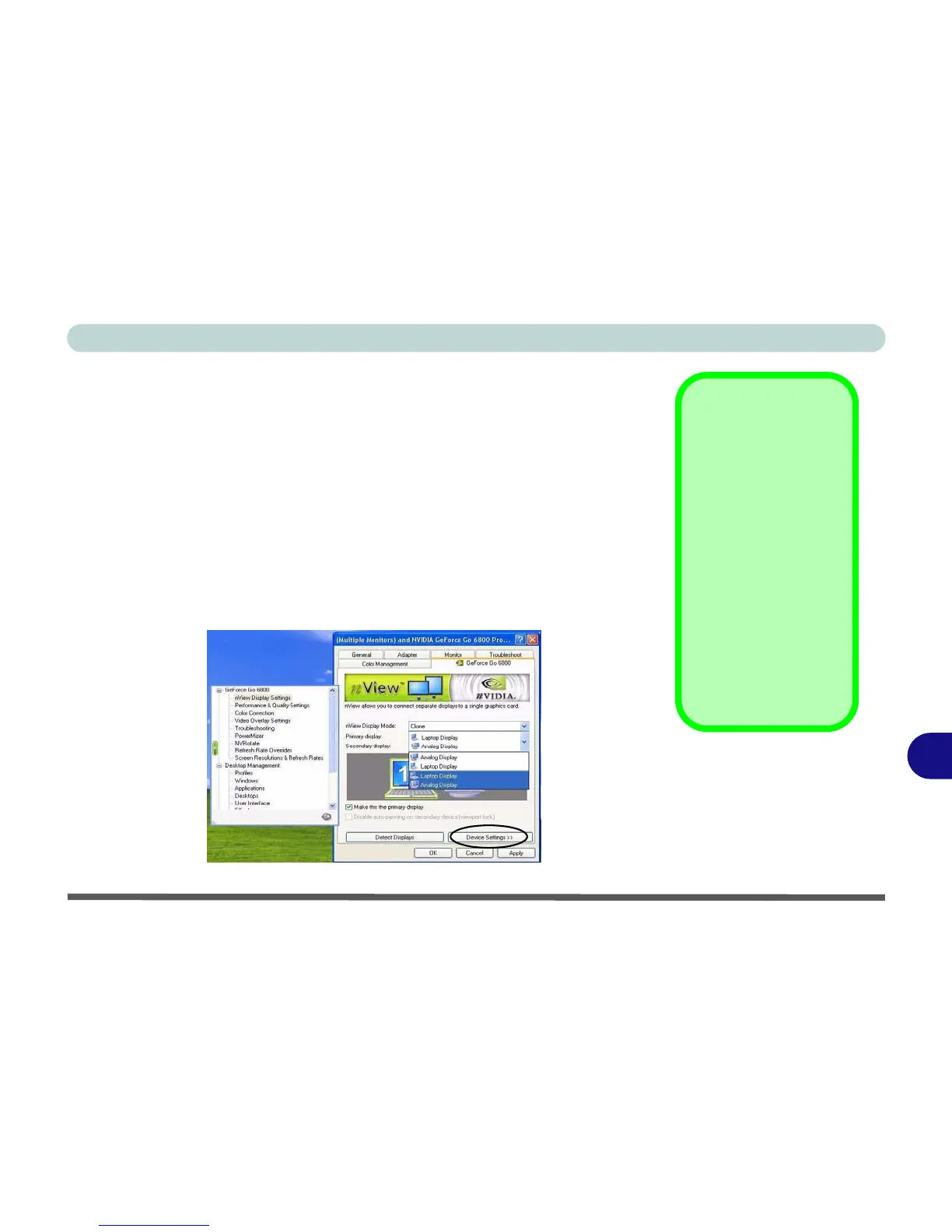
3. Select nView Display Settings (available if external display is attached).
4. Select the display mode from the nView Display Mode drop box.
5. Select Apply.
6. Click Yes to confirm the settings.
Function Key
Combination
You can use the Fn +
F7 key combination to
toggle through the dis-
play options:
• Notebook Only
• External Display
Only
• Notebook + External
Display
Make sure you give the
displays enough time
to refresh.
Figure B - 4
nView Display
Settings


 To Next Page
 Loading...