Check Project Functionality
During a routine maintenance schedule is a good time to check the functionality of your
application, making sure that various areas on different screens do what they were designed to
do. An outline or specification for the application is a useful tool for testing the various aspects
of your application. As a starting point, you may want to run through all the screens to make
sure they are accessible.
If there are any trouble-shooting procedures programmed into the C-more 6” Micro-Graphic
panel application, now is a good time to also check these aids.
Checks from the C-more Micro-Graphic Programming Software
If you have a PC available with the C-more Micro-Graphic Programming Software,
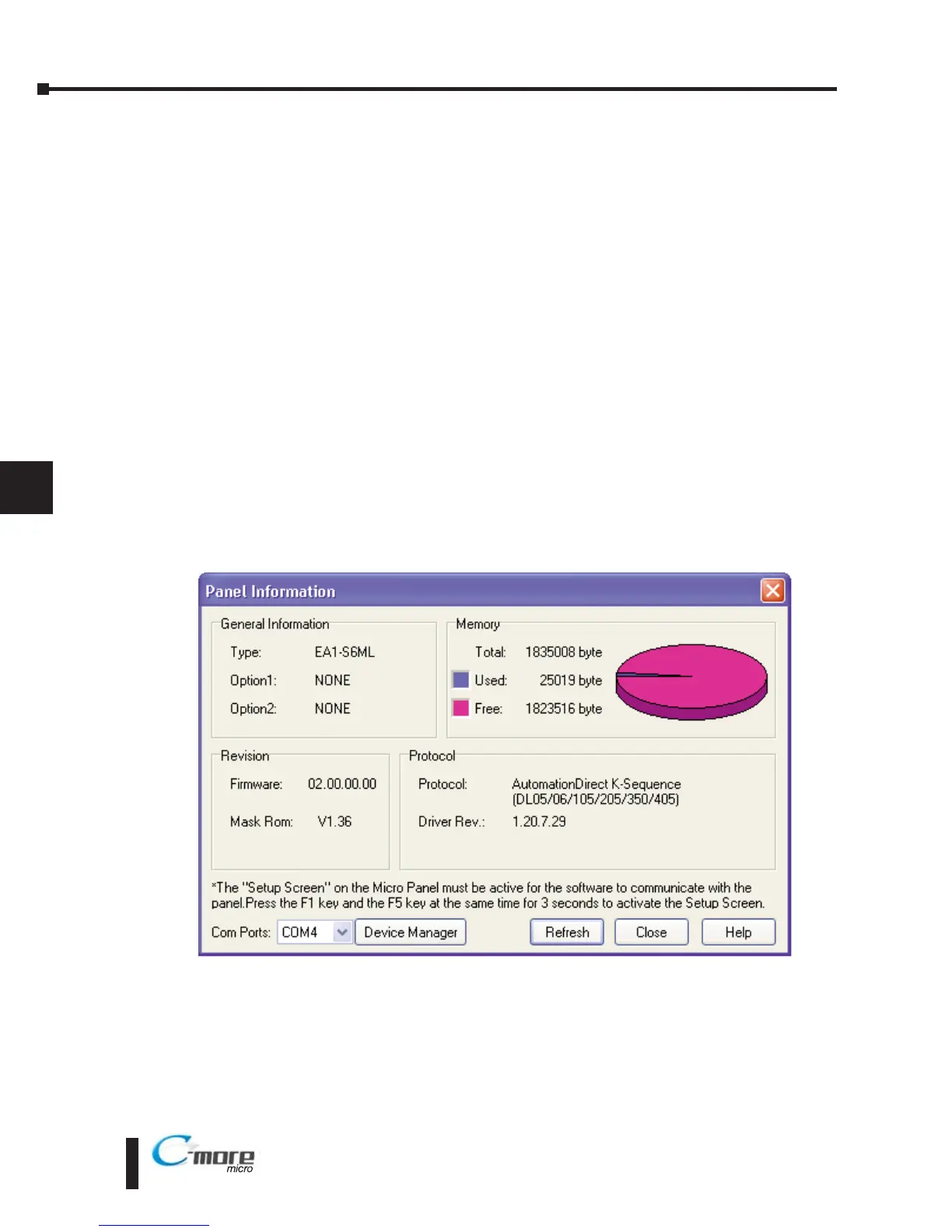
EA-MG-PGMSW, installed, and the panel is connected to the PC, you can check the status of
the panel from the Panel Information window.
The Panel Information window shown below will indicate the panel type, if a keypad bezel has
been installed, the total memory, memory used, free memory, firmware version, mask ROM
version, and the PLC protocol selected for its serial communication ports. The programming
software can also be used to update the panel’s firmware to the latest version.
7–6
Chapter 7: Maintenance



 To Next Page
 Loading...