[b-,,:
SET]
Use
the
custom
white
balance
setting
to
make
white
sUbjects
appear
white
under
colored
lighting.
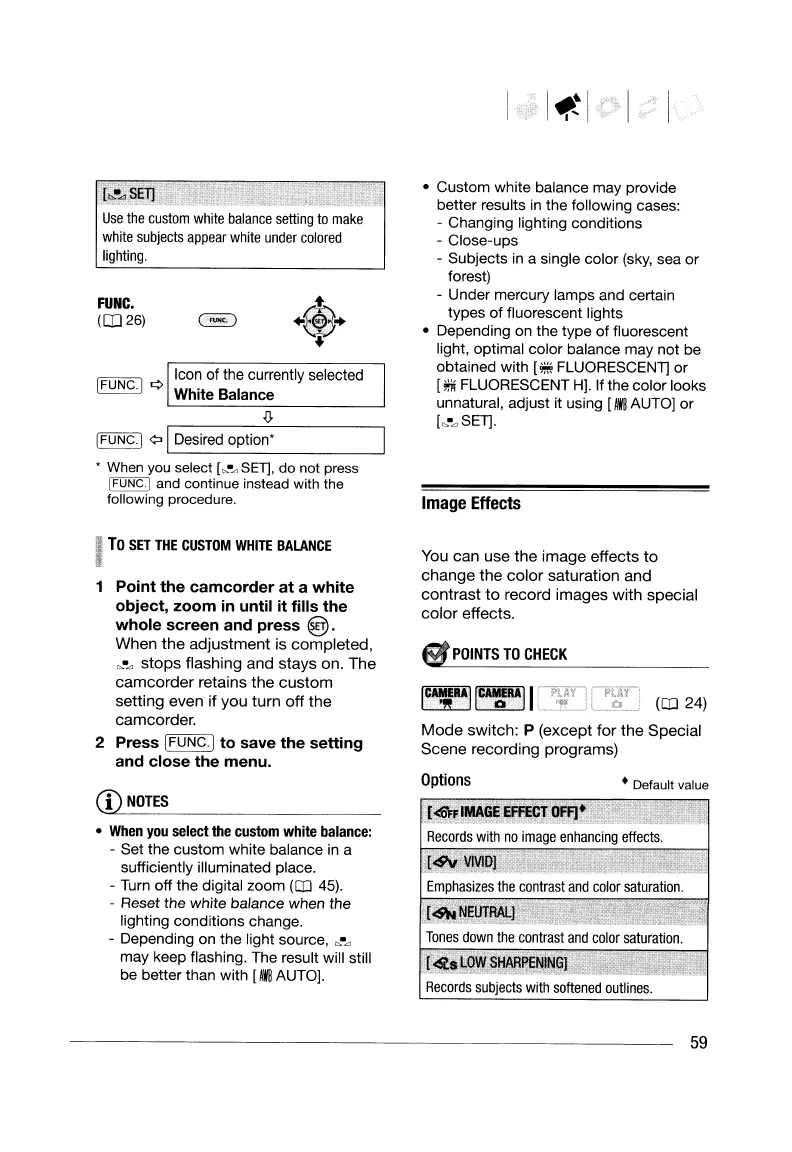
FUNC.
(0]26)
Icon
of
the
currently selected
IFUNG.!
Q White Balance
~
IFUNG.!
¢o
IDesired
option'
, When you select
[~.~
SET], do not press
IFUNC·I and continue instead with the
following procedure.
I
To
SET
THE
CUSTOM
WHITE
BALANCE
1
Point
the
camcorder
at
a
white
object,
zoom
in
until
it
fills
the
whole
screen
and
press
@.
When
the
adjustment
is
completed,
~.~
stops
flashing
and
stays
on.
The
camcorder
retains
the
custom
setting
even
if
you
turn
off
the
camcorder.
2
Press
I
FUNG.!
to
save
the
setting
and
close
the
menu.
CD
NOTES
•
When
you
select
the
custom
white
balance:
-
Set
the
custom
white
balance
in a
sufficiently illuminated place.
- Turn
off
the
digital
zoom
(CD
45).
- Reset
the
white
balance
when
the
lighting
conditions
change.
-
Depending
on
the
light source,
~.~
may
keep flashing. The result will still
be
better
than
with
[IWB
AUTO].
•
Custom
white
balance
may
provide
better
results in
the
following
cases:
-
Changing
lighting
conditions
-
Close-ups
-
Subjects
in a single
color
(sky, sea
or
forest)
-
Under
mercury
lamps
and certain
types
of
fluorescent lights
•
Depending
on
the
type
of
fluorescent
light,
optimal
color
balance
may
not
be
obtained
with
[** FLUORESCENT]
or
[*" FLUORESCENT H].
If
the
color
looks
unnatural,
adjust
it using
[Ira
AUTO]
or
[~·~SET].
Image
Effects
You
can
use
the
image
effects
to
change
the
color
saturation
and
contrast
to
record
images
with
special
color
effects.
S
POINTS
TO
CHECK
~~18~
(CD
24)
Mode
switch:
P
(except
for
the
Special
Scene
recording
programs)
Options • Default
value
[~IMAGE
EFFECT
OFF).
Records
with
no
image
enhancing
effects.
[<$'v
VIVID]
Emphasizes
the
contrast
and
color
saturation.
[~
NEl:JTRAl..]
Tones
down
the
contrast
and
color
saturation.
[~s
LOWS~P,EN.INGl
Records
subjects
with
softened
outlines.
59
[b-,,:
SET]
Use
the
custom
white
balance
setting
to
make
white
sUbjects
appear
white
under
colored
lighting.
FUNC.
(0]26)
Icon
of
the
currently selected
IFUNG.!
Q White Balance
~
IFUNG.!
¢o
IDesired
option'
, When you select
[~.~
SET], do not press
IFUNC·I and continue instead with the
following procedure.
I
To
SET
THE
CUSTOM
WHITE
BALANCE
1
Point
the
camcorder
at
a
white
object,
zoom
in
until
it
fills
the
whole
screen
and
press
@.
When
the
adjustment
is
completed,
~.~
stops
flashing
and
stays
on.
The
camcorder
retains
the
custom
setting
even
if
you
turn
off
the
camcorder.
2
Press
I
FUNG.!
to
save
the
setting
and
close
the
menu.
CD
NOTES
•
When
you
select
the
custom
white
balance:
-
Set
the
custom
white
balance
in a
sufficiently illuminated place.
- Turn
off
the
digital
zoom
(CD
45).
- Reset
the
white
balance
when
the
lighting
conditions
change.
-
Depending
on
the
light source,
~.~
may
keep flashing. The result will still
be
better
than
with
[IWB
AUTO].
•
Custom
white
balance
may
provide
better
results in
the
following
cases:
-
Changing
lighting
conditions
-
Close-ups
-
Subjects
in a single
color
(sky, sea
or
forest)
-
Under
mercury
lamps
and certain
types
of
fluorescent lights
•
Depending
on
the
type
of
fluorescent
light,
optimal
color
balance
may
not
be
obtained
with
[** FLUORESCENT]
or
[*" FLUORESCENT H].
If
the
color
looks
unnatural,
adjust
it using
[Ira
AUTO]
or
[~·~SET].
Image
Effects
You
can
use
the
image
effects
to
change
the
color
saturation
and
contrast
to
record
images
with
special
color
effects.
S
POINTS
TO
CHECK
~~18~
(CD
24)
Mode
switch:
P
(except
for
the
Special
Scene
recording
programs)
Options • Default
value
[~IMAGE
EFFECT
OFF).
Records
with
no
image
enhancing
effects.
[<$'v
VIVID]
Emphasizes
the
contrast
and
color
saturation.
[~
NEl:JTRAl..]
Tones
down
the
contrast
and
color
saturation.
[~s
LOWS~P,EN.INGl
Records
subjects
with
softened
outlines.
59


 To Next Page
 Loading...