132
Functions
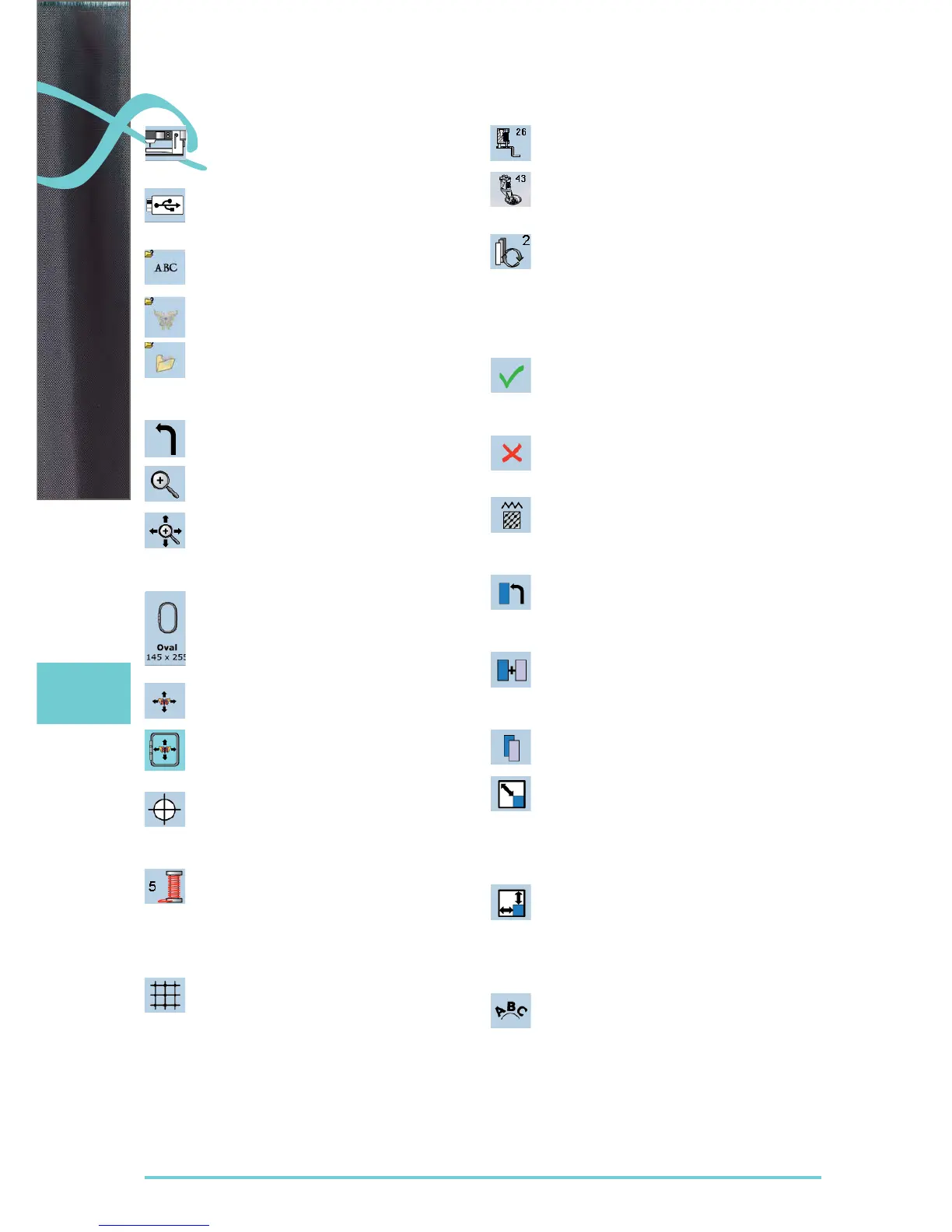
Embroidery Mode
select embroidery motifs from the folders ►
«Alphabets», «Motifs», or «My Designs»
USB Stick
access embroidery motifs which are saved on ►
the USB stick
Selecting Alphabets
access built-in embroidery alphabets ►
Selecting Motifs
access built-in embroidery motifs ►
Selecting My Designs
access personal, saved embroidery or sewing ►
motifs
access the last motif sewn ►
Return to Selection Menu
back to selection screen ►
Zoom
the motif is enlarged ►
Moving the Enlarged Motif
the motif can be moved right on the screen ►
in all directions with your finger or the touch
pen
Select Hoop Menu
display of the optimal hoop for the embroidery ►
motif selected
touch the icon and the screen with the hoop
►
selection appears
Virtual Positioning
icon is inactive (gray) if the motif is reposi- ►
tioned, the hoop does not move
touch icon (blue active) if the motif is reposi- ►
tioned, the hoop simultaneously moves with it
to the new position
Motif Center
the motif center is indicated by the cursor ►
the hoop is moved until the needle is exactly ►
in the center of the motif
Color Numbers
display of motif color numbers ►
touch the icon ►
color information bar appears ►
to close color information bar, touch icon ►
again
Show Grid
touch once - a large cross hair cursor indi- ►
cates the hoop center
touch the icon again, the template grid ►
appears on screen to position the embroidery
motif accurately
touch third time to deactivate all ►
Presser foot indicator
embroidery foot no. 26 is displayed by default ►
for couching cords in an embroidery motif ►
touch the icon
touch «Free Motion Couching Foot no. 43»
►
and attach presser foot no. 43
Retrieve
function only appears when combining ►
designs
switches between the motifs combined ►
active motif is shown in color ►
touch the icon to activate a motif or a motif ►
combination
Change to Embroidery Menu
the screen changes to embroidery menu ►
and the embroidery motif is ready to be
embroidered
Leave Active Screen
close application ►
return to the last active screen ►
Change Stitch Type
satin stitches can be changed to step stitches ►
(fill stitches)
the stitch density can be altered ►
New Motif
the overview of the last opened function ►
(Alphabets, Motifs, My Designs) appears
select new motif ►
Add Motif
the overview of the last opened function ►
(Alphabets, Motifs, My Designs) appears
add new Motif to another Motif ►
Duplicate Motif
active embroidery motif is duplicated ►
Rescale Motif Proportionally
display of the alteration in percent (%) ►
to enlarge motif, turn stitch width knob ►
clockwise
to reduce motif, turn stitch width knob counter- ►
clockwise
Rescale Motif in Height or Width
display of the alteration in percent (%) ►
to change embroidery motif sideways (hori- ►
zontal), turn stitch width knob
to change embroidery motif lengthwise
►
(vertical), turn stitch length knob
Letter Manipulation
display of the alteration in percent (%) ►
turn the stitch width knob to change letter ►
spacing in mm steps between letters
turn the stitch length knob the letters form a
►
convex or a concave arc
Some functions feature tips for the operating of the Stitch Width and Stitch Length Knobs. Altered
embroidery motifs are reset to their basic settings by touching the respective icons.
Embroidery


 To Next Page
 Loading...